English
English
Appearance
Connect a Pinterest account to Repliz to schedule pins to its boards from your workspace.
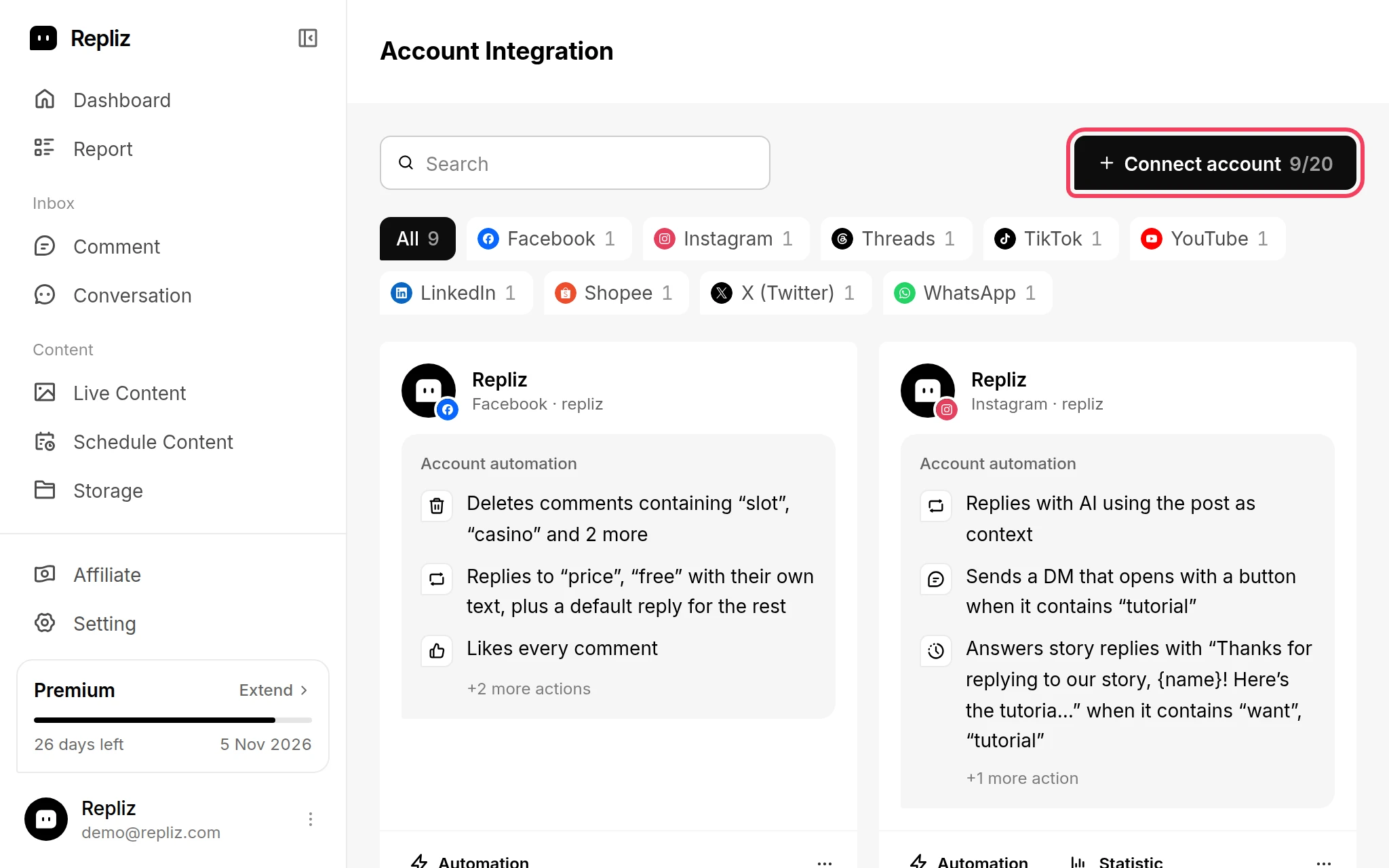
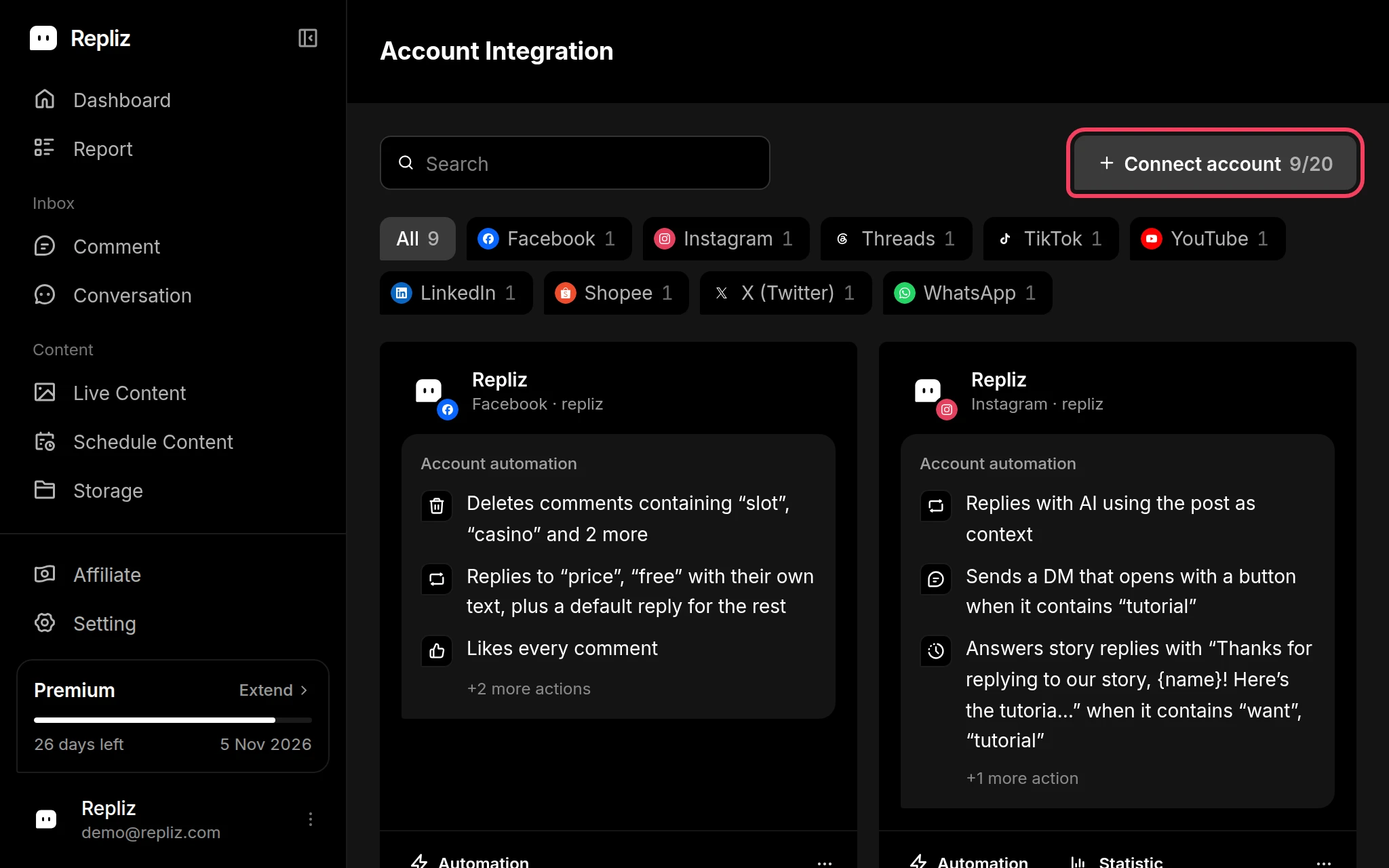
Open Account Integration in your Repliz dashboard and click Connect account.
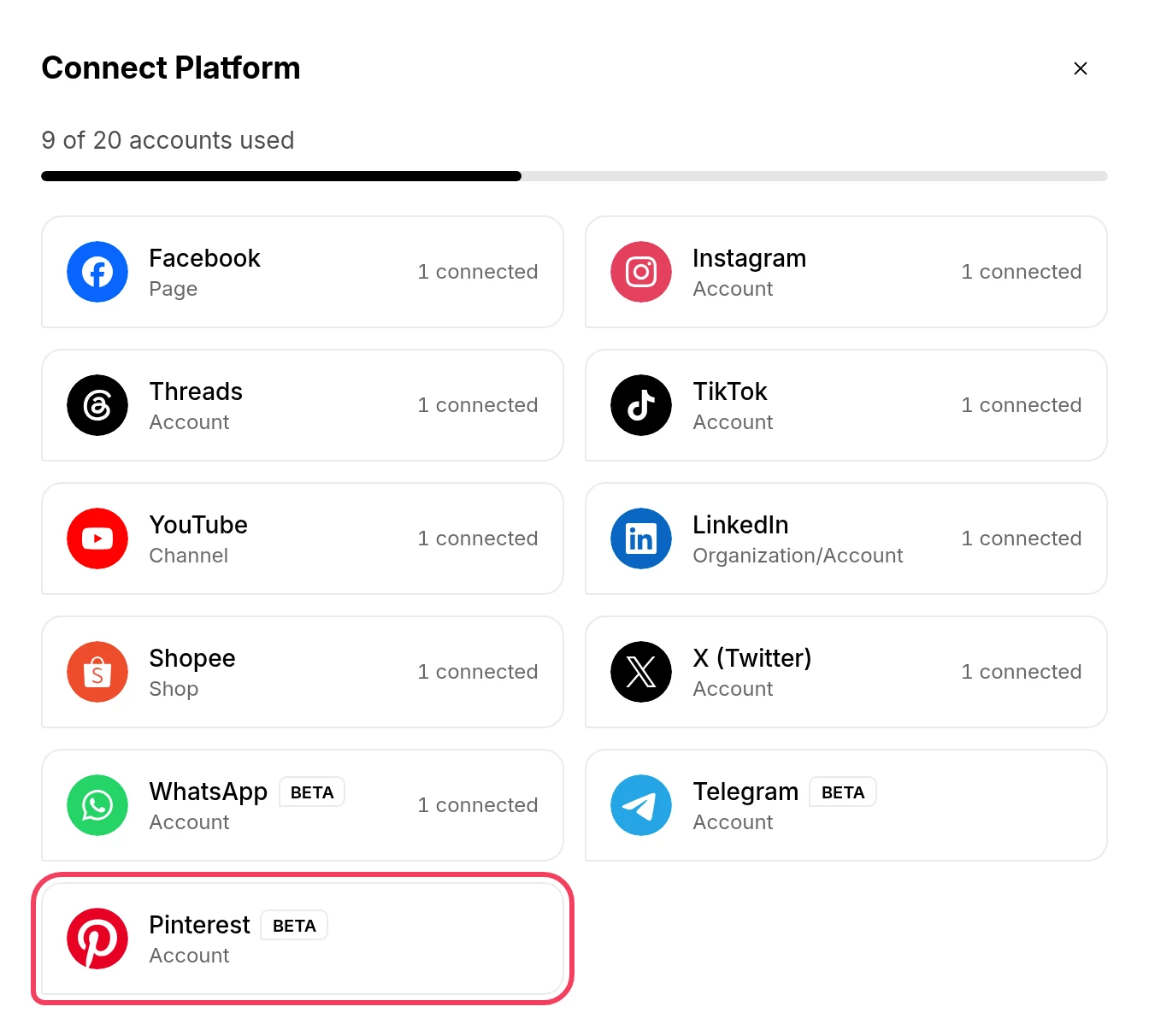
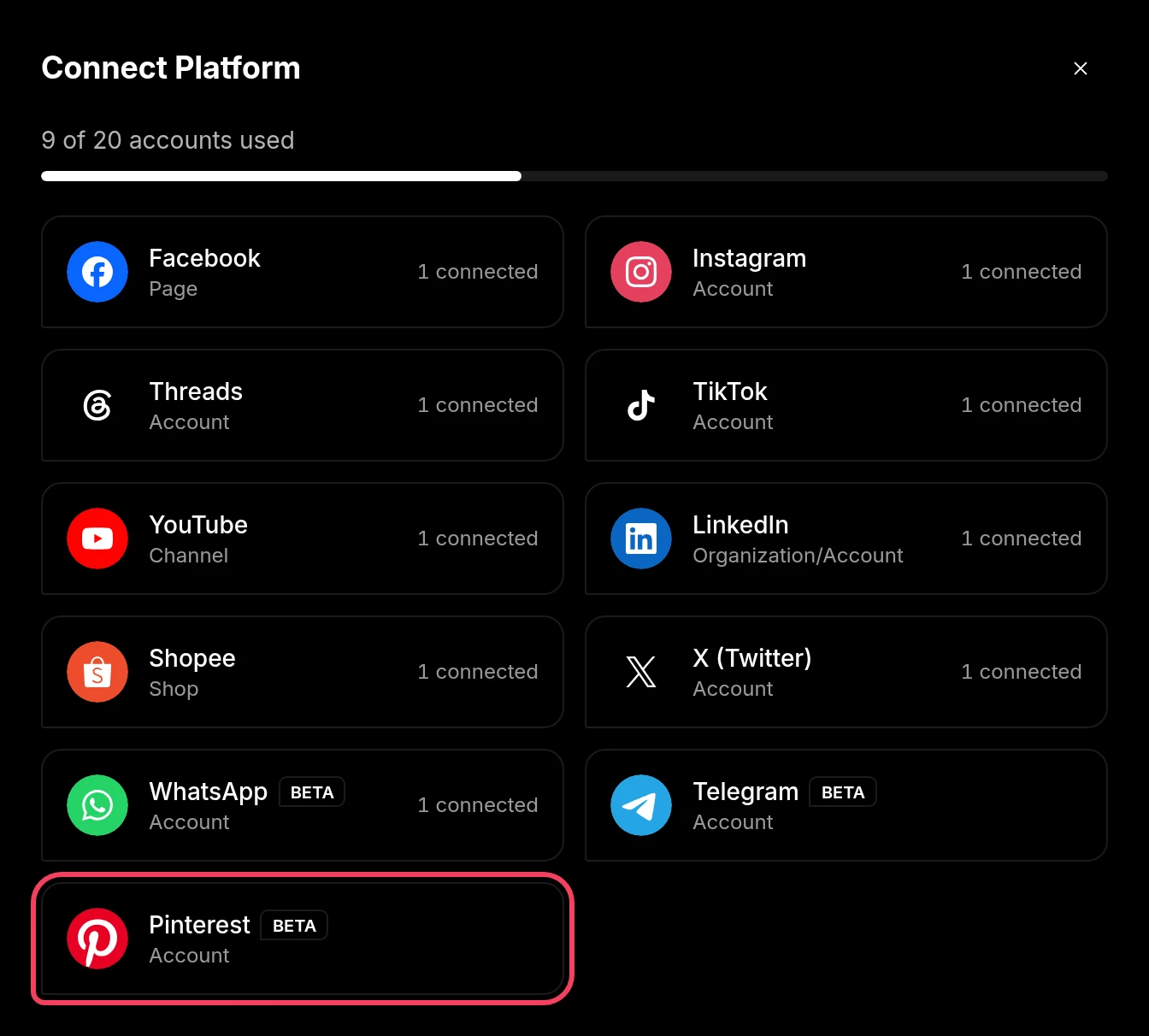
In the Connect Platform window, click Pinterest (labeled Account).
Pinterest opens. Log in to the account you want to connect, then give Repliz access to it.
You return to Repliz, which connects the account automatically. It shows Account successfully connected and takes you back to Account Integration, where your account now appears.
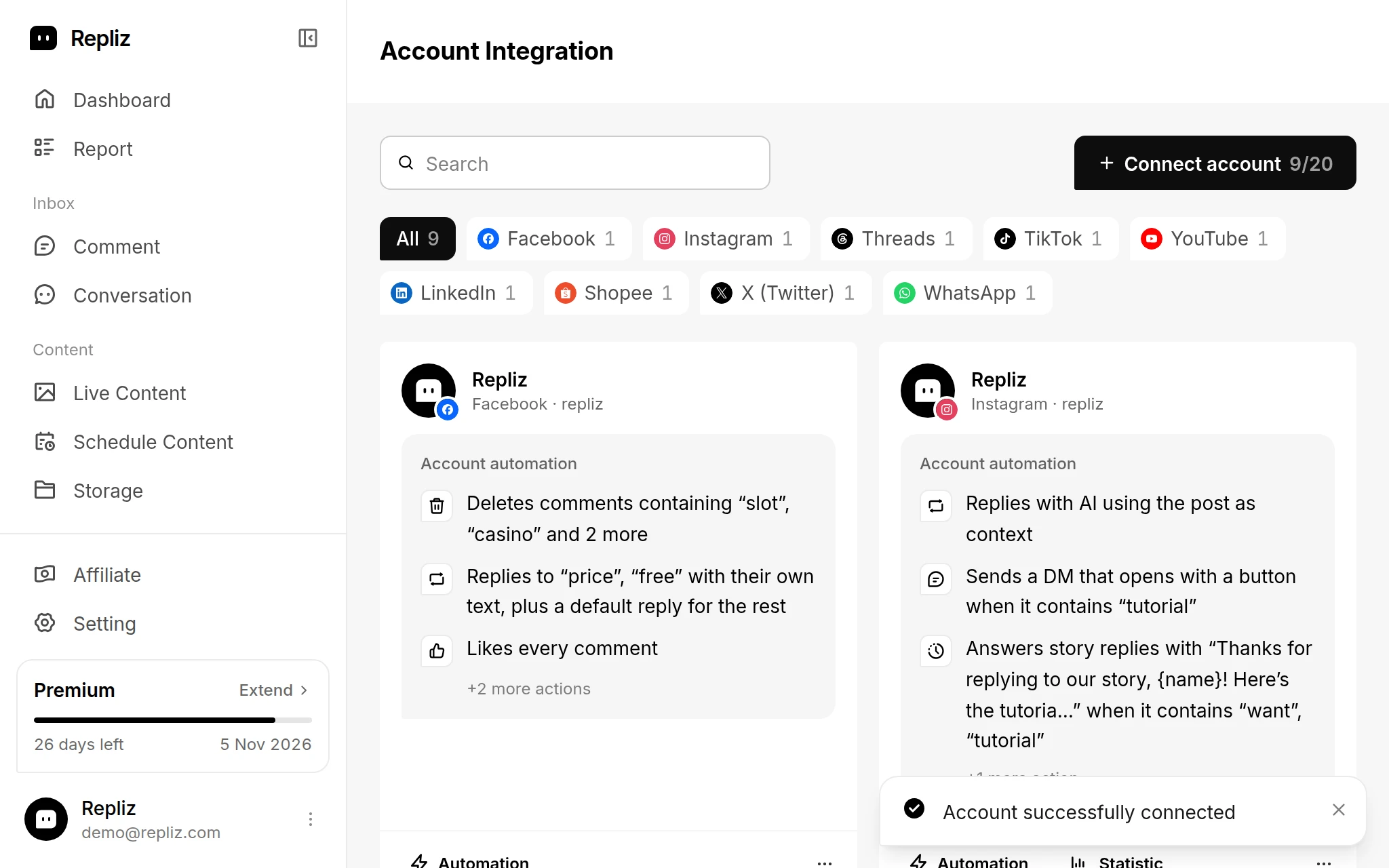
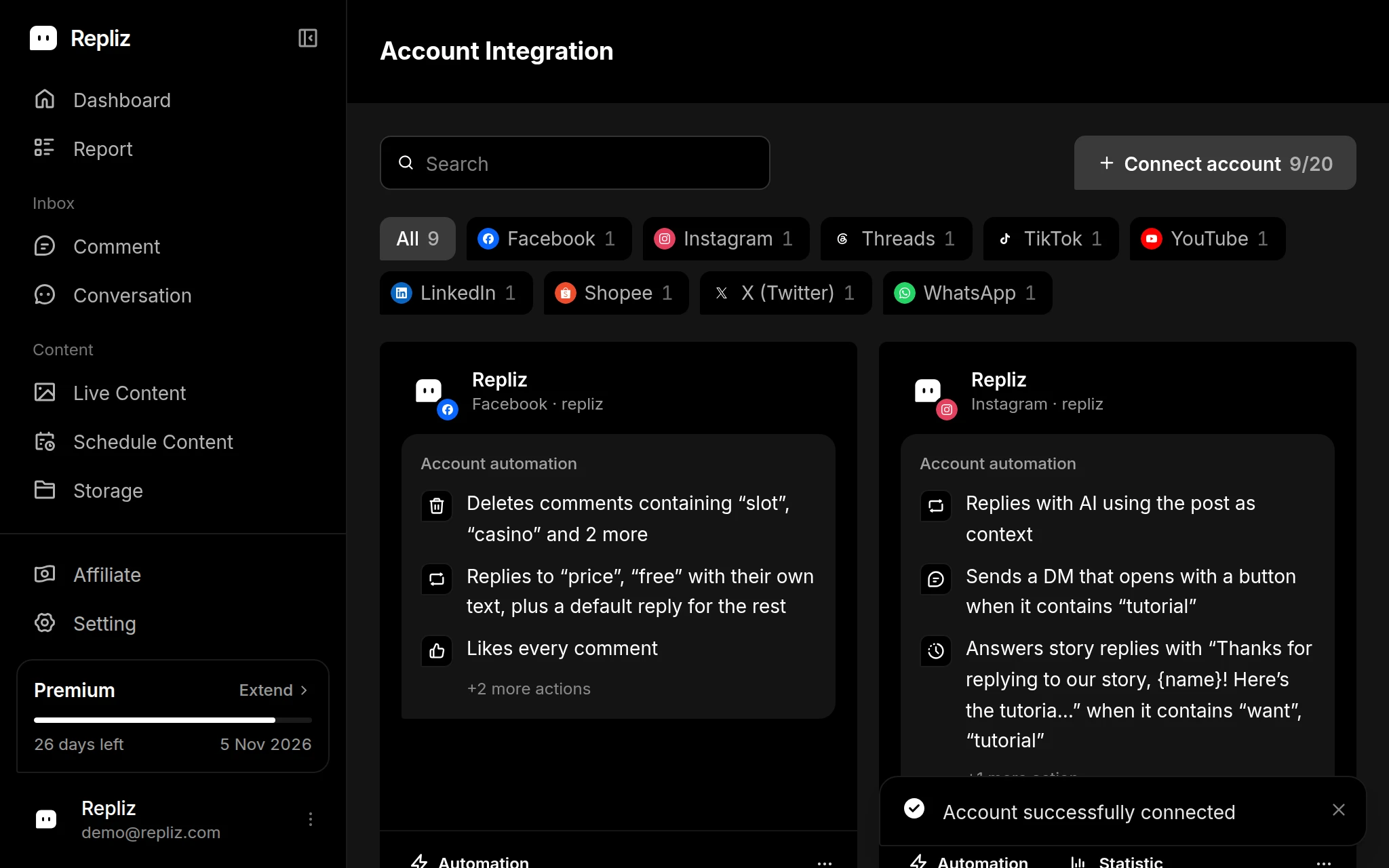
You connect the Pinterest account, not its boards, so the account uses one slot however many boards it has. You pick the board each time you schedule a pin:
See the Pinterest specifications for the post types, the destination link, and the text limits.
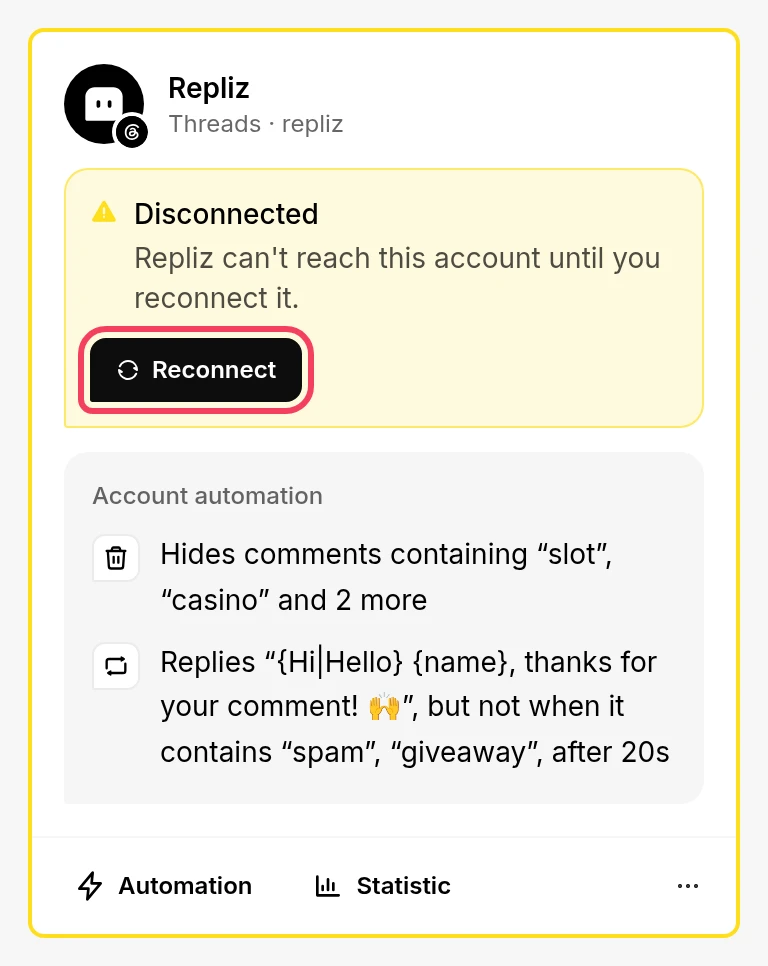
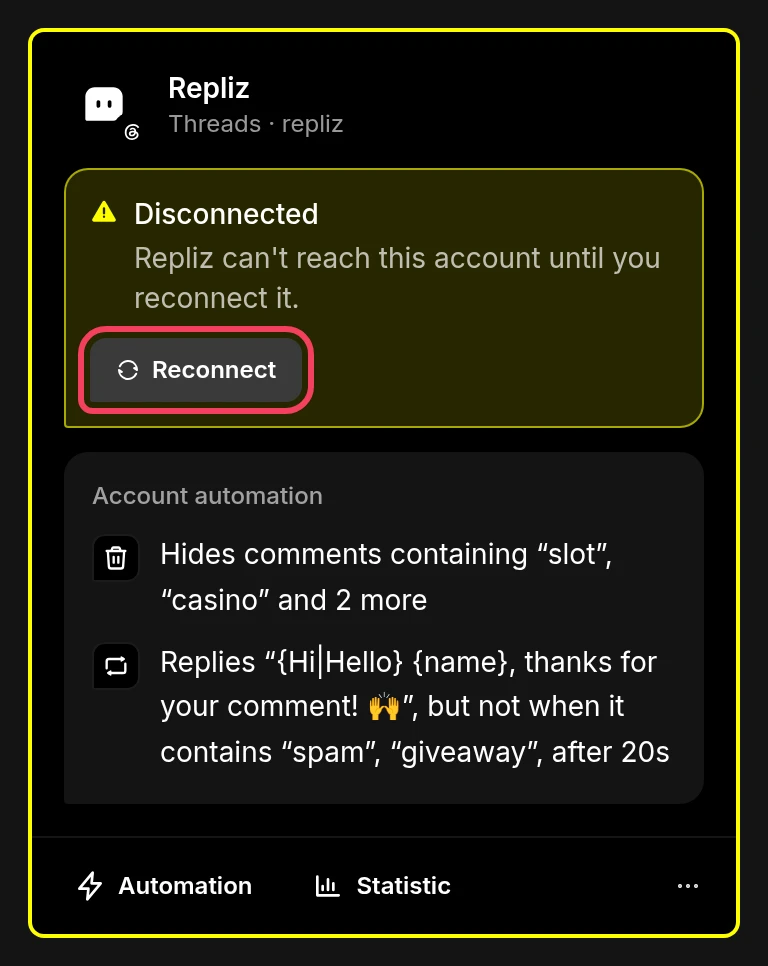
If Repliz loses access to the account, for example when its access expires or you remove Repliz's access on Pinterest, its card in Account Integration gets a yellow outline and a Disconnected notice. To fix it:
Next, check the Pinterest specifications for what you can post.