English
English
Appearance
Connect Repliz to the Claude desktop app. There are two ways:
| Option 1: Connector | Option 2: Local config | |
|---|---|---|
| Use it when | Recommended for everyone: you sign in to Repliz once | Your organization has turned custom connectors off, or you'd rather keep the keys in a file on your computer |
| Set up | Once for your Claude account; it also works on the web and in the mobile app | On each computer |
| Needs | Nothing extra | Node.js 18 or later |
Both need a Standard, Premium, or Gold Repliz plan. The tools Claude can use follow your plan; see Available tools.
Connectors belong to your Claude account, not to one app. If you already added Repliz on Claude Website, it's in the desktop app too: go straight to step 3.
In the desktop app, select Customize in the sidebar, then Connectors.
Add Repliz and sign in the same way as on the web, following steps 1 to 3 of the Claude Website guide.
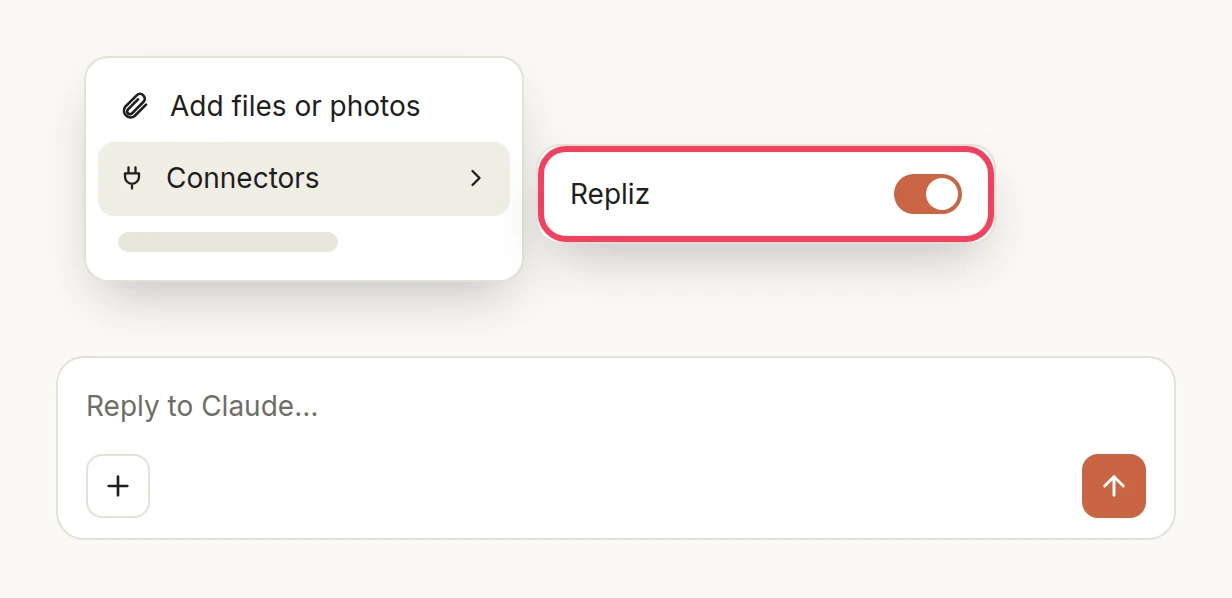
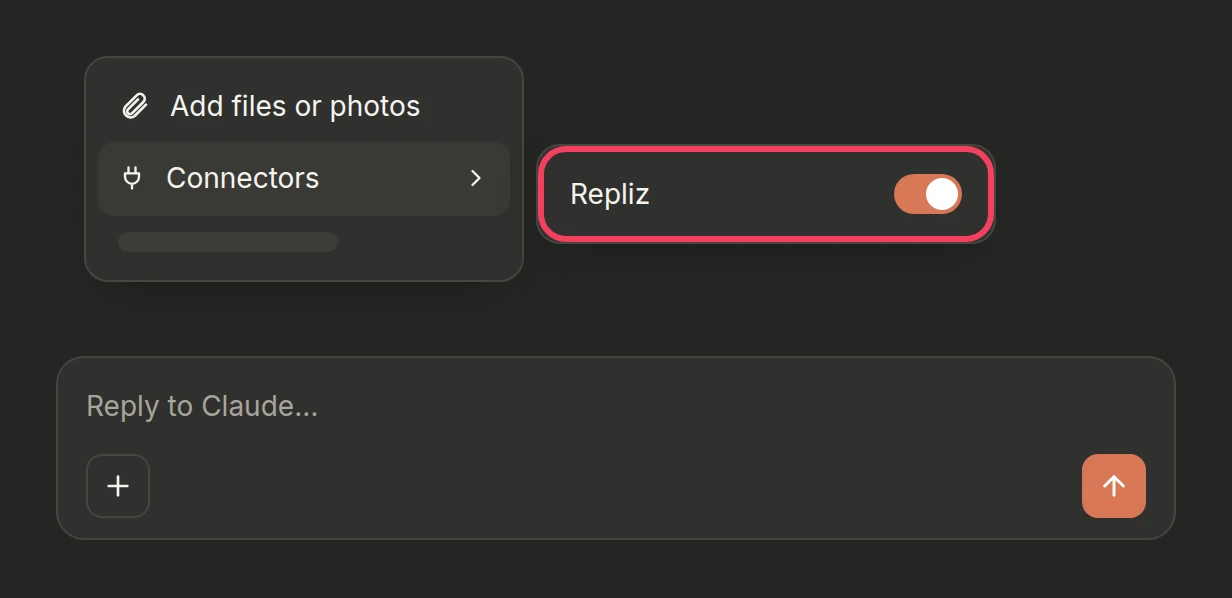
In a chat, click + in the message box, choose Connectors, and turn Repliz on.
Without a connector, the desktop app can still reach Repliz through mcp-remote, a small open-source bridge that Claude Desktop runs on your computer. It sends your header to Repliz on every request.
Check that Node.js is installed: run node --version in a terminal. It should print v18 or later. If it doesn't, install the LTS version from nodejs.org.
Copy your Access key and Secret key from Settings → Public API in the Repliz dashboard, paste them below, and copy the result.
Paste both keys to get the value.Worked out in your browser. Your keys are not sent anywhere.
Open the desktop app's own settings, not the account settings inside a chat: on macOS, the Claude menu in the menu bar; on Windows, the app menu at the top left of the window. Choose Settings…, go to Developer, and click Edit Config.
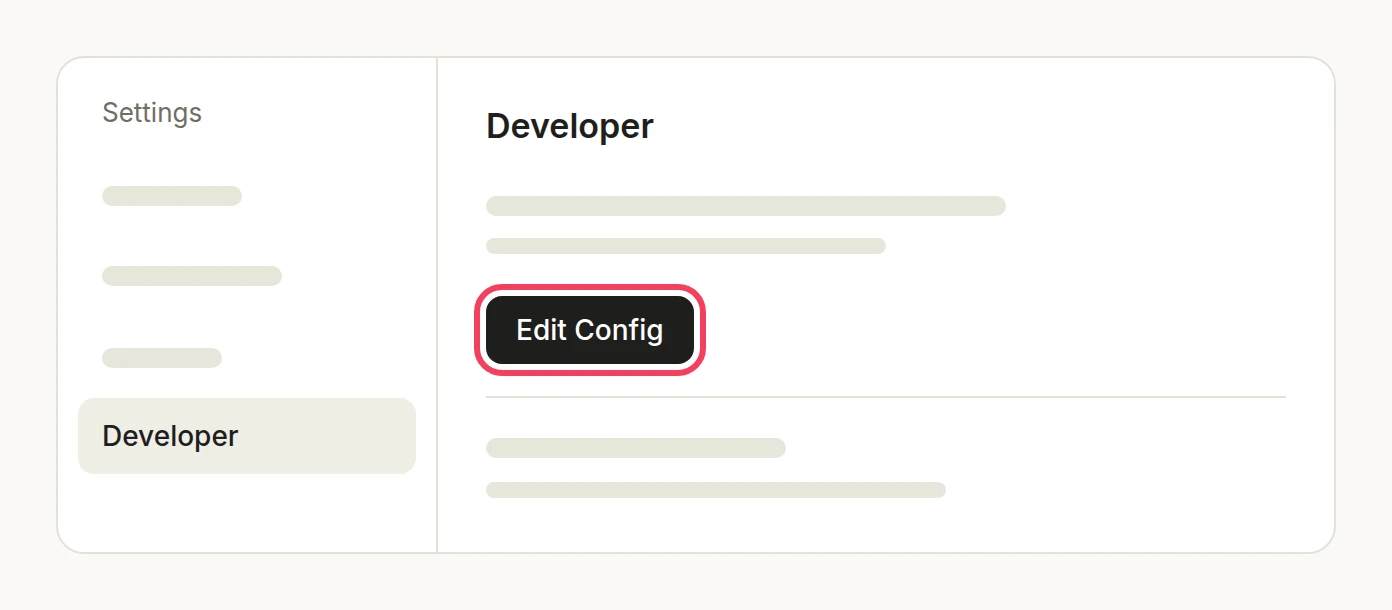
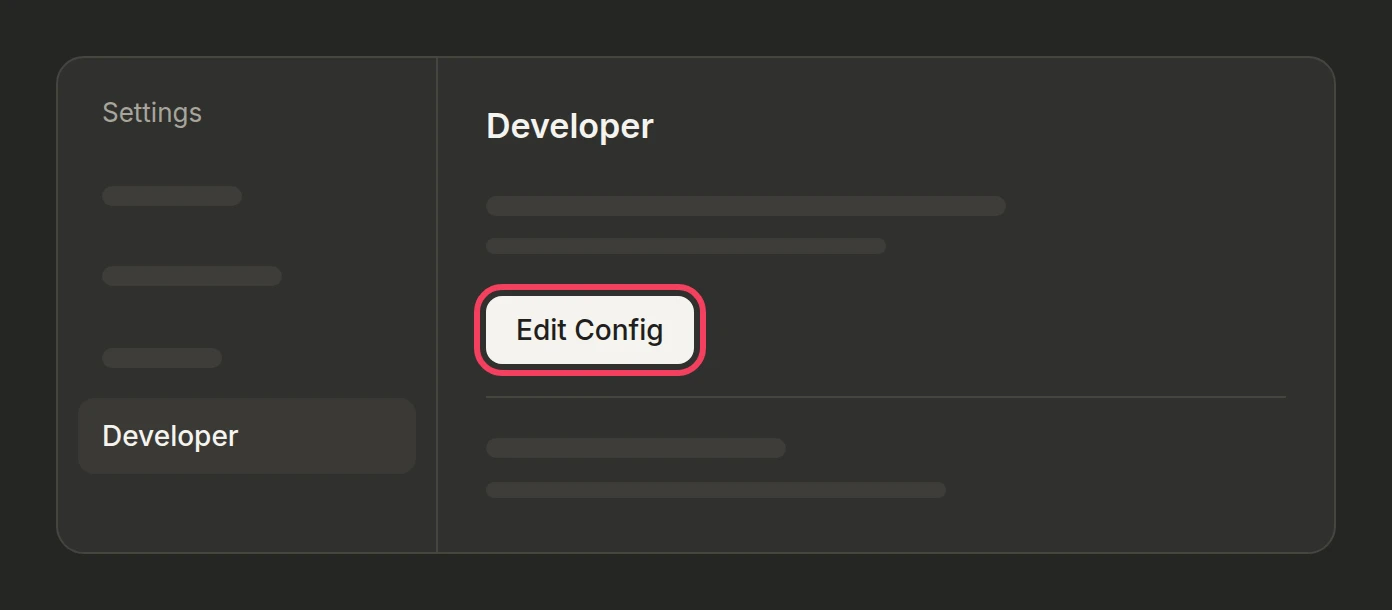
This opens the file claude_desktop_config.json:
~/Library/Application Support/Claude/claude_desktop_config.json%APPDATA%\Claude\claude_desktop_config.jsonAdd Repliz under mcpServers. Replace Basic YOUR_VALUE with the whole value from step 2:
{
  "mcpServers": {
    "repliz": {
      "command": "npx",
      "args": [
        "-y",
        "mcp-remote",
        "https://mcp.repliz.com/mcp",
        "--header",
        "Authorization:${REPLIZ_AUTH}"
      ],
      "env": {
        "REPLIZ_AUTH": "Basic YOUR_VALUE"
      }
    }
  }
}
If the file already lists other servers, put the "repliz": { … } entry next to them inside the same mcpServers.
Save the file, quit Claude Desktop completely, and open it again.
In a chat, click +, choose Connectors, and turn repliz on.
Why the value goes in env
Authorization:${REPLIZ_AUTH} has no space on purpose. On Windows, Claude Desktop passes args on without escaping spaces, which would break a value like Basic …. The value, space included, sits in env instead, and mcp-remote fills it in.
This setup only works on the computer where you made it. It doesn't carry over to the web or the mobile app.
For the connector option, see Claude Website troubleshooting. For the local config:
Repliz doesn't appear under Connectors. Check that the file is still valid JSON (a missing comma between two servers is the usual cause), and that you quit Claude Desktop completely before opening it again. The logs are in ~/Library/Logs/Claude on macOS and %APPDATA%\Claude\logs on Windows; mcp-server-repliz.log holds this server's errors.
A browser opens the Repliz sign-in page, or the log mentions OAuth. Repliz rejected the value in env, so mcp-remote tried to sign in instead. Check that the value starts with Basic and a space, and that the secret key hasn't been reset since you copied it.
The log says npx isn't found. Node.js isn't installed, or Claude Desktop can't see it. Install Node.js from nodejs.org, then quit and reopen Claude Desktop.