Skip to content

Shopee ​

Connect a Shopee shop to Repliz to schedule Shopee Video posts from your workspace.

Before you start ​

  • A Shopee seller account for the shop you want to connect.

Steps ​

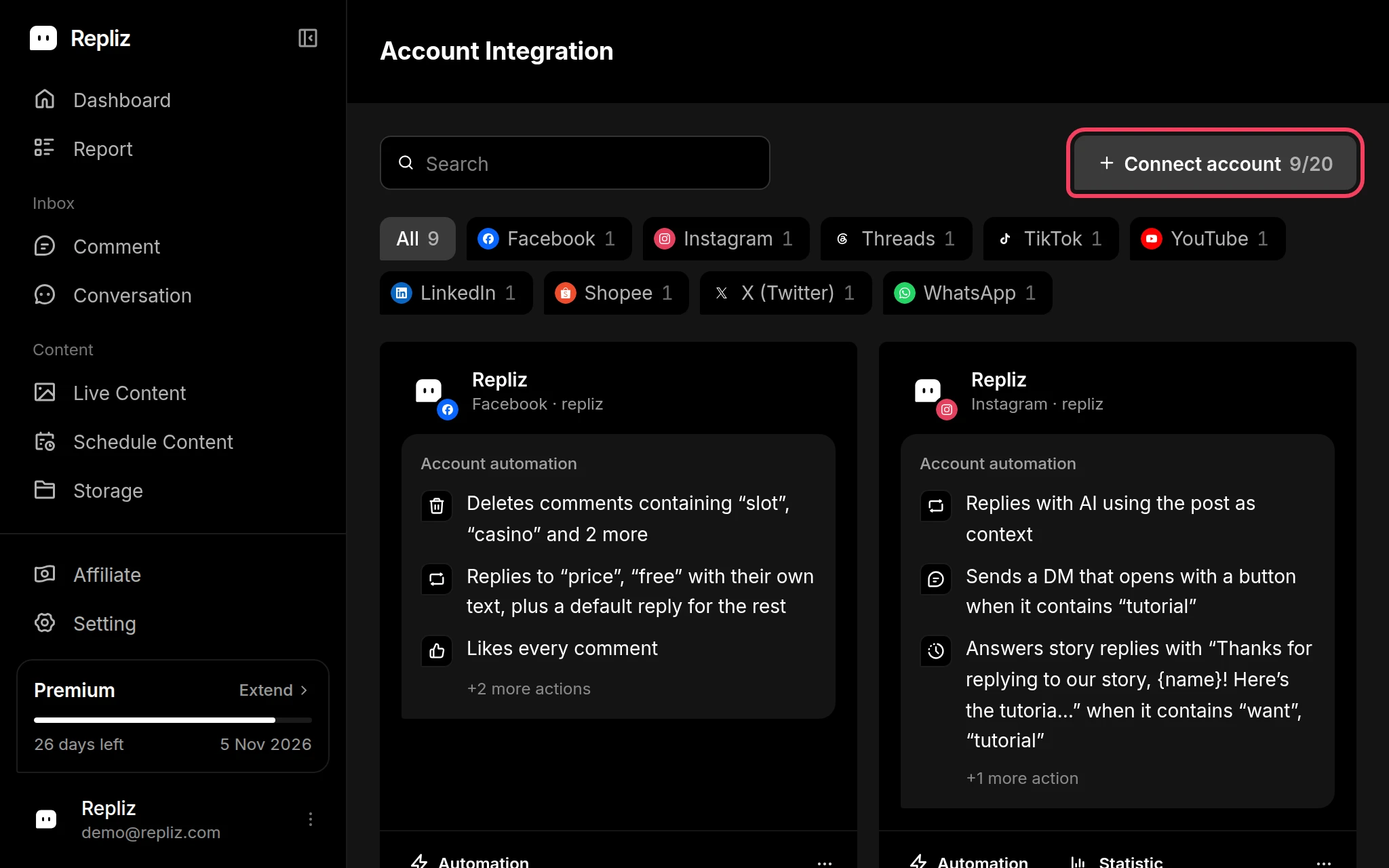
  1. Open Account Integration in your Repliz dashboard and click Connect account.
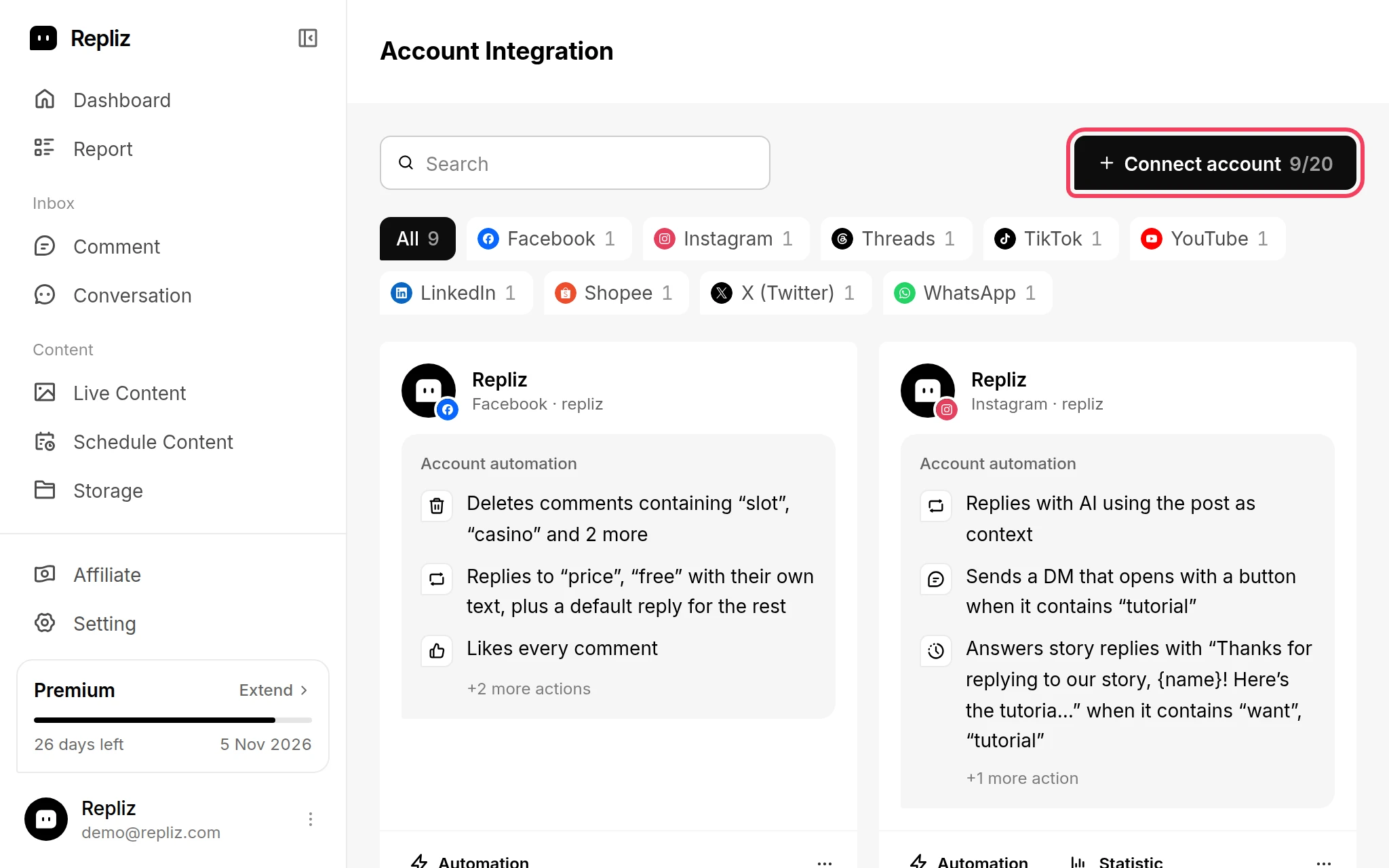
    Account Integration with the Connect account button highlightedAccount Integration with the Connect account button highlighted
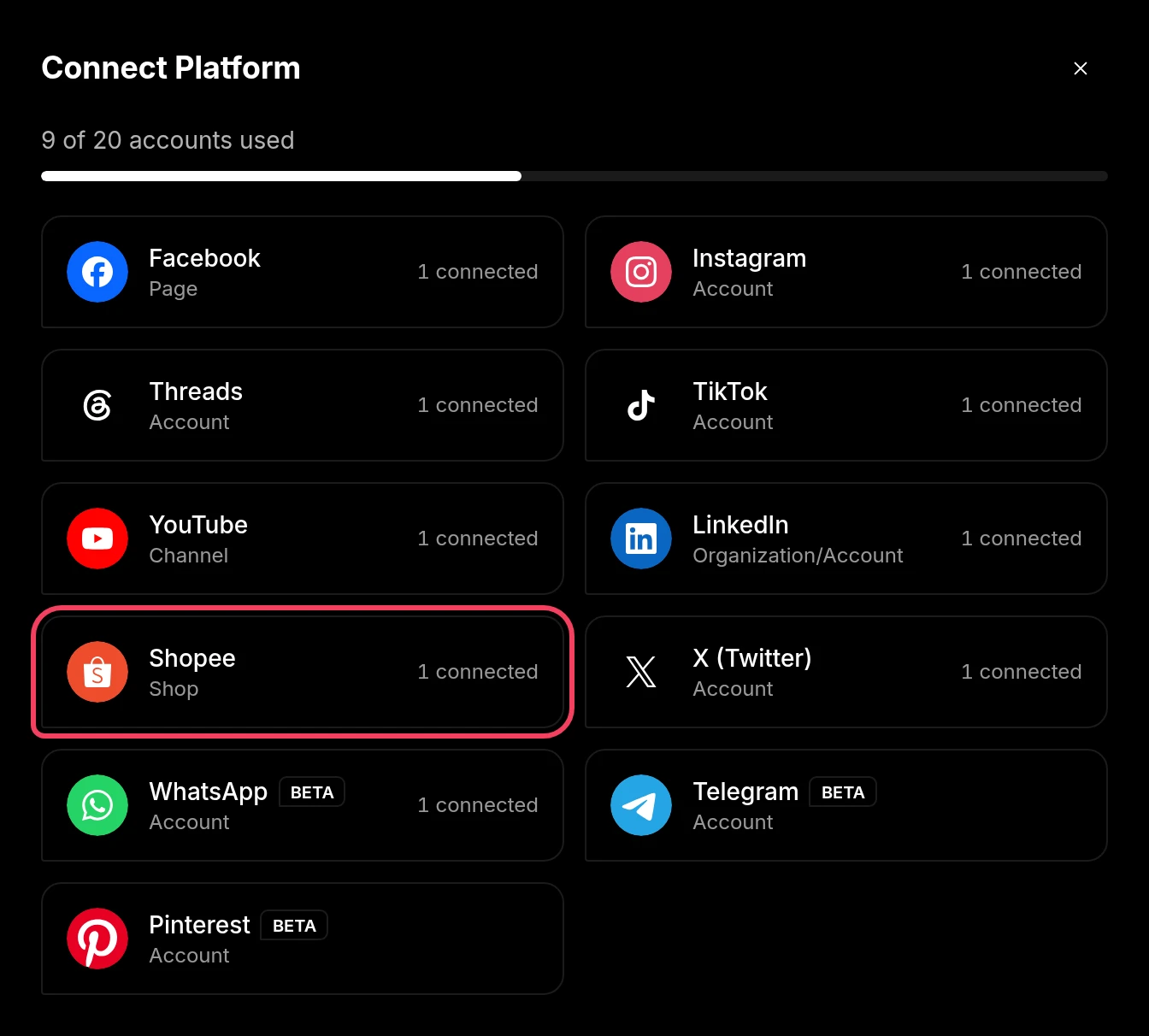
  2. In the Connect Platform window, click Shopee (labeled Shop).
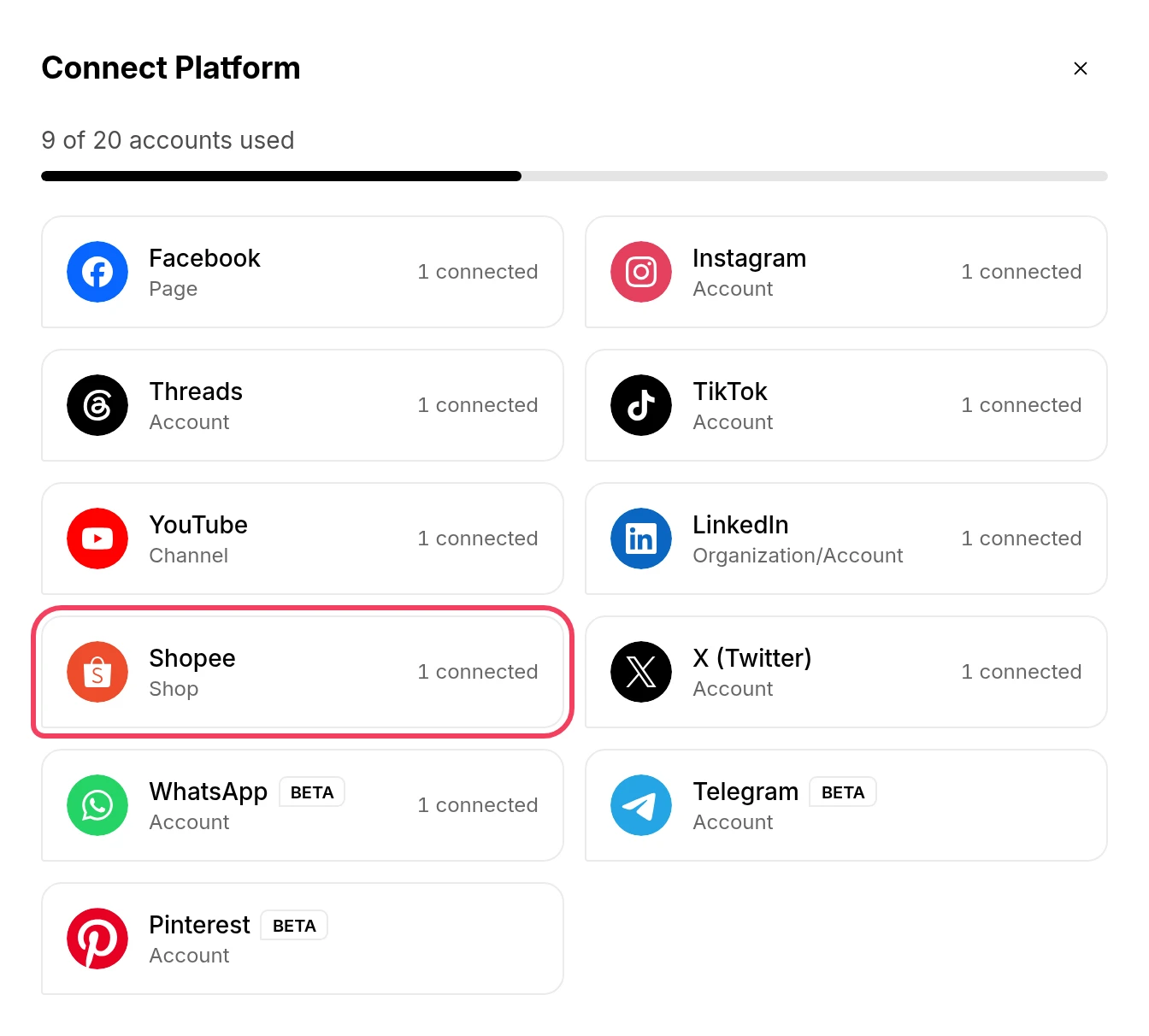
    The Connect Platform window with Shopee highlightedThe Connect Platform window with Shopee highlighted
  3. Shopee's authorization page opens. Log in with your seller account, then confirm the authorization for your shop.

  4. You return to Repliz, which connects the account automatically. It shows Account successfully connected and takes you back to Account Integration, where your account now appears.
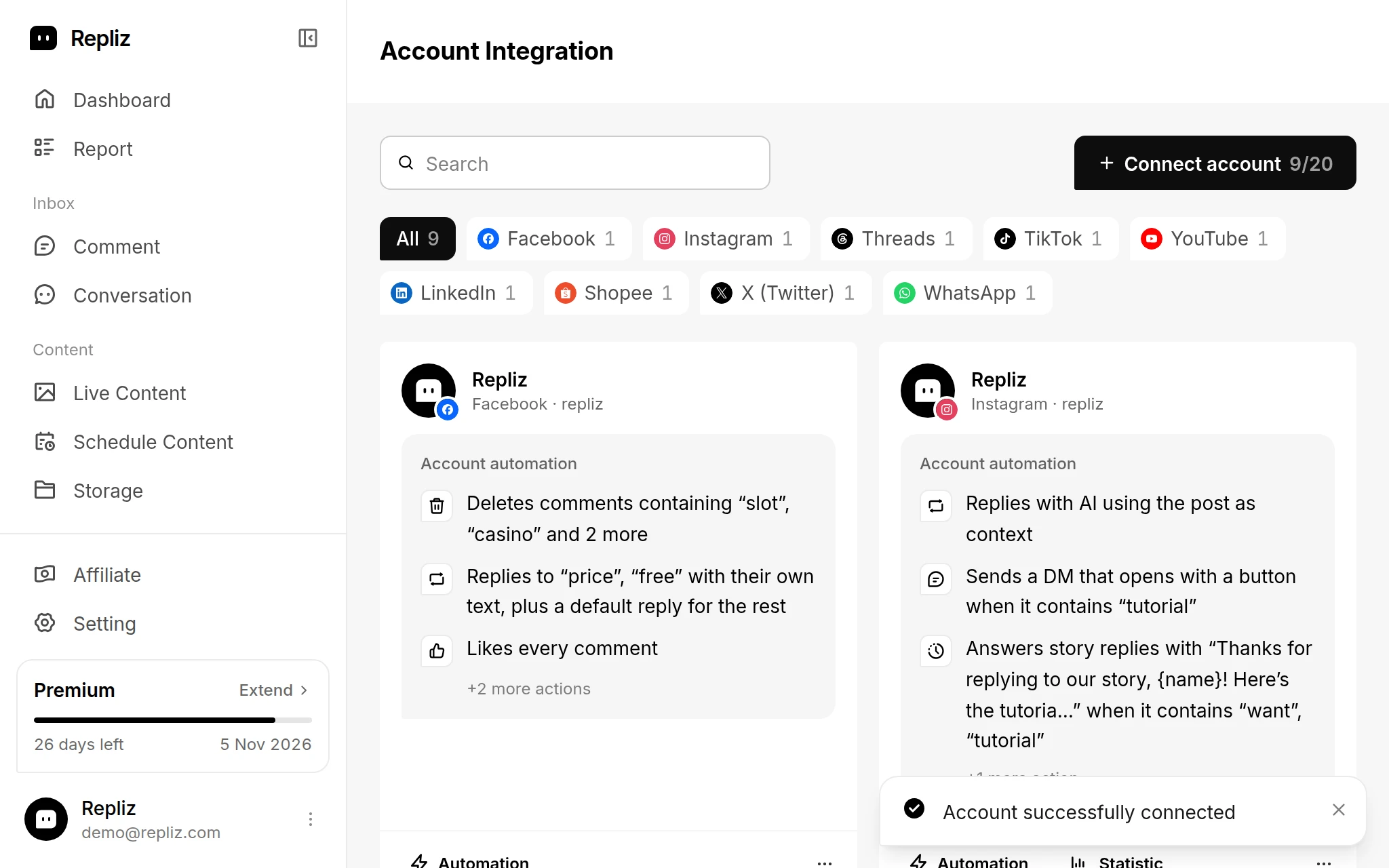
    Account Integration showing the Account successfully connected messageAccount Integration showing the Account successfully connected message

Reconnect ​

If Repliz loses access to the account, for example when its access expires or you remove Repliz's access on Shopee, its card in Account Integration gets a yellow outline and a Disconnected notice. To fix it:
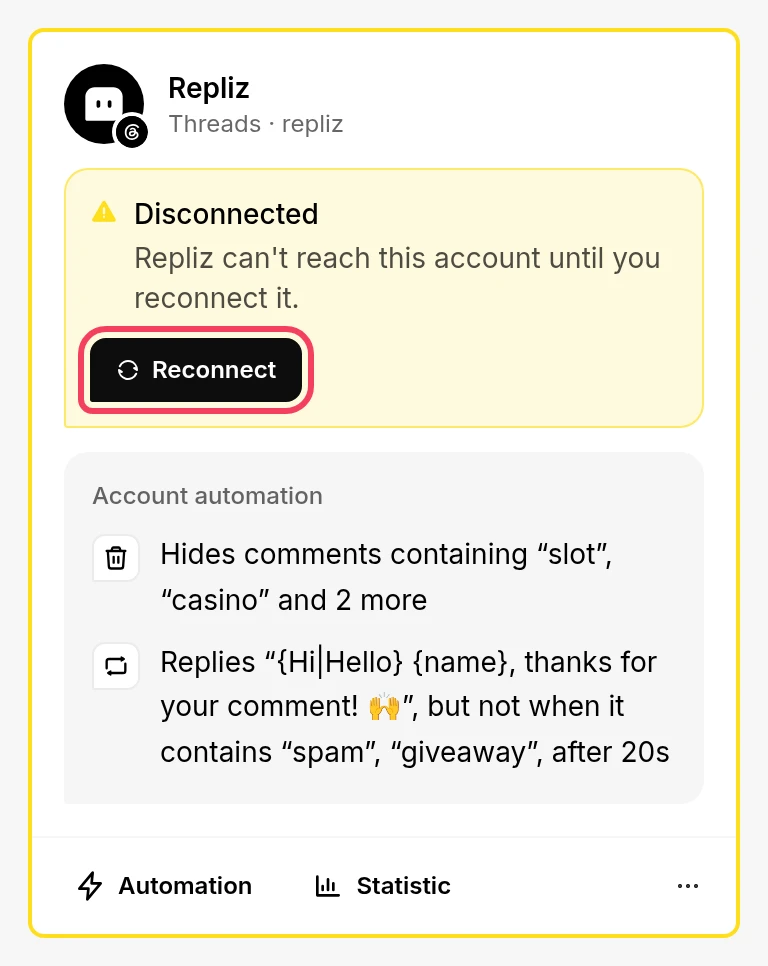
A disconnected account card with the Reconnect button highlightedA disconnected account card with the Reconnect button highlighted
  1. Click Reconnect on the account's card in Account Integration. The same button is also in the card's ⋯ menu.
  2. Shopee opens. Log in with the same Shopee seller account and confirm the authorization again.
  3. Repliz reconnects the account automatically.

Good to know ​

  • Shopee shops are used for scheduling. Automation isn't available for Shopee.
  • The Connect account button is greyed out? Every account slot in your plan is in use. Upgrade your plan or delete an account you no longer need. See Account slots.

Next, check the Shopee specifications before you schedule your first video.