Skip to content

WhatsApp Beta ​

Connect a WhatsApp number to Repliz to schedule posts to its Status, channels, and groups from your workspace.

Before you start ​

  • The phone with the WhatsApp number you want to connect, close at hand. You scan a QR code with it.
  • Repliz links to WhatsApp as a linked device, the same way WhatsApp Web does. The WhatsApp integration is provided by Zawa and is still in beta.

Steps ​

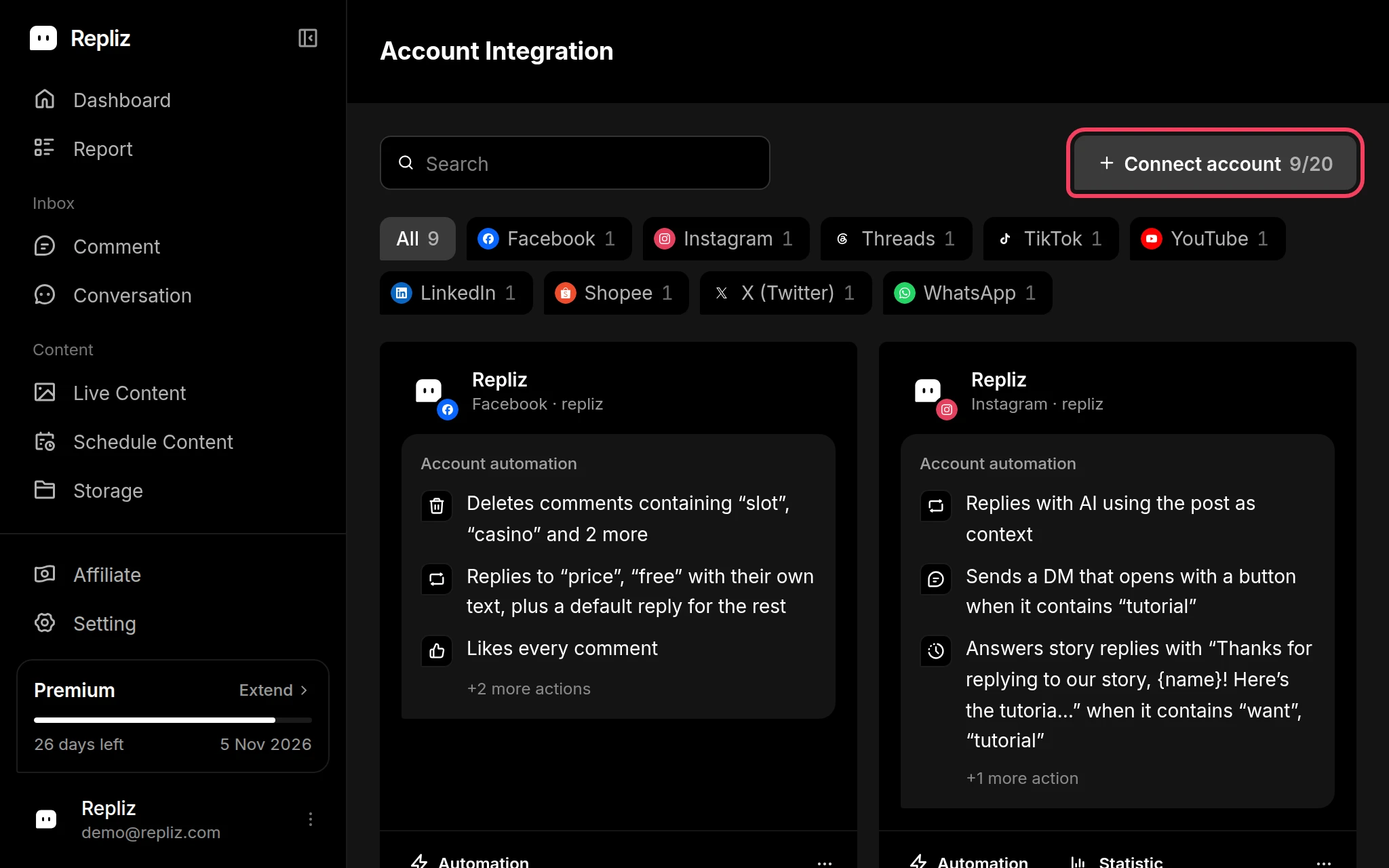
  1. Open Account Integration in your Repliz dashboard and click Connect account.
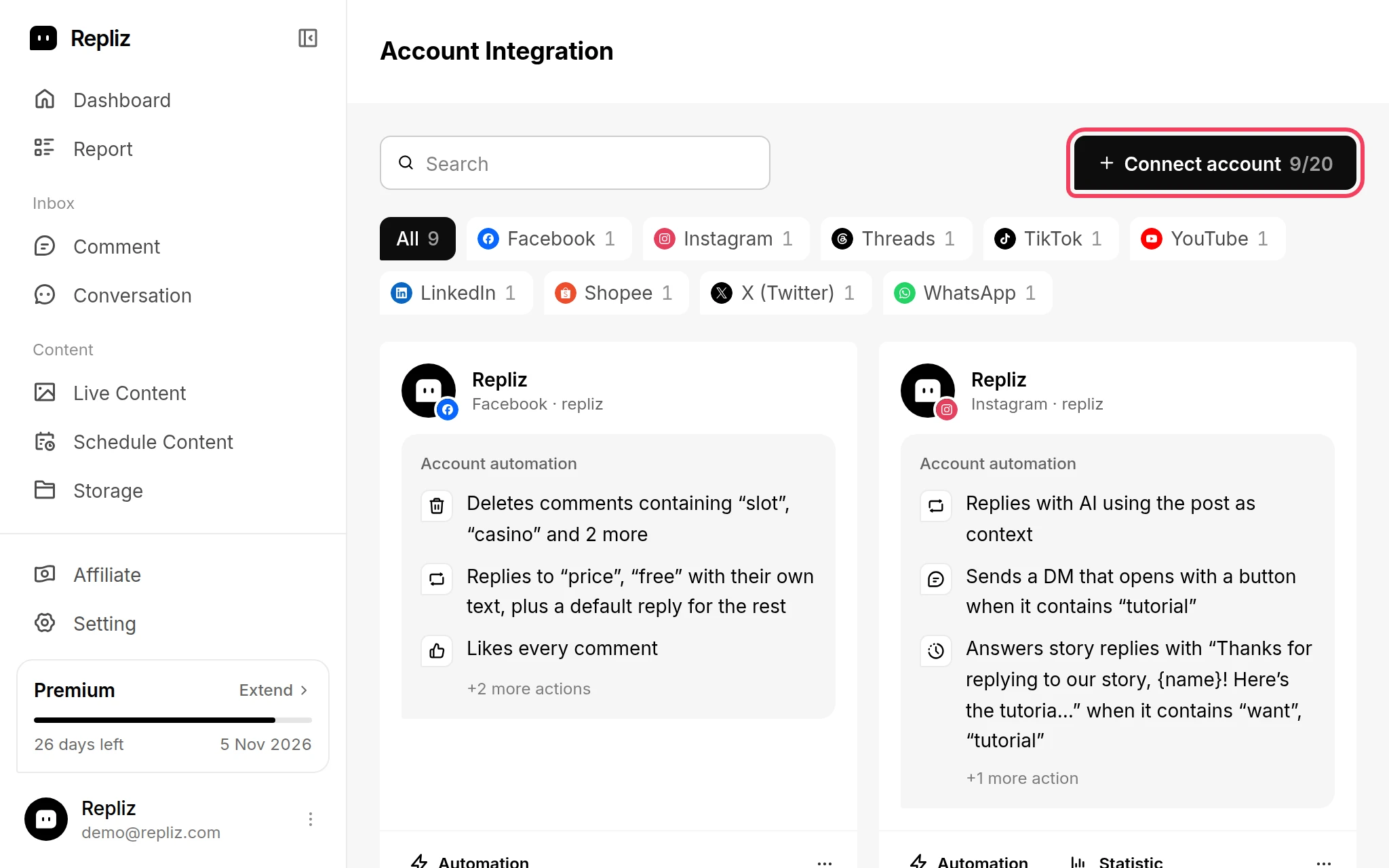
    Account Integration with the Connect account button highlightedAccount Integration with the Connect account button highlighted
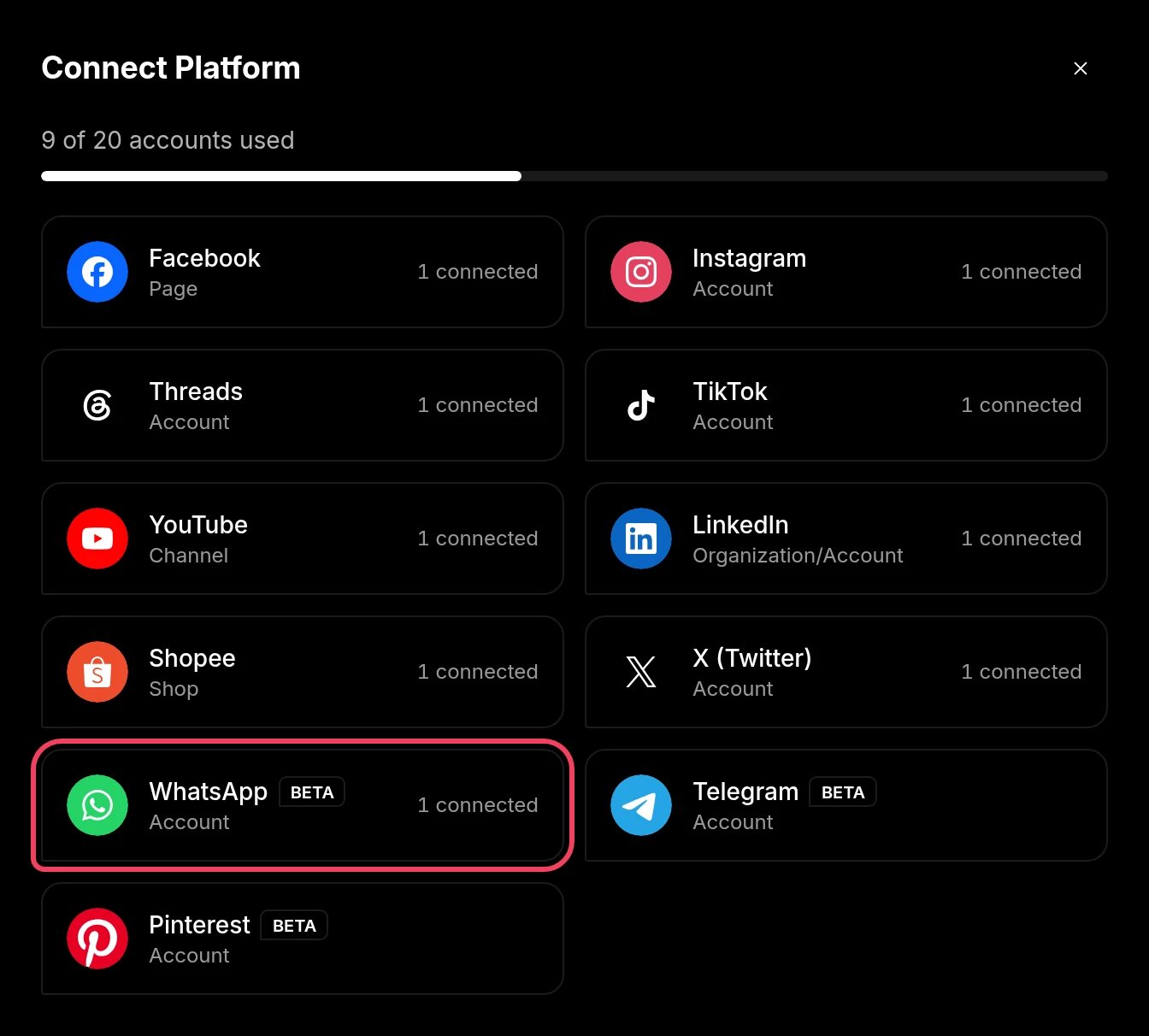
  2. In the Connect Platform window, click WhatsApp (labeled Account).
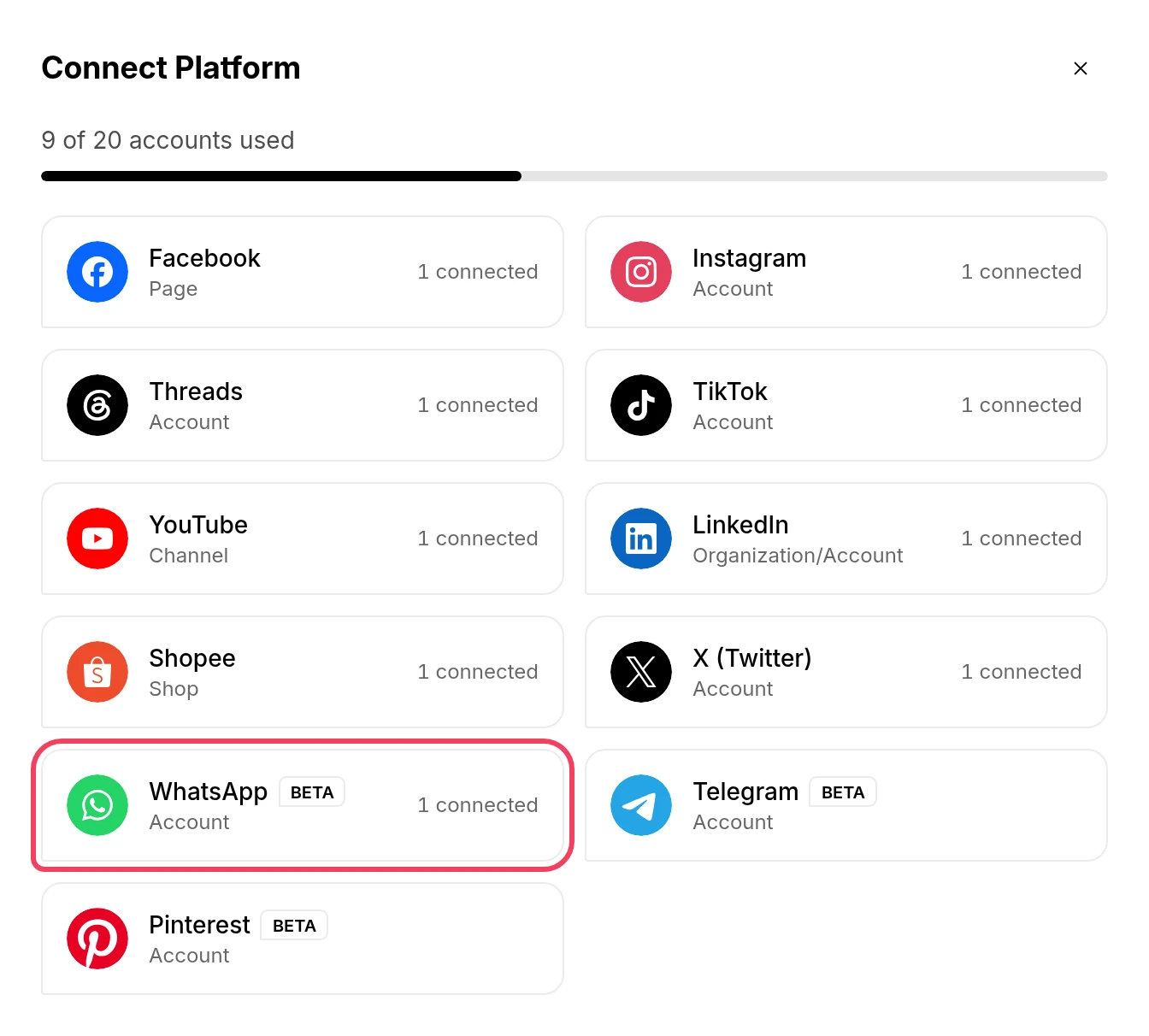
    The Connect Platform window with WhatsApp highlightedThe Connect Platform window with WhatsApp highlighted
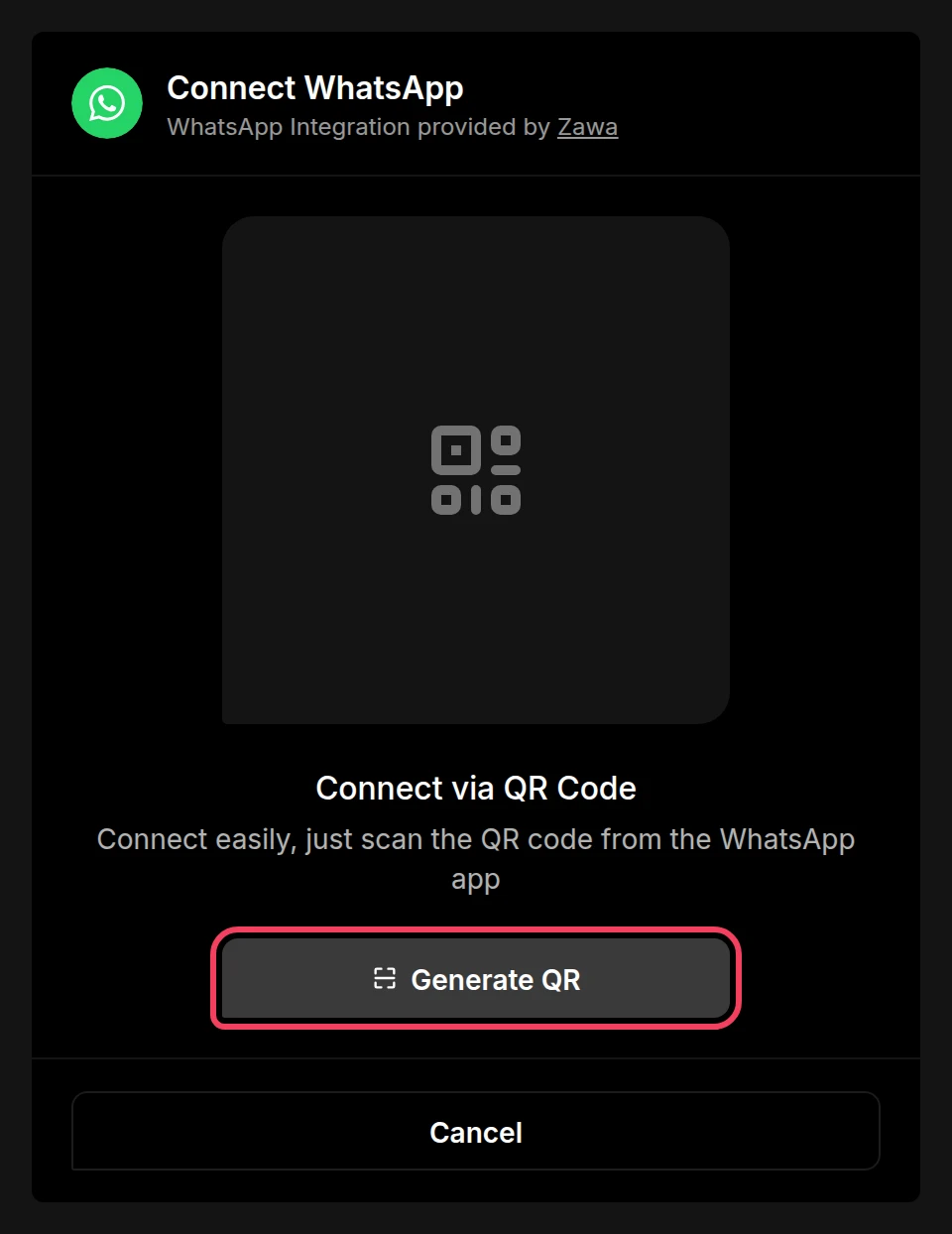
  3. The Connect WhatsApp page opens. Click Generate QR.
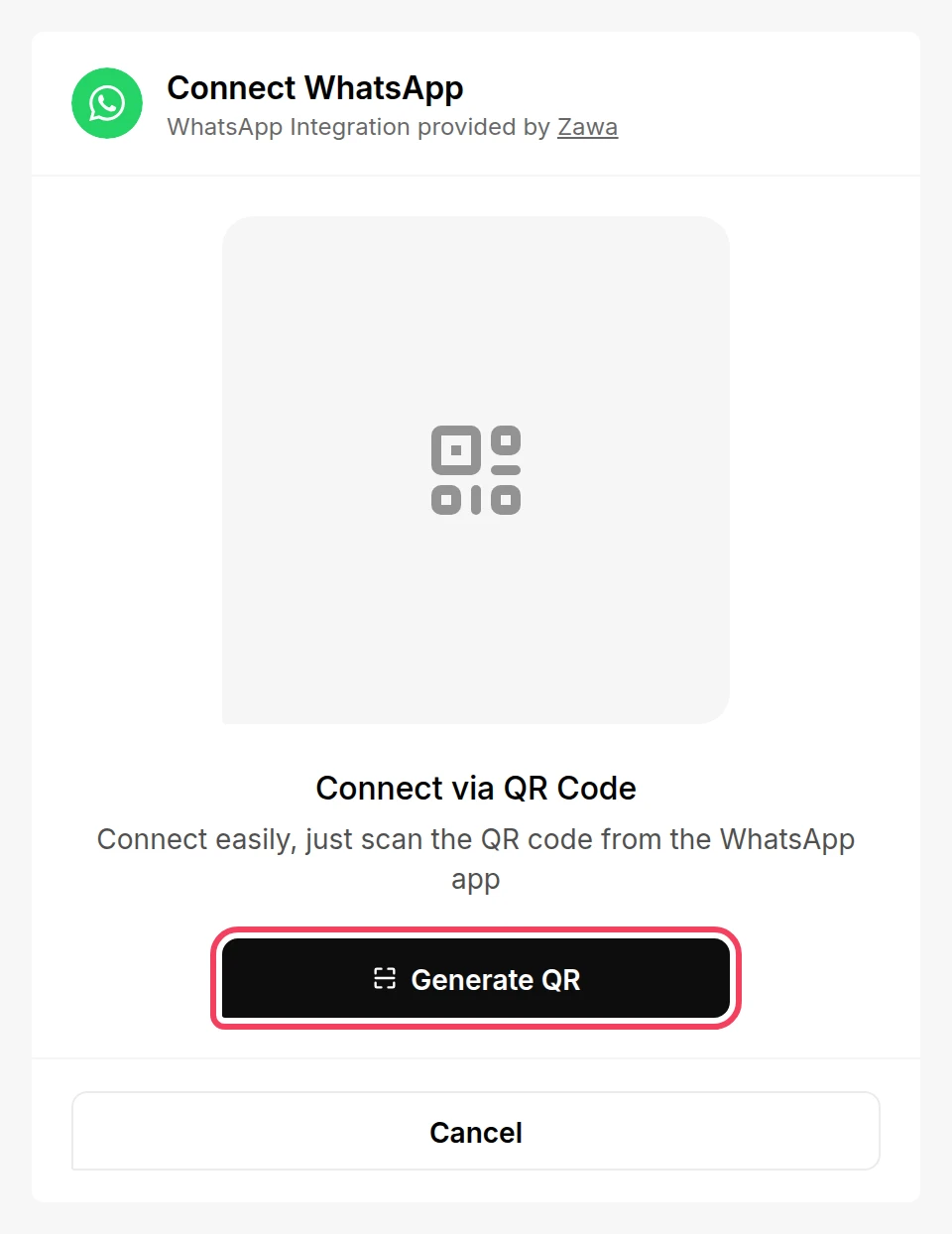
    The Connect WhatsApp page with the Generate QR button highlightedThe Connect WhatsApp page with the Generate QR button highlighted
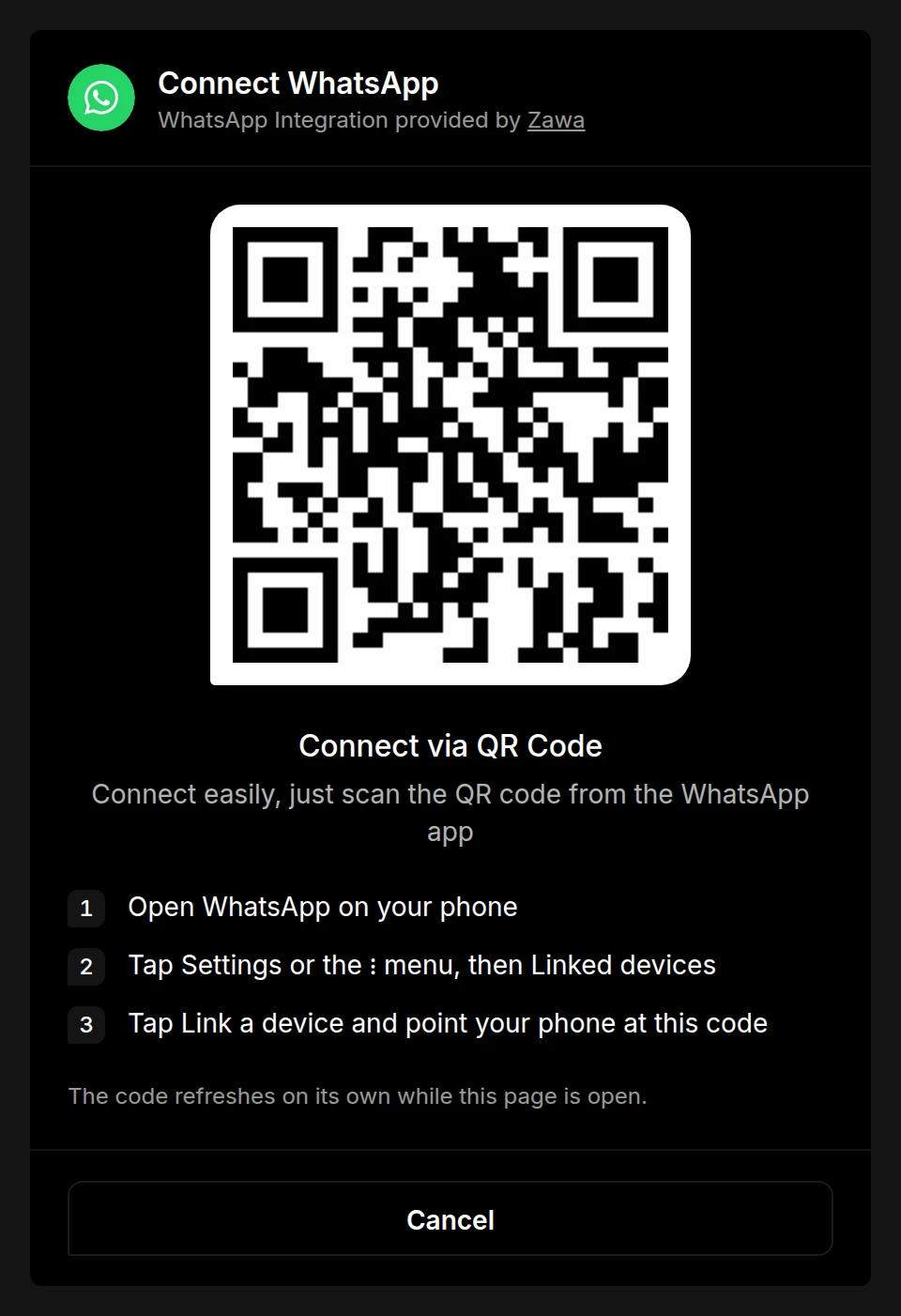
  4. On your phone, open WhatsApp and tap Settings or the ⋮ menu, then Linked devices.

  5. Tap Link a device and point your phone at the QR code on the screen.
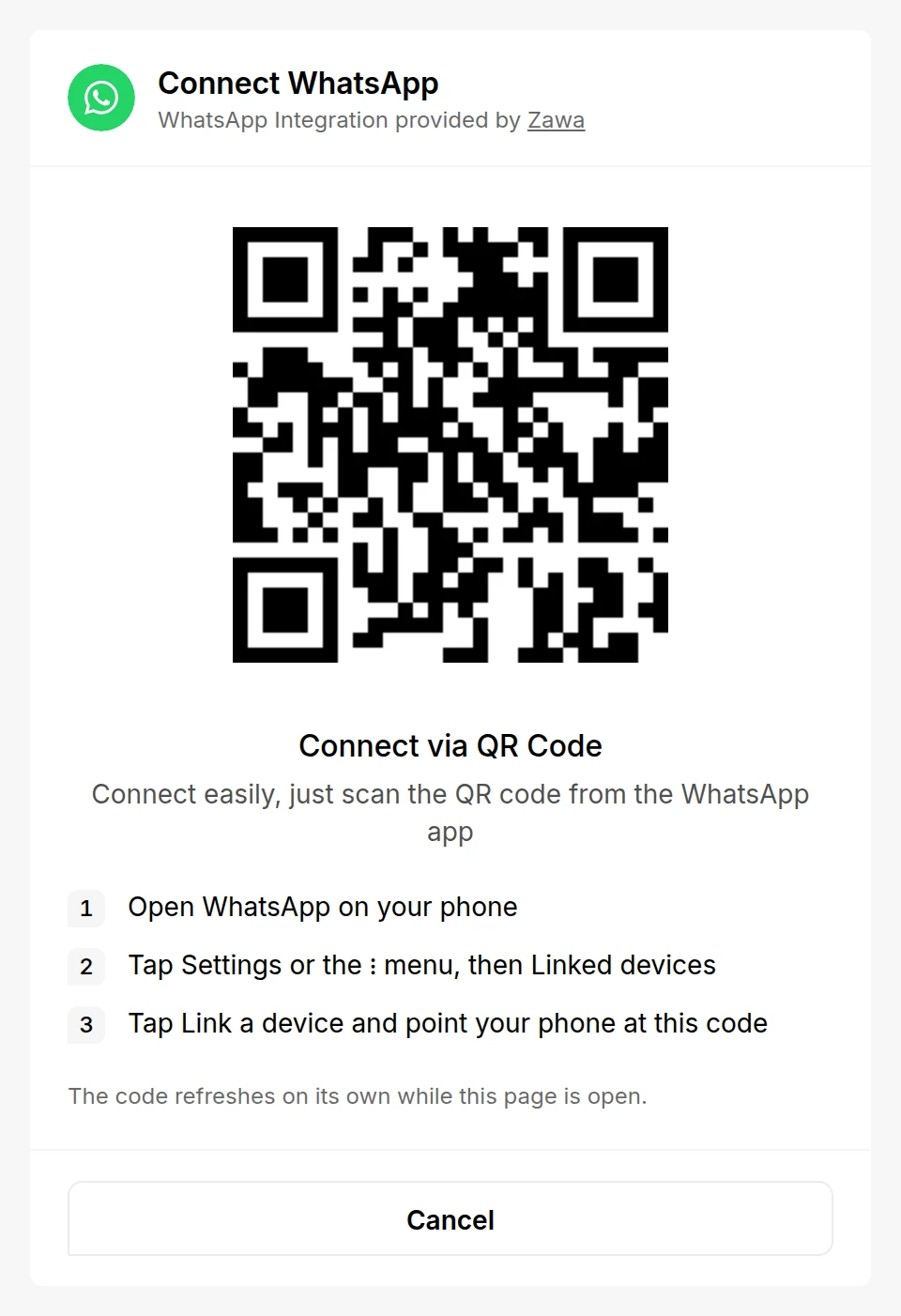
    The Connect WhatsApp page showing a QR code and the steps to scan itThe Connect WhatsApp page showing a QR code and the steps to scan it
  6. Repliz connects the account as soon as the code is scanned. It shows Account successfully connected and takes you back to Account Integration, where your WhatsApp account now appears.

The QR code refreshes on its own while the page is open. If nothing is scanned for about four minutes, the code goes away and Generate QR comes back. Click it to get a new code.

Reconnect ​

If Repliz loses access to the number, for example when you log Repliz out under Linked devices on your phone, its card in Account Integration gets a yellow outline and a Disconnected notice. To fix it:
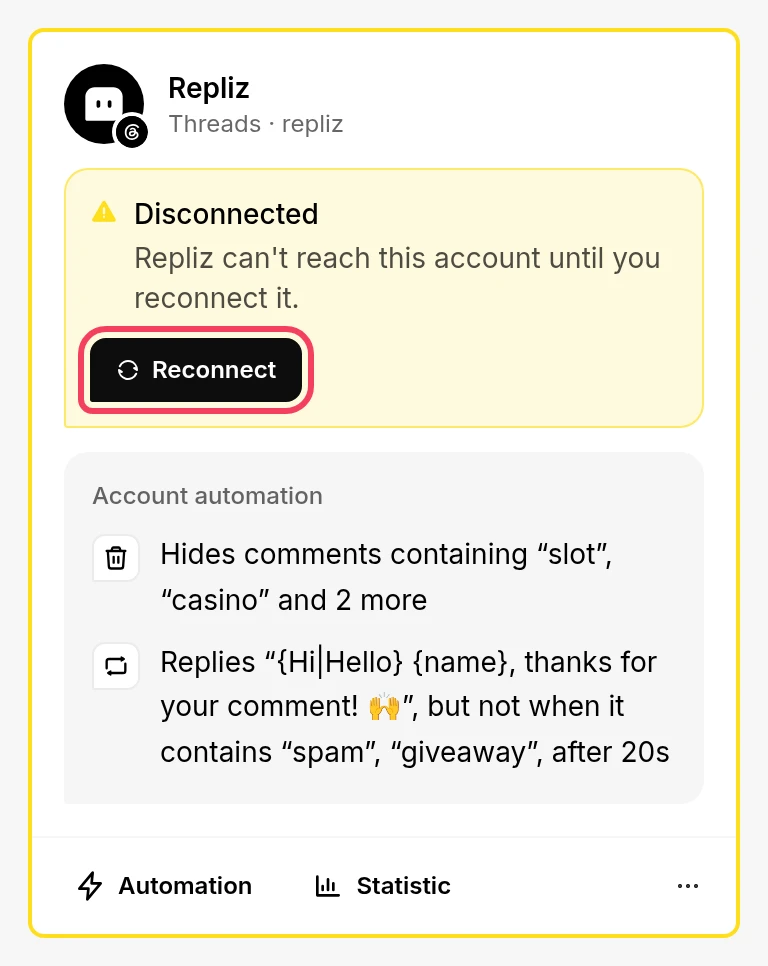
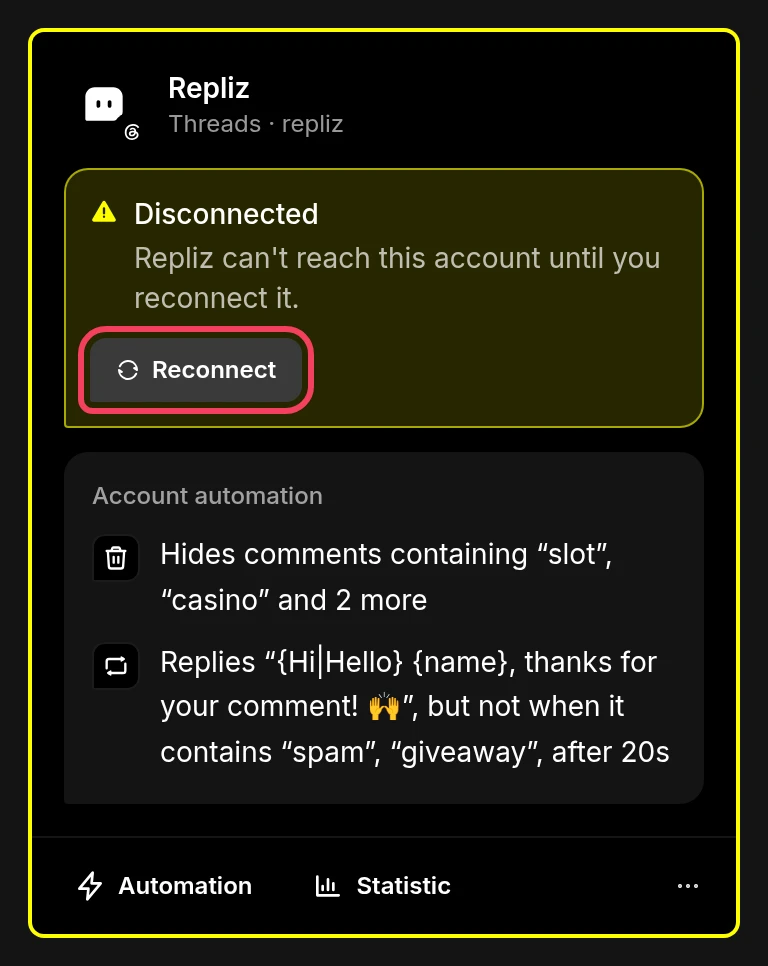
A disconnected account card with the Reconnect button highlightedA disconnected account card with the Reconnect button highlighted
  1. Click Reconnect on the account's card in Account Integration. The same button is also in the card's ⋯ menu.
  2. The Reconnect WhatsApp page opens. Click Generate QR and scan the code with the same WhatsApp number. A different number is refused.
  3. Repliz reconnects the account automatically.

Good to know ​

  • When you schedule a post to a WhatsApp account, you choose where it goes: Send as Status, and the channels and groups you pick with Set Channel. WhatsApp posts can be text, an image, or a video.
  • In Live Content, a WhatsApp account first asks you to pick one of your channels, then shows that channel's posts.
  • Automation isn't available for WhatsApp.
  • The Connect account button is greyed out? Every account slot in your plan is in use. Upgrade your plan or delete an account you no longer need. See Account slots.