Skip to content

Pinterest ​

Connect a Pinterest account to Repliz to schedule pins to its boards from your workspace.

Steps ​

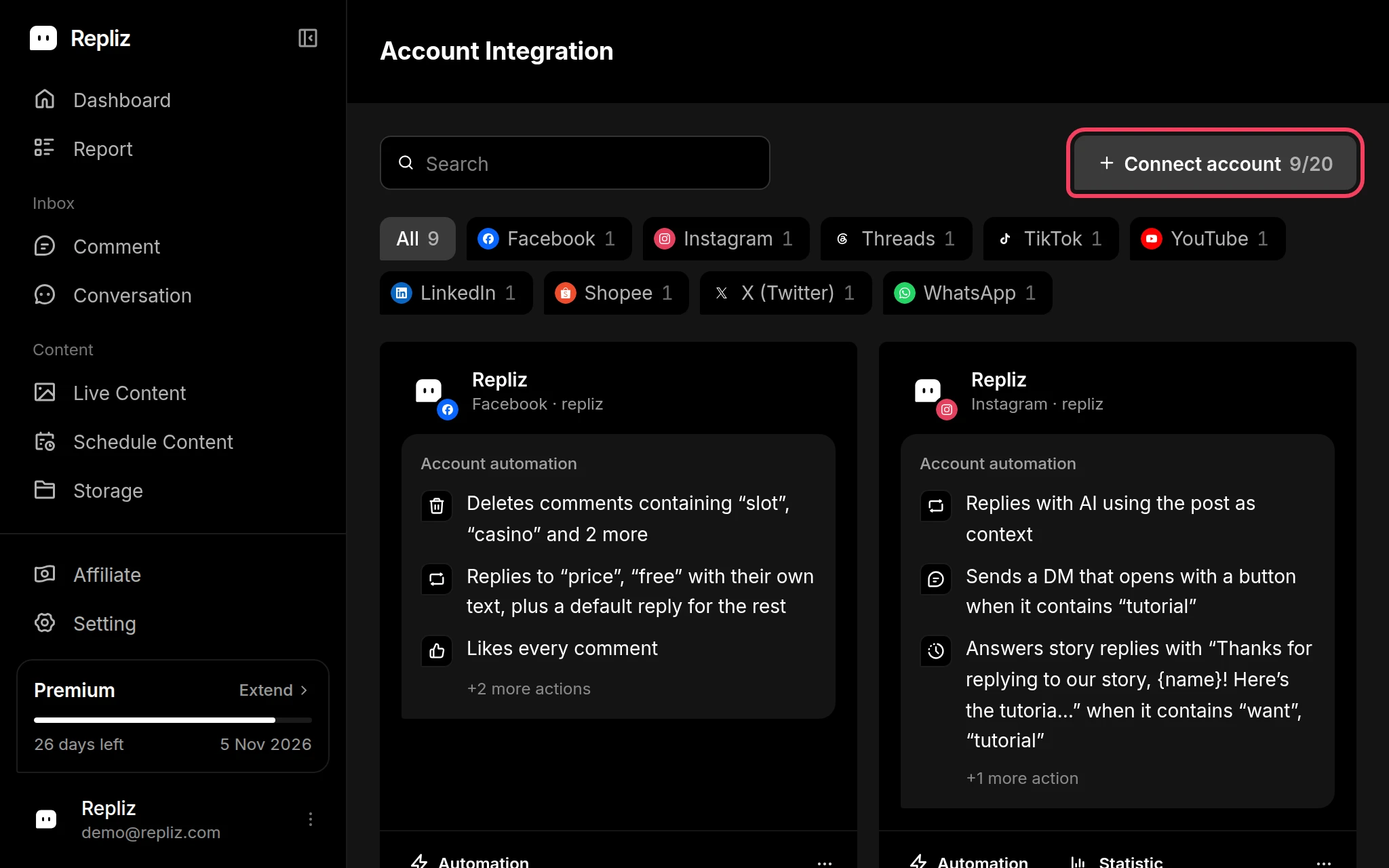
  1. Open Account Integration in your Repliz dashboard and click Connect account.
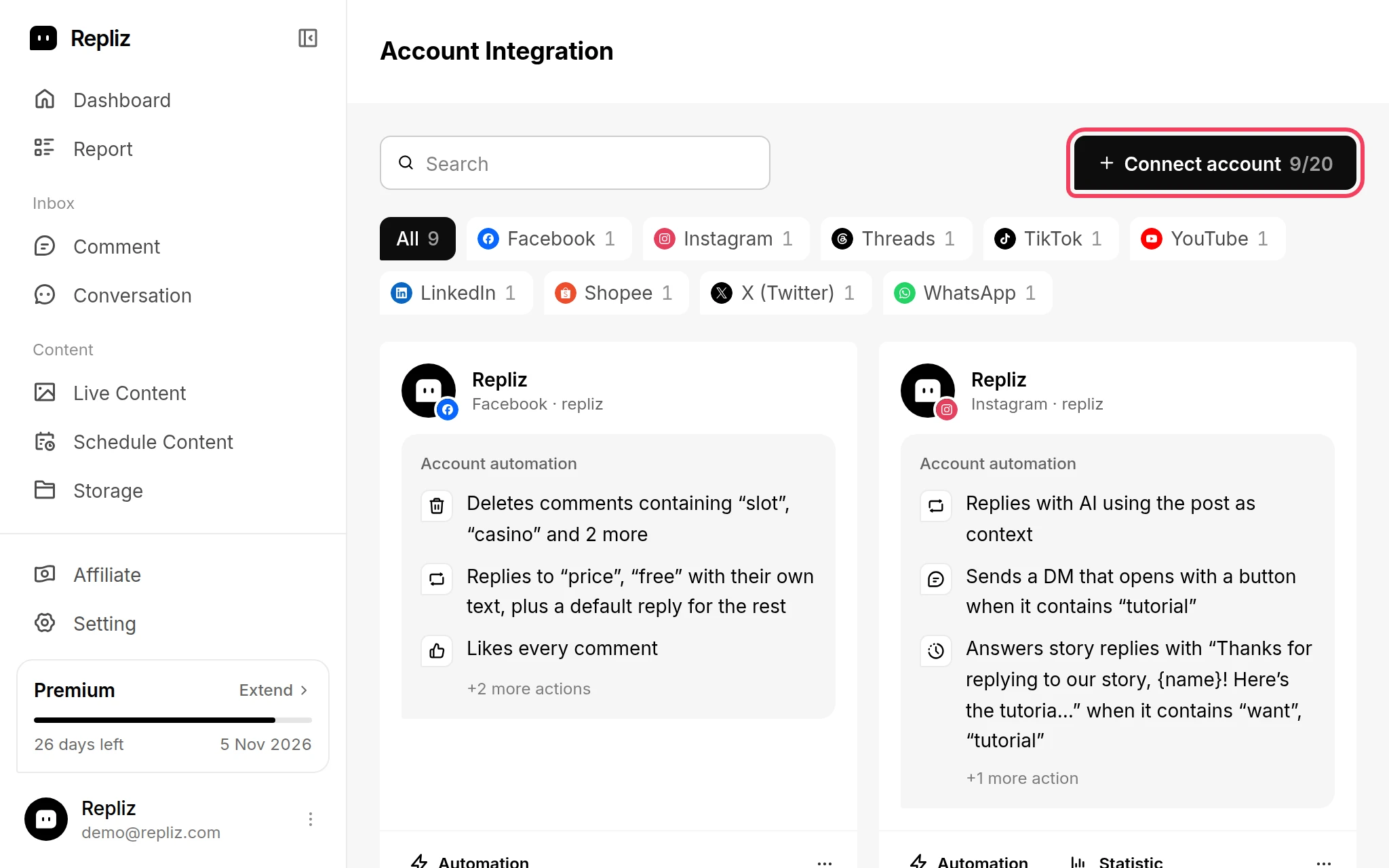
    Account Integration with the Connect account button highlightedAccount Integration with the Connect account button highlighted
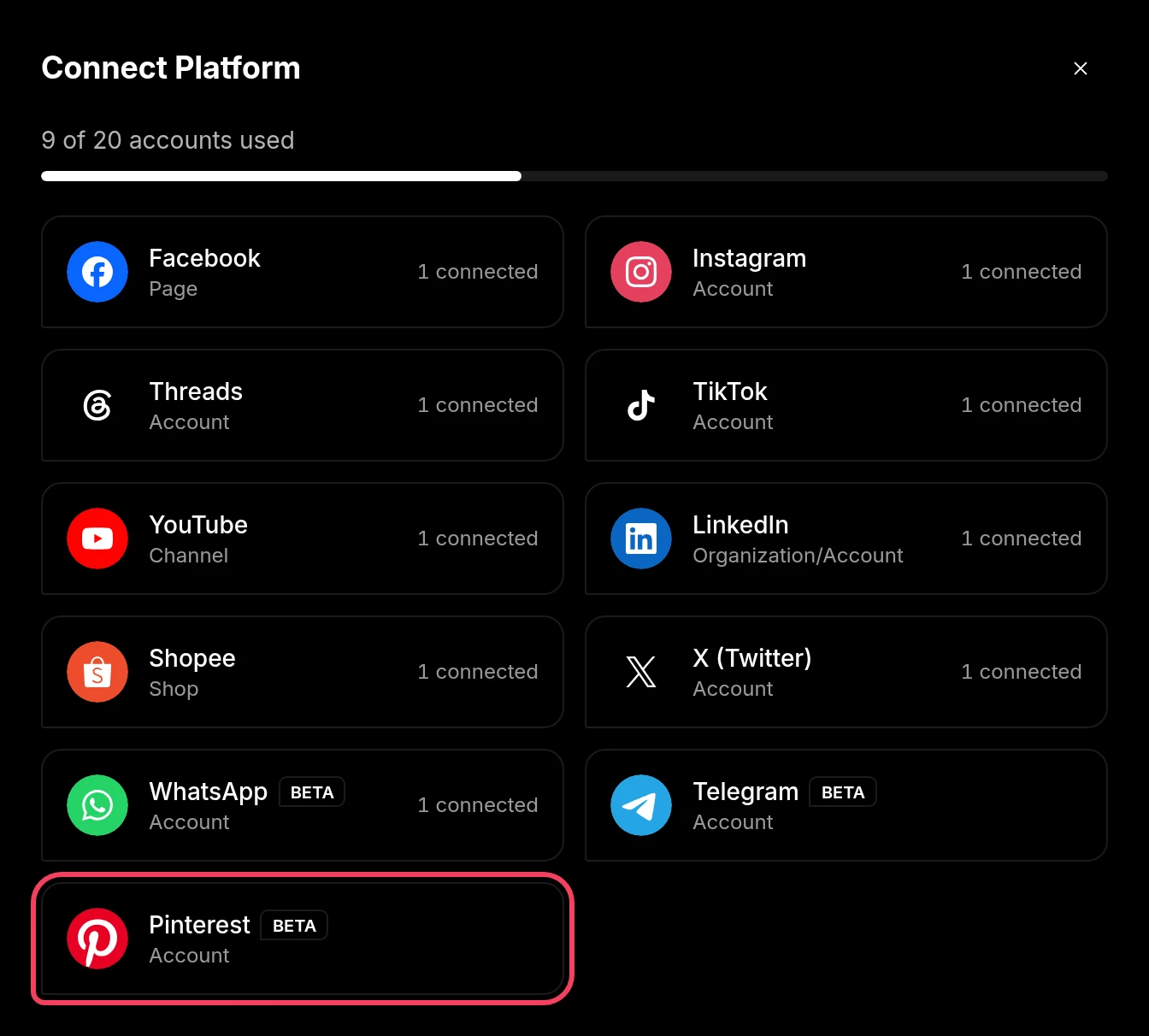
  2. In the Connect Platform window, click Pinterest (labeled Account).
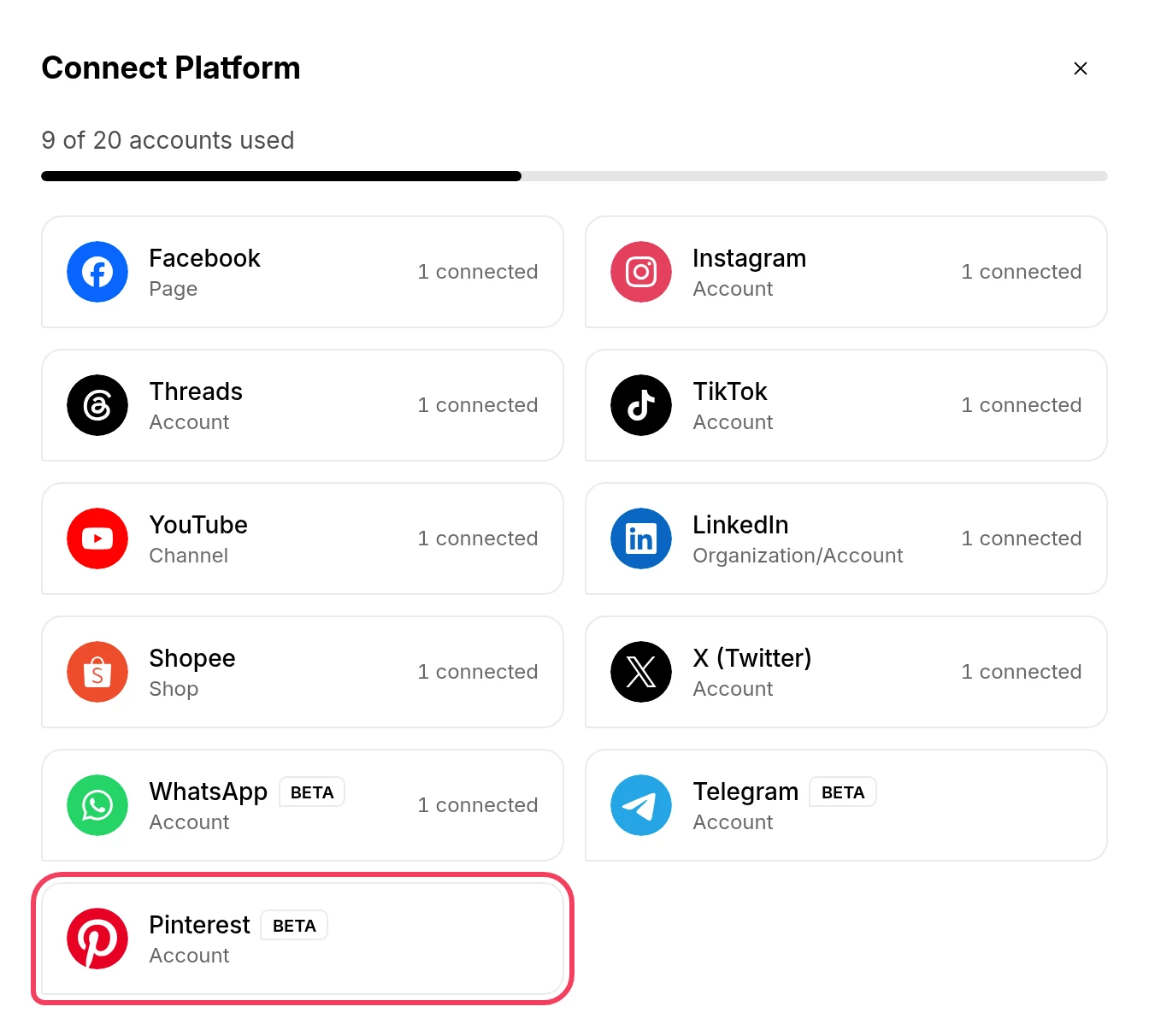
    The Connect Platform window with Pinterest highlightedThe Connect Platform window with Pinterest highlighted
  3. Pinterest opens. Log in to the account you want to connect, then give Repliz access to it.

  4. You return to Repliz, which connects the account automatically. It shows Account successfully connected and takes you back to Account Integration, where your account now appears.
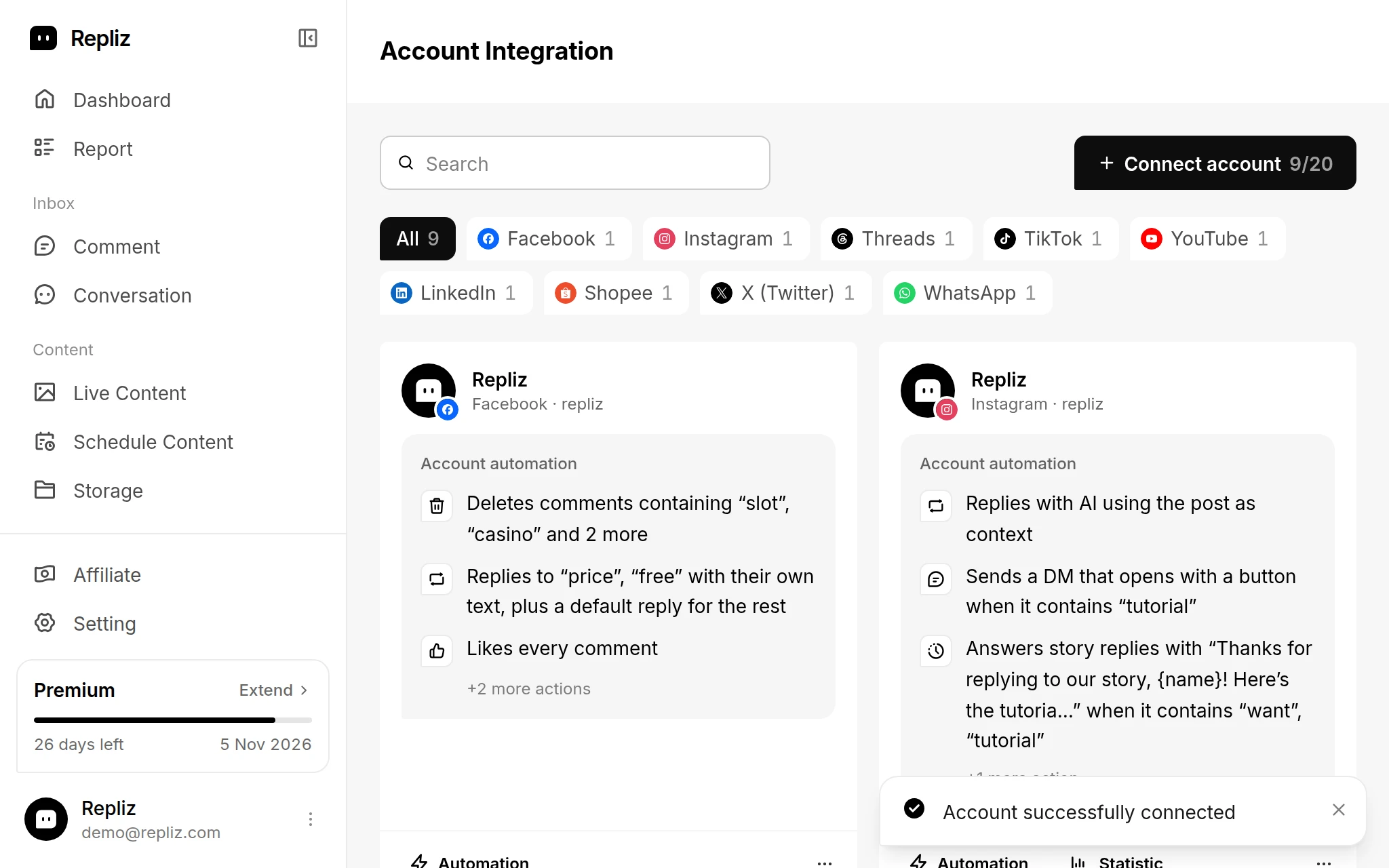
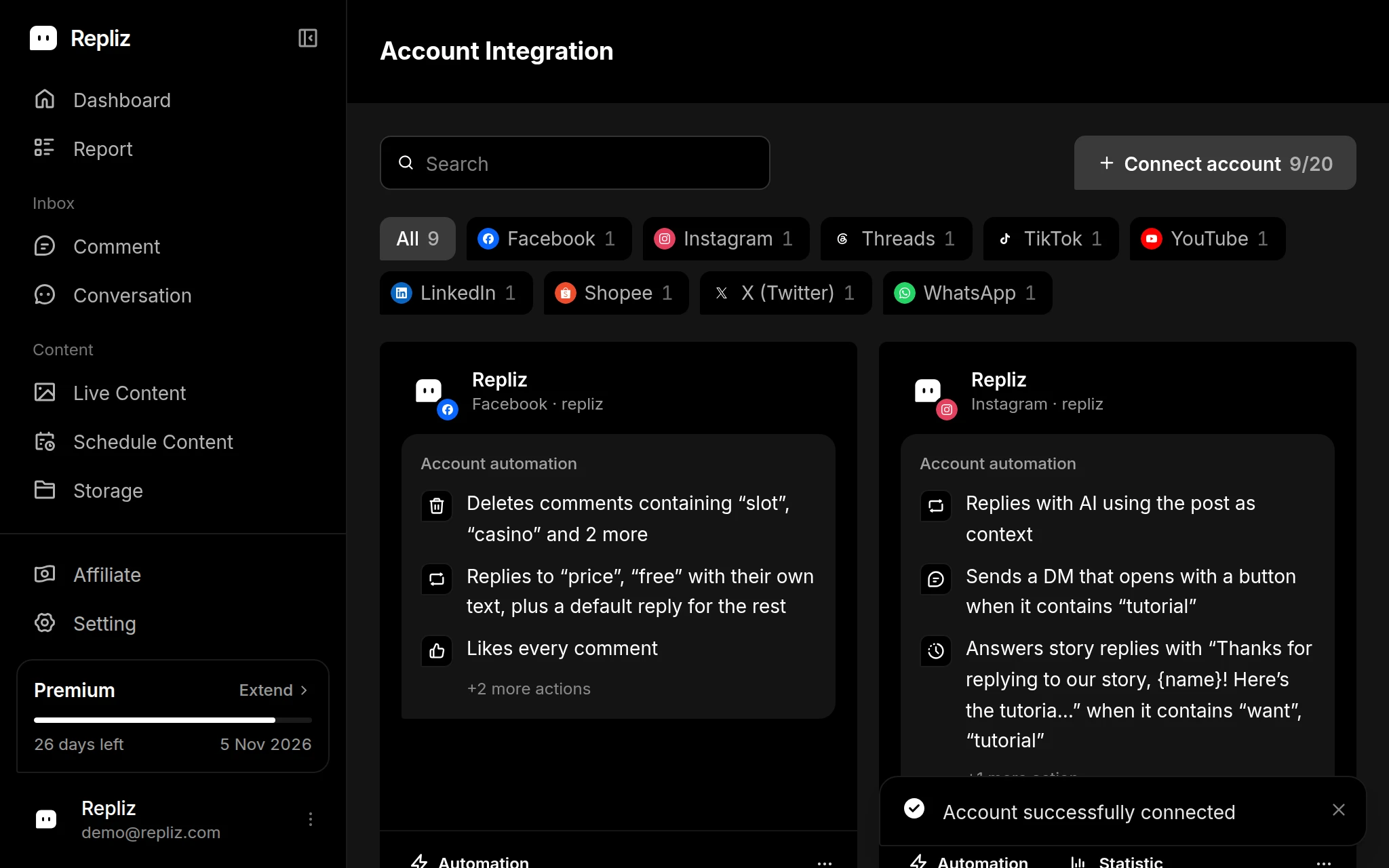
    Account Integration showing the Account successfully connected messageAccount Integration showing the Account successfully connected message

Boards ​

You connect the Pinterest account, not its boards, so the account uses one slot however many boards it has. You pick the board each time you schedule a pin:

  1. Add the Pinterest account to a schedule. Its time box shows Scheduled per board below, because a pin is always published to a board.
  2. In the Pinterest Board card, click Set Board and pick one or more boards.
  3. Set a time on every board. Each board becomes its own scheduled pin.

See the Pinterest specifications for the post types, the destination link, and the text limits.

Reconnect ​

If Repliz loses access to the account, for example when its access expires or you remove Repliz's access on Pinterest, its card in Account Integration gets a yellow outline and a Disconnected notice. To fix it:
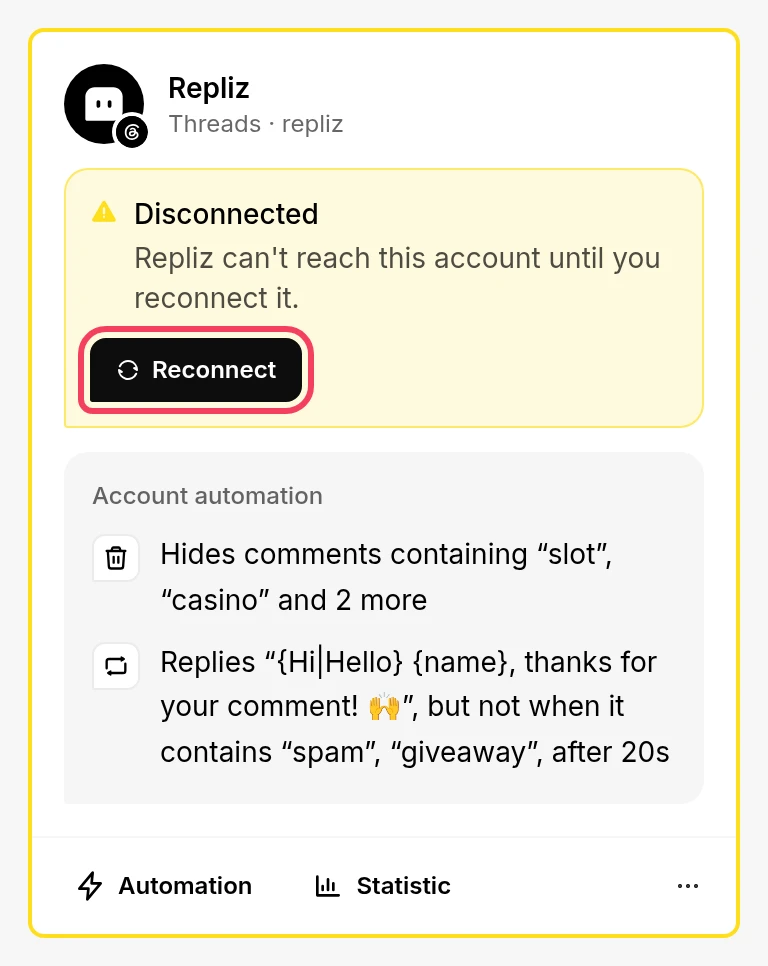
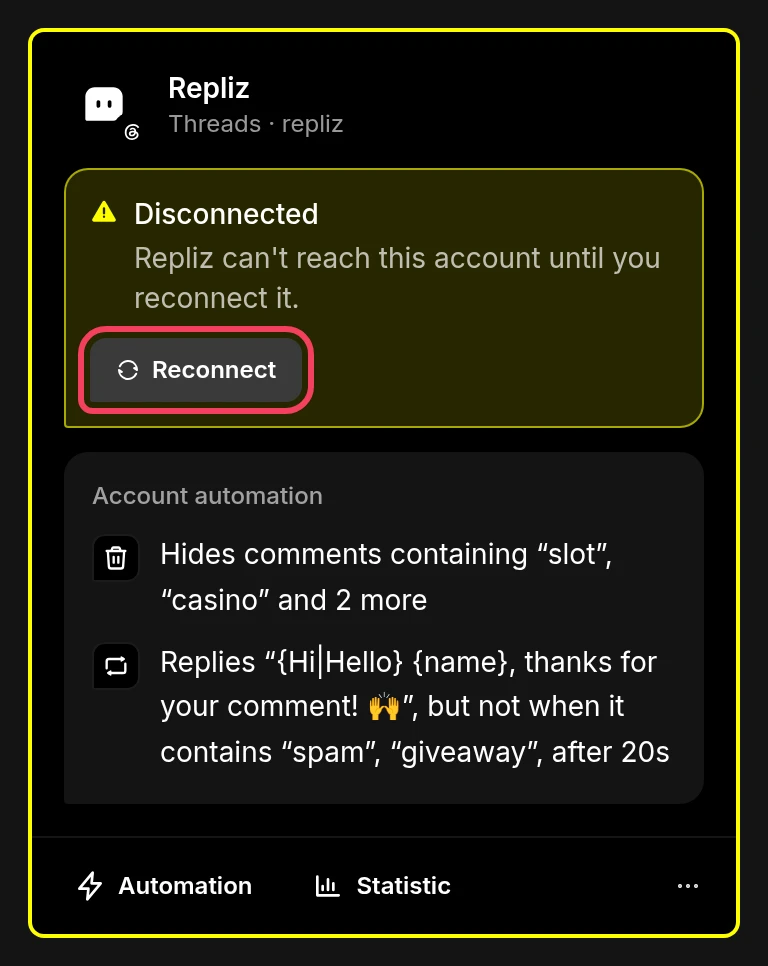
A disconnected account card with the Reconnect button highlightedA disconnected account card with the Reconnect button highlighted
  1. Click Reconnect on the account's card in Account Integration. The same button is also in the card's ⋯ menu.
  2. Pinterest opens. Log in with the same Pinterest account and give Repliz access again.
  3. Repliz reconnects the account automatically.

Good to know ​

  • Automation isn't available for Pinterest, because Pinterest doesn't let apps read or reply to comments.
  • Statistic on the account's card shows followers, pins, boards, and monthly views, plus the impressions, saves, and clicks of the last 30 days. Each pin's statistics are in Live Content.
  • The Connect account button is greyed out? Every account slot in your plan is in use. Upgrade your plan or delete an account you no longer need. See Account slots.

Next, check the Pinterest specifications for what you can post.