English
English
Appearance
Automation handles repetitive work on your connected accounts: deleting spam, replying to comments, liking comments, sending DMs to commenters, answering DMs, and replying to Story replies. This page covers what each automation does, where to set it up, and the options they share.
| Automation | What it does | Platforms |
|---|---|---|
| Delete Comment | Removes unwanted comments, by keyword or AI | Facebook, Instagram, Threads, TikTok, YouTube, LinkedIn |
| Reply Comment | Replies publicly to comments with fixed text, keywords, or AI | Facebook, Instagram, Threads, TikTok, YouTube, LinkedIn |
| Like Comment | Likes every new comment | Facebook, TikTok, LinkedIn |
| DM Comment | Sends a private DM to people who comment | Facebook, Instagram |
| Reply DM | Replies to incoming DMs | Facebook, Instagram, TikTok, Telegram |
| Reply Story | Replies to people who reply to your Instagram Story |
Shopee, X (Twitter), WhatsApp, and Pinterest accounts don't support automation. Telegram accounts support Reply DM only.
You can set automation in two places:
| Per account | Per post | |
|---|---|---|
| Applies to | Every post on the account, including future posts | One post, or one Instagram story |
| Automations | All six, depending on the platform | Delete Comment, Reply Comment, Like Comment, DM Comment; Reply Story for stories |
| Not available | LinkedIn personal profiles | Shopee, X (Twitter), WhatsApp, Telegram, and Pinterest |
A post's own automation takes over
When a post has its own automation, Repliz runs only that one on the post and ignores the account automation completely. The two are never combined, so include everything you want on that post in its own automation.
Open Account Integration and click Automation on the account's card. The card already lists what the account automation does.
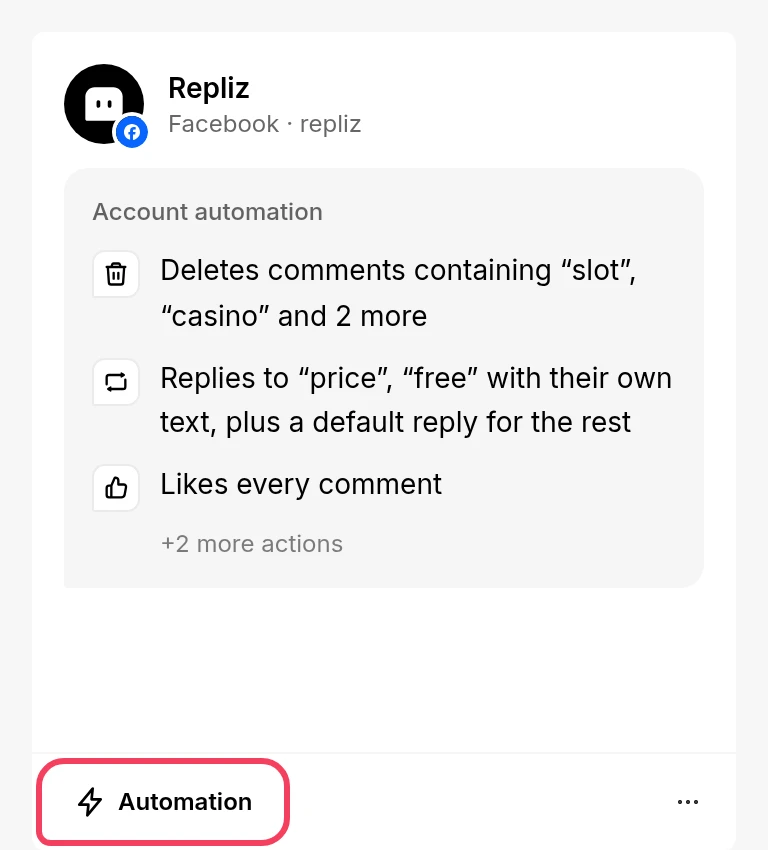
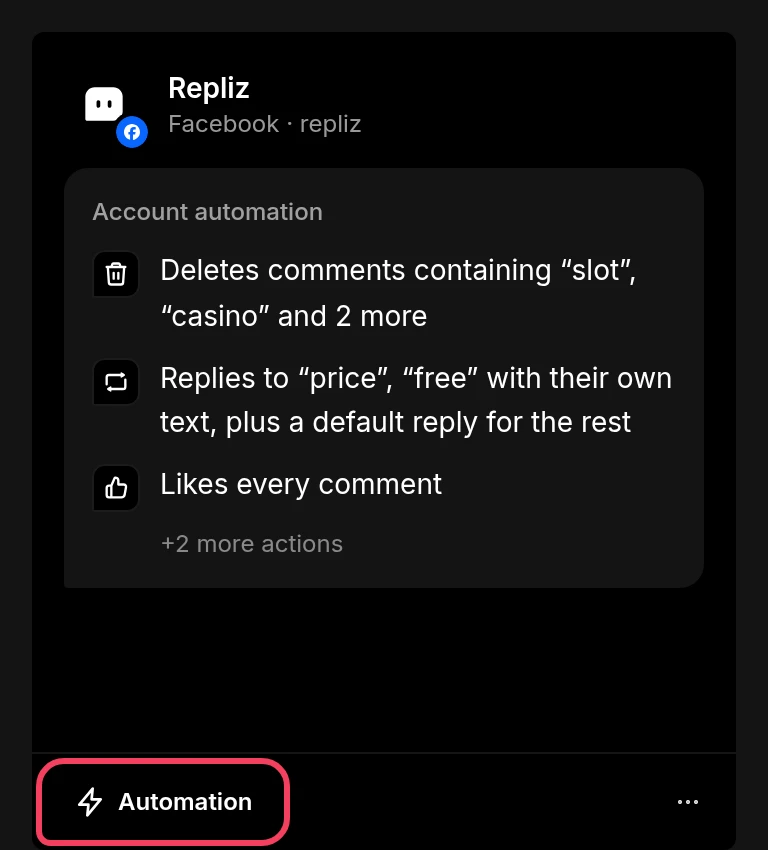
The Set Automation window opens. Turn on the automations you want and fill in their settings.
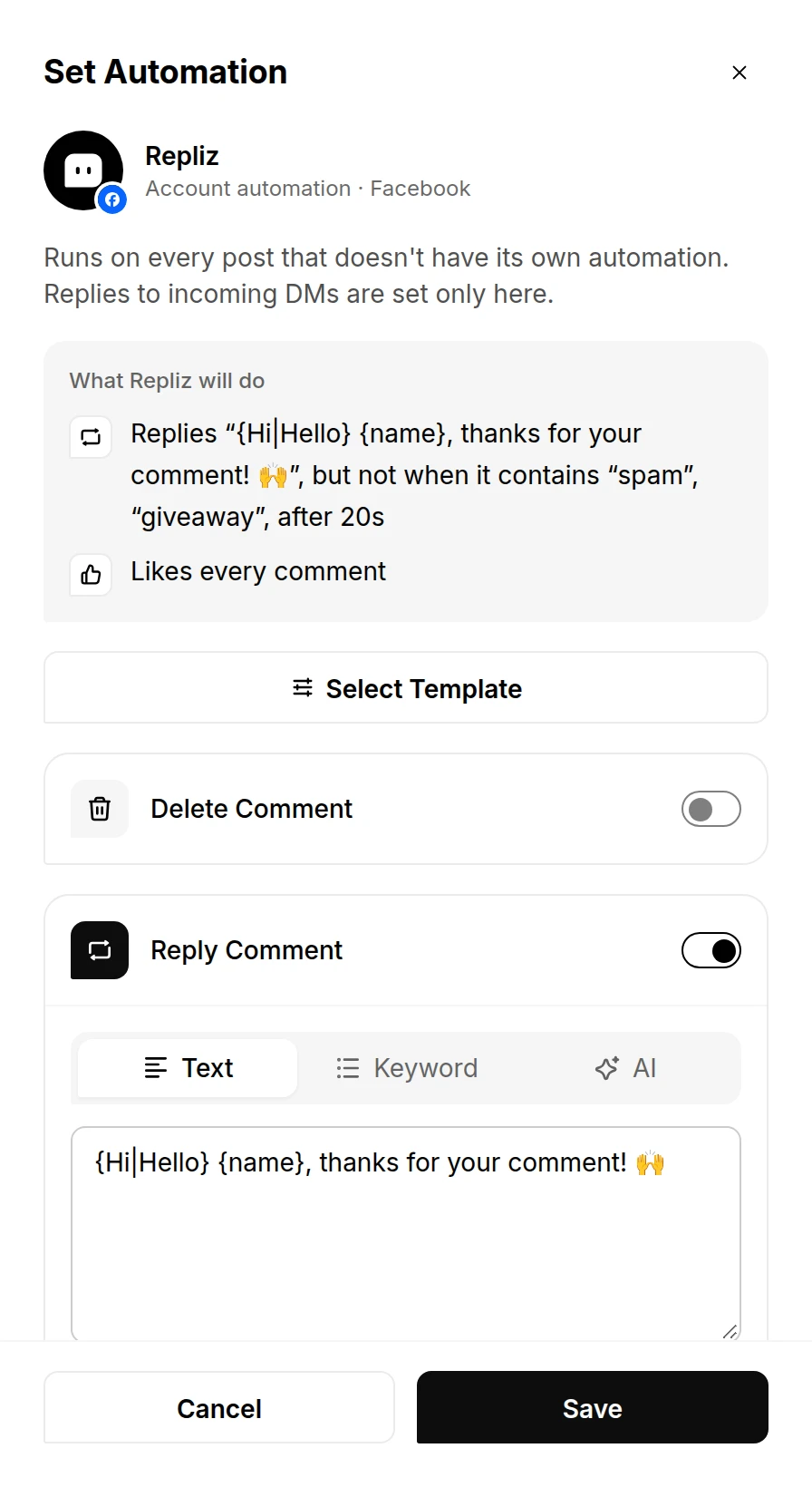
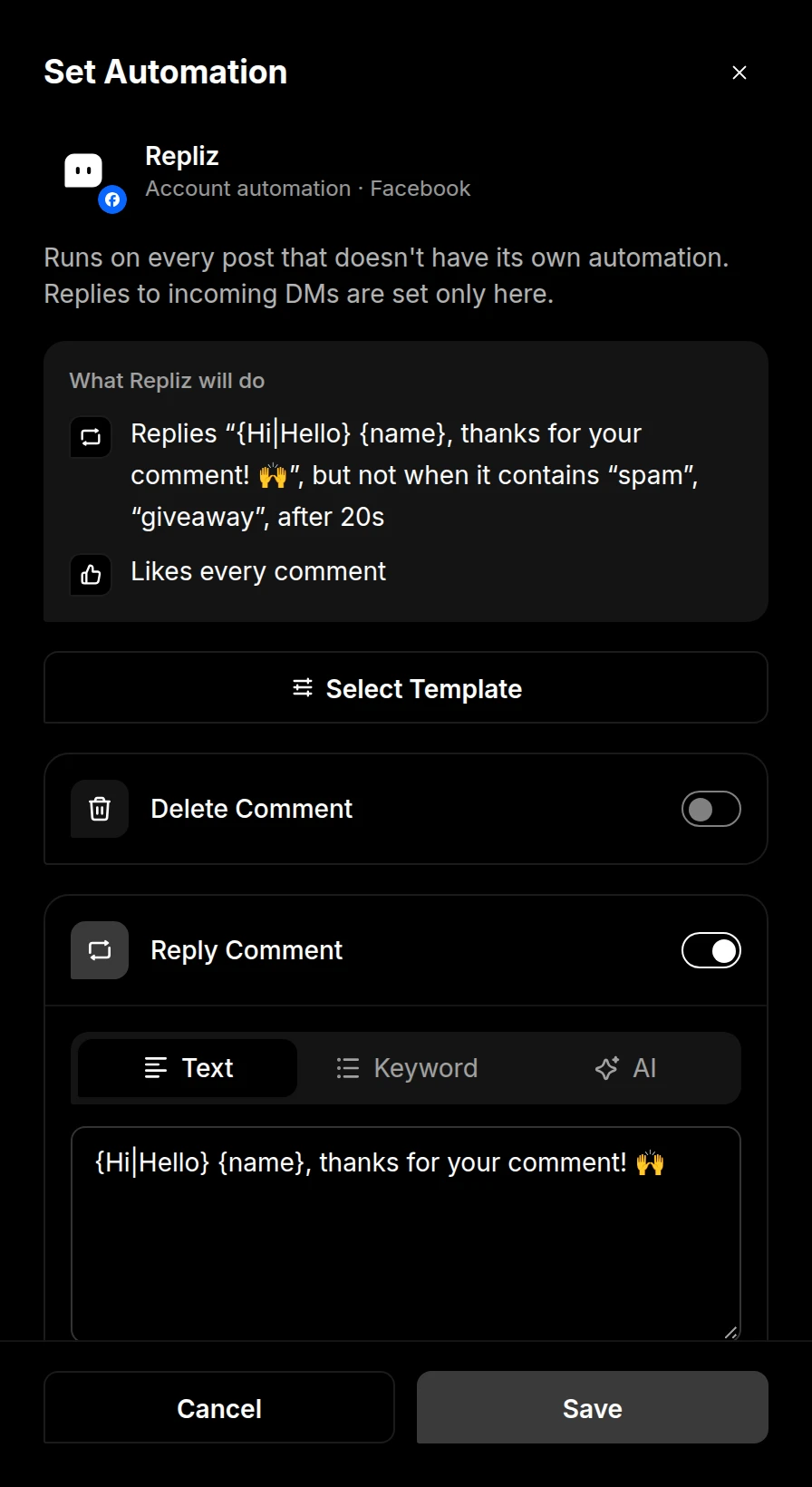
Click Save.
Open Live Content and choose an account.
Find the post. For Instagram, switch between the Feed and Story tabs.
Click the Automation button under the post.
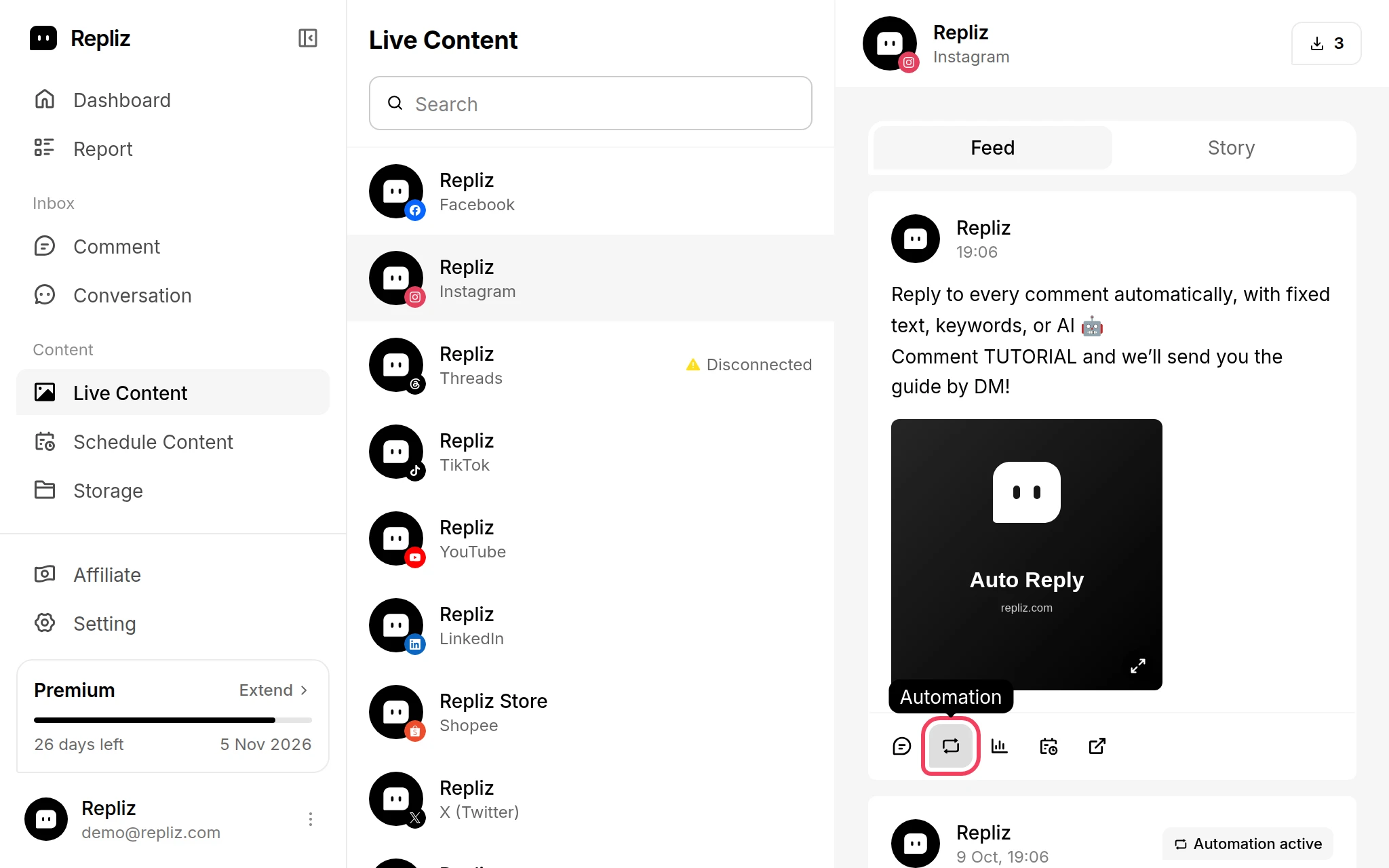
The Set Automation window opens with the post at the top. Turn on the automations you want and fill in their settings.
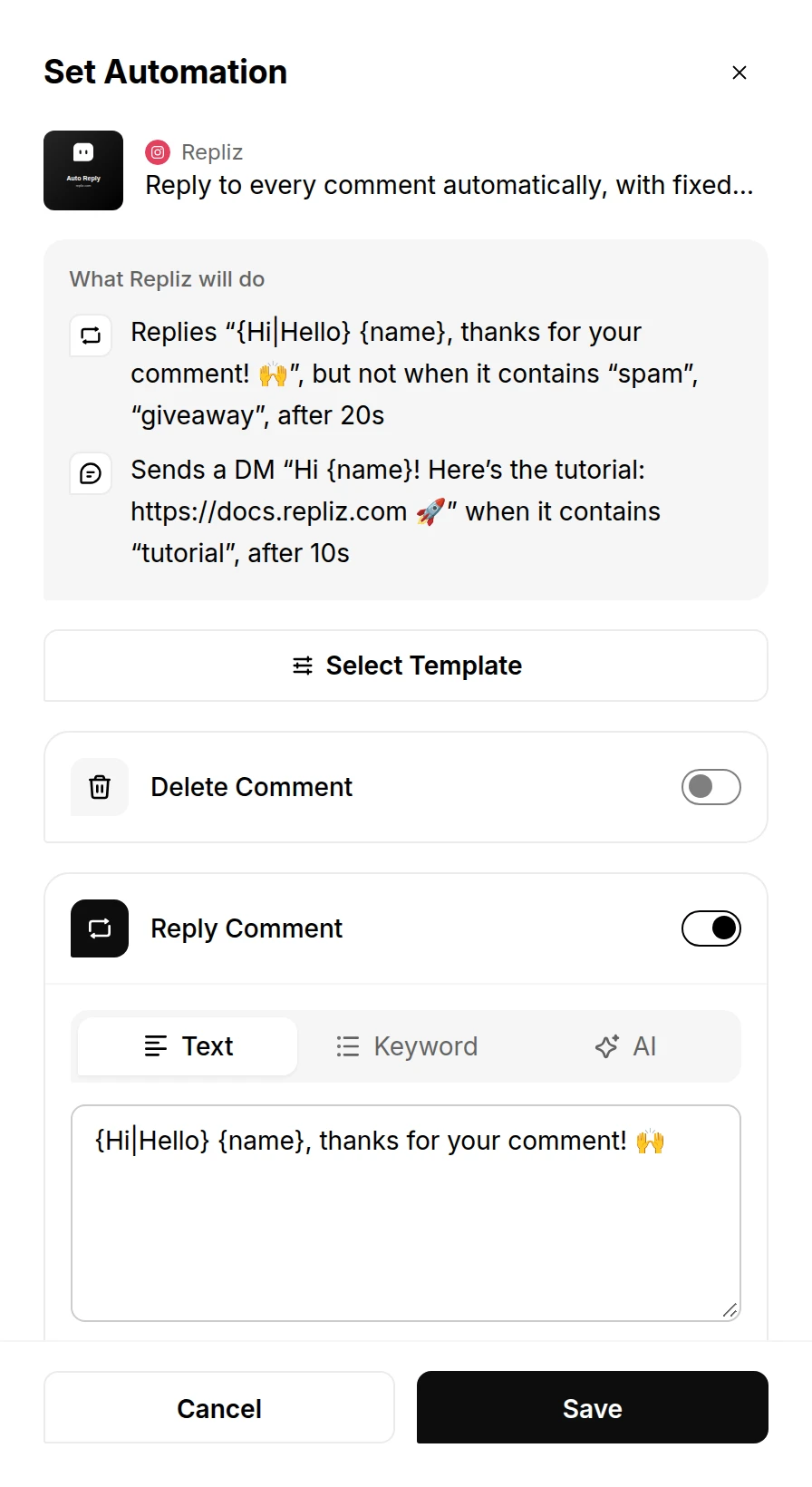
Click Save. The post now shows Automation active.
A post can have only one automation, so its Automation button stays disabled once the automation is saved. To change it, use Automation Content.
Every post with its own automation is listed in Automation Content. Each card shows the post and reads back what its automation does.
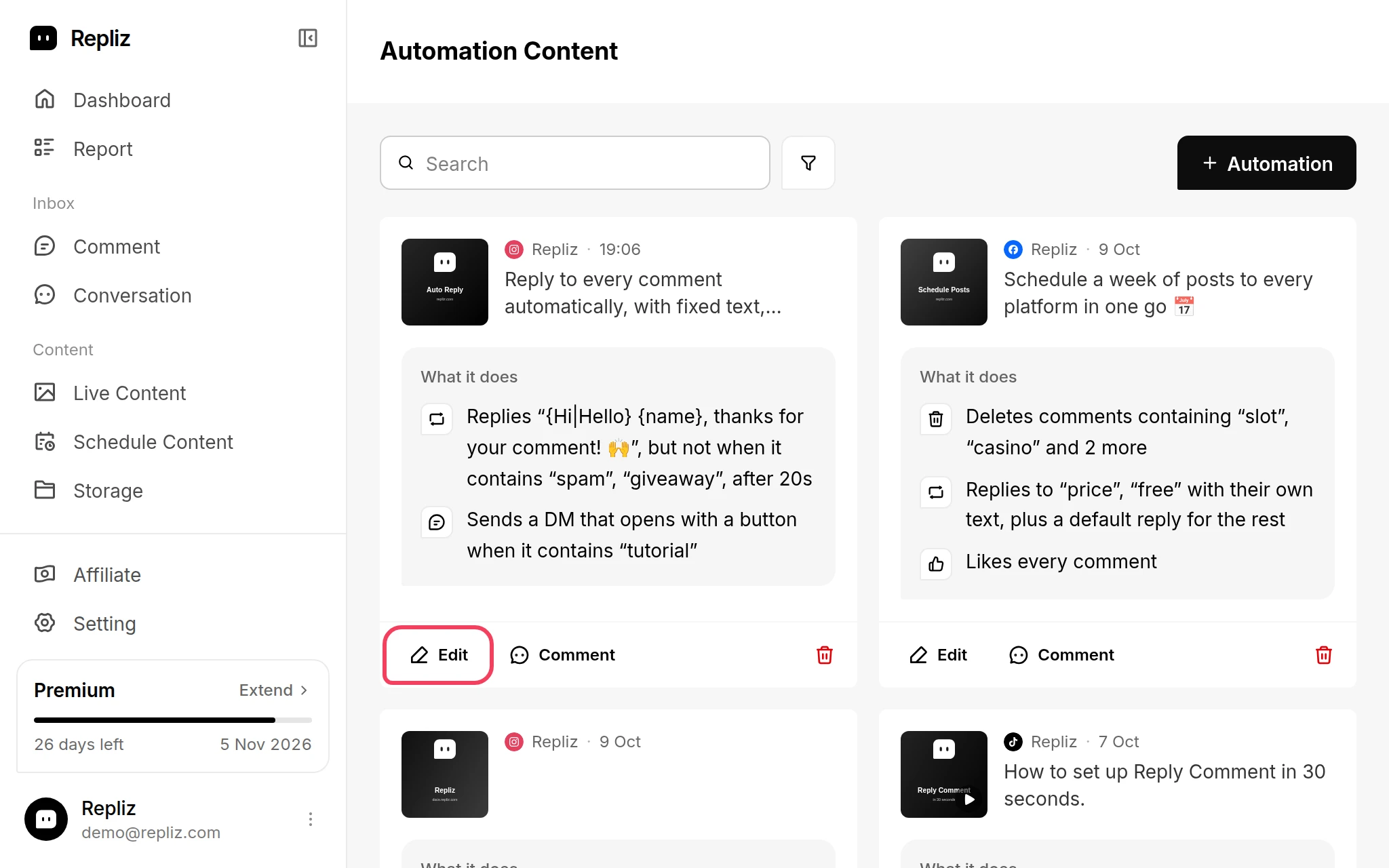
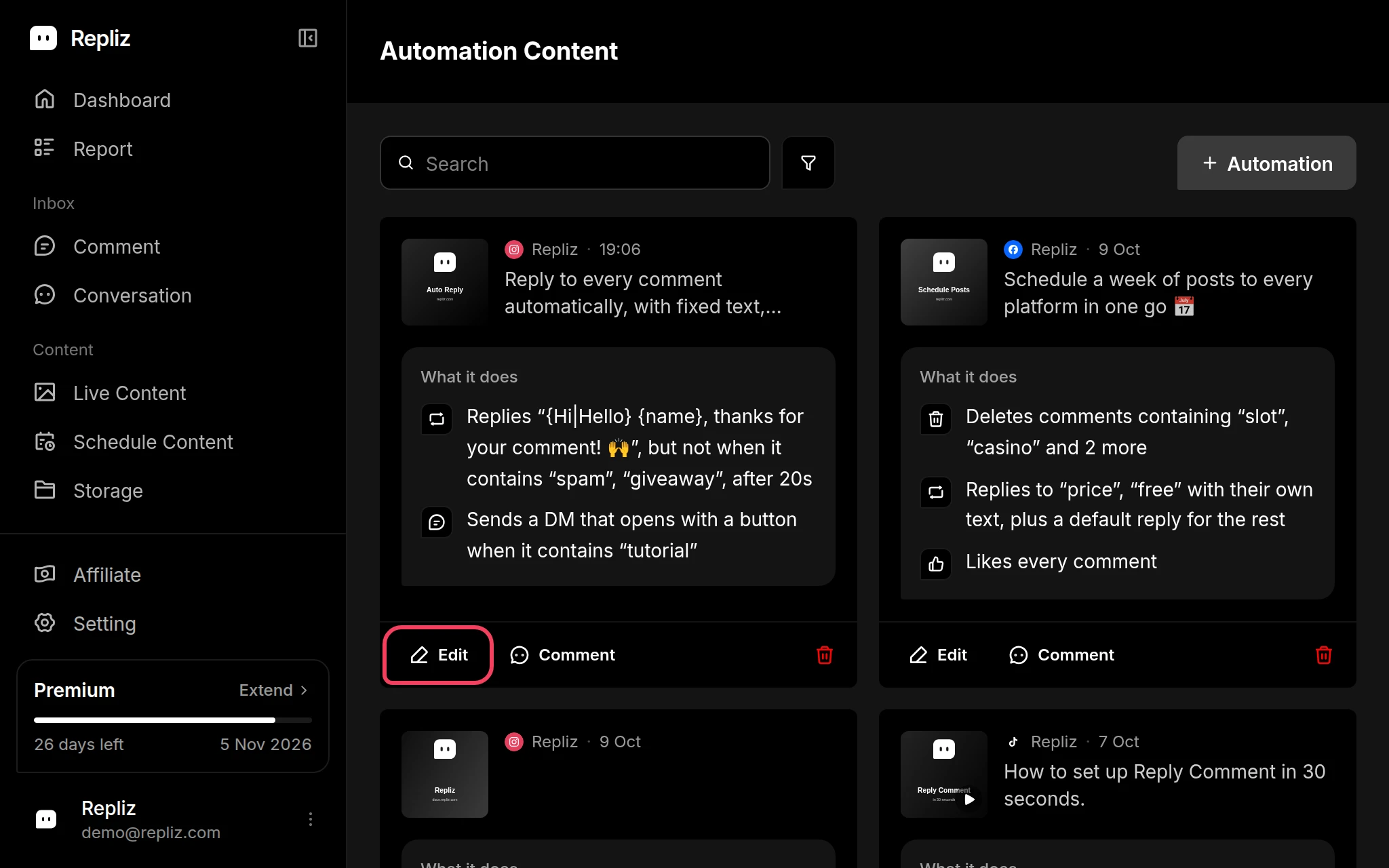
Use the search box and the filter button to find the automations of one account. + Automation takes you to Live Content to pick another post.
At the top of every Set Automation window, What Repliz will do reads your settings back as plain sentences, such as Replies to “price”, “free” with their own text, plus a default reply for the rest. It updates as you change the settings, so check it before you click Save. The same sentences appear on the account cards and in Automation Content.
Most automations let you choose how Repliz responds:
| Mode | How it works | Used in |
|---|---|---|
| Text | Sends the same text every time. | Reply Comment, DM Comment, Reply DM, Reply Story |
| Keyword | Picks the reply that belongs to a keyword found in the message. | All of the above, plus Delete Comment |
| AI | Follows your prompt to write a reply, or to decide whether a comment should be deleted. | All of the above, plus Delete Comment |
| Opening | Sends a message with a button, then follows up with your links after the person taps it. | DM Comment, Reply Story |
In Text, Keyword, and Opening messages you can use:
{name} to insert the name of the person you're replying to.{Hi|Hello|Hey} to pick one of the options at random, so replies don't all look the same.For example, {Hi|Hello} {name}, thanks for your comment! becomes "Hello Sarah, thanks for your comment!".
AI mode needs an AI provider. Either add your own API key in Settings → AI, or buy Token Balance inside Repliz.
| Option | What it does | Available in |
|---|---|---|
| Keyword Matching | Responds only when the message contains one of your keywords. | Reply Comment, DM Comment, Reply Story |
| Keyword Exception | Skips comments that contain one of your keywords. | Reply Comment |
| Exact Match | Requires the whole message to equal the keyword, instead of just containing it. | Keyword mode, Keyword Matching, Keyword Exception |
| Include Content as Context | Gives the AI the post's caption and details so it can answer questions about the post. | Reply Comment in AI mode |
| Delay | Waits 10 to 60 seconds before responding, so replies feel less instant. | Reply Comment, DM Comment, Reply DM, Reply Story |
Keyword Matching and Keyword Exception are available in the Text, AI, and Opening modes. In Keyword mode, the keywords themselves decide when Repliz responds.
Keywords are not case-sensitive: buy, Buy, and BUY are the same. Add keywords one by one in List, or switch to One per line and type or paste one keyword per line.
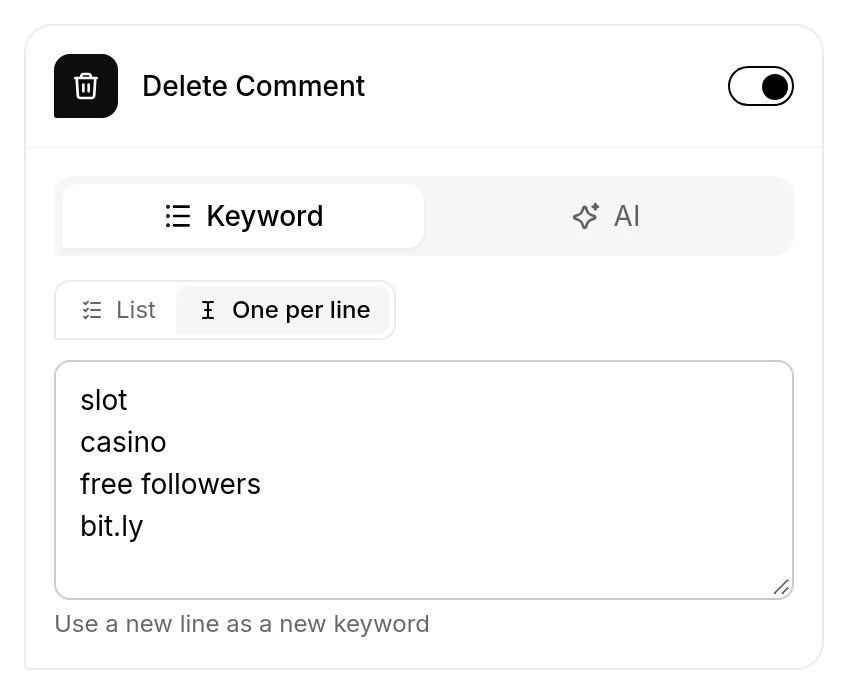
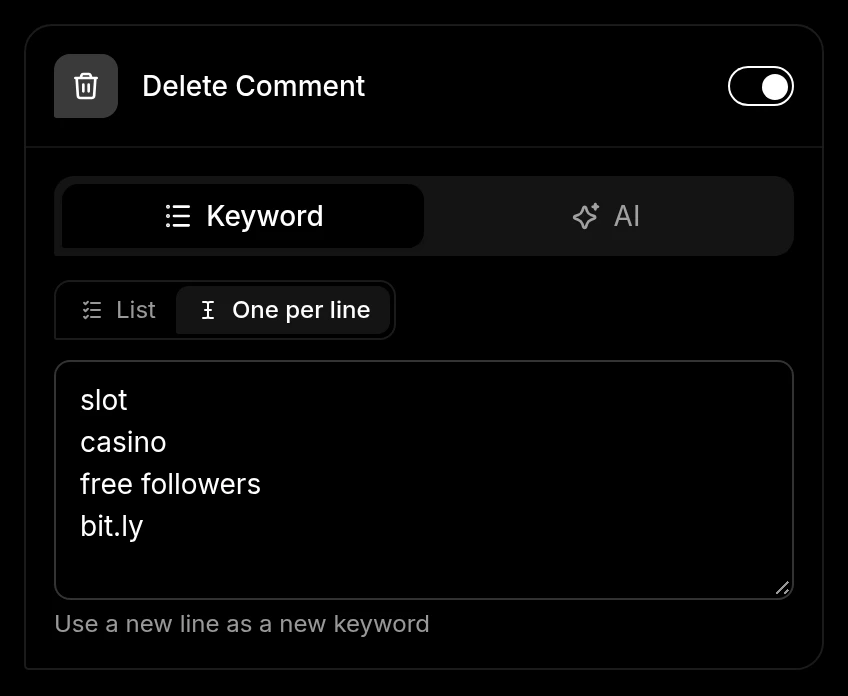
For the keyword buy:
Save a set of automation settings as a template, then apply it from any Set Automation window with Select Template. See Automation Templates.