English
English
Appearance
Connect Repliz to Claude Code, Anthropic's assistant for the terminal and code editors, and manage Repliz from the session you already work in: check new comments, schedule posts, or pull account stats into a report.
Add the server with one command, then sign in to Repliz in your browser.
Already added Repliz on Claude Website?
If you sign in to Claude Code with the same claude.ai account, your Claude Website connectors show up in Claude Code too, with names that start with claude.ai. Run /mcp in Claude Code: if Repliz is listed and connected, you can skip this page.
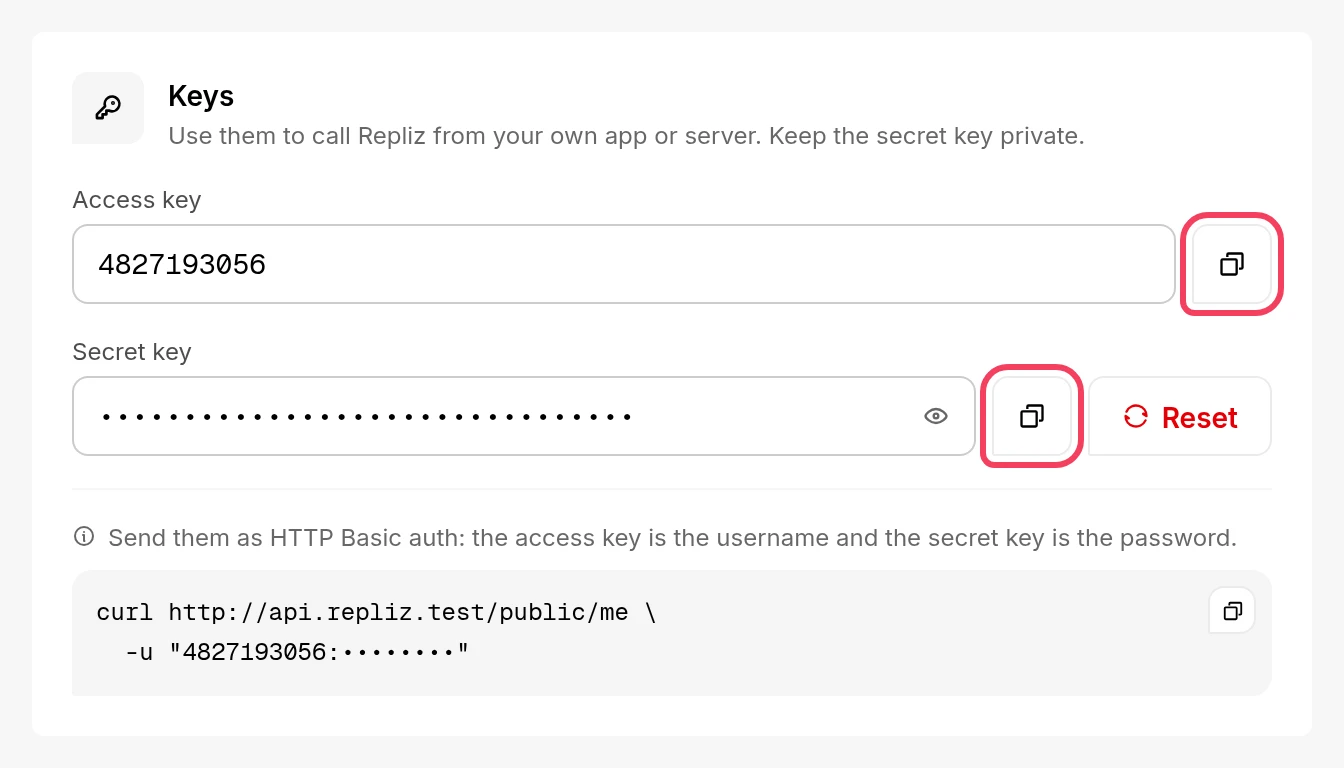
Open Settings → Public API in the Repliz dashboard and copy the Access key and the Secret key. You'll paste them into the Repliz sign-in page in step 3.
Run this in a terminal:
claude mcp add --transport http repliz https://mcp.repliz.com/mcp --scope user--scope user makes Repliz available in every folder you open Claude Code in. Without it, Repliz only works in the current folder.
claude and run /mcp./mcp shows Repliz as connected.If the browser doesn't open, copy the URL that Claude Code shows and open it yourself. On a machine without a browser, such as over SSH, run claude mcp login repliz instead: it prints the URL to open elsewhere. If the browser shows a connection error after you click Connect, copy the full address from its address bar and paste it into the prompt in Claude Code.
claude mcp listRepliz should show as connected:
repliz: https://mcp.repliz.com/mcp (HTTP) - ✔ ConnectedThen start claude and ask something, for example "Show my connected Repliz accounts." Claude Code asks before it runs a Repliz tool. For more ideas, see the usage examples.
To give everyone who works in a project the same server, put it in a .mcp.json file at the project's root:
{
  "mcpServers": {
    "repliz": {
      "type": "http",
      "url": "https://mcp.repliz.com/mcp"
    }
  }
}
The file holds no keys, so it is safe to commit. The first time someone starts claude in the project, Claude Code asks them to approve the servers in .mcp.json; each person then signs in with their own keys from /mcp, as in step 3.
Where nobody can sign in through a browser, such as in CI, Claude Code can send your keys in the Authorization header instead.
Make the header value: Basic, a space, and your AccessKey:SecretKey encoded in base64. Paste both keys below and copy the result.
Paste both keys to get the value.Worked out in your browser. Your keys are not sent anywhere.
Add the server with the header. Replace Basic YOUR_VALUE with the whole value from step 1, keeping the quotes:
claude mcp add --transport http repliz https://mcp.repliz.com/mcp --scope user --header "Authorization: Basic YOUR_VALUE"Claude Code confirms it and hides the key:
Added HTTP MCP server repliz with URL: https://mcp.repliz.com/mcp to user config
Headers: {
  "Authorization": "[REDACTED]"
}
File modified: /home/you/.claude.json
In a shared .mcp.json, read the value from an environment variable instead of writing it into the file:
{
  "mcpServers": {
    "repliz": {
      "type": "http",
      "url": "https://mcp.repliz.com/mcp",
      "headers": {
        "Authorization": "${REPLIZ_AUTHORIZATION}"
      }
    }
  }
}export REPLIZ_AUTHORIZATION="Basic YOUR_VALUE"Never commit the key
Anyone who can read the repository could use a key written into .mcp.json. Commit only the ${REPLIZ_AUTHORIZATION} placeholder.
Some Repliz tools change things: they reply to comments, send DMs, schedule posts, and delete. To stop Claude Code from ever running a tool, add it to permissions.deny in your settings file, ~/.claude/settings.json. Repliz tools are named mcp__repliz__ followed by the tool's name:
{
  "permissions": {
    "deny": ["mcp__repliz__repliz_delete_account", "mcp__repliz__repliz_delete_content"]
  }
}
Comments and messages from strangers can carry instructions aimed at Claude, so read what it proposes before you approve a reply, a DM, or a deletion.
The sign-in page says Repliz didn't accept the keys. Copy both keys again from Settings → Public API. If the Secret Key was reset, only the new one works.
Claude Code asks you to sign in to Repliz again. This happens after the Secret Key is reset, or when Repliz hasn't been used for 30 days. Run /mcp, select repliz, and sign in again. To sign out, choose Clear authentication there, or run claude mcp logout repliz.
Server rejected the configured Authorization header (HTTP 401). This comes from the header alternative: Repliz didn't accept the keys. Check that the value starts with Basic and a space, and that the secret key hasn't been reset since you copied it. To change the value, remove the server and add it again:
claude mcp remove repliz -s userClaude says a tool isn't on your plan. The tools follow your Repliz plan. See Available tools for which plan each group needs.