English
English
Appearance
Connect Repliz to Claude at claude.ai and manage Repliz from the chat in plain language: ask Claude to list the comments waiting for a reply, answer them, schedule a post, or check an account's stats.
The Claude pictures are illustrations
The pictures of Claude on this page are drawn from Anthropic's own guide, with Claude in English. The dialog looks a little different from one account to another, so look for the same labels even if they sit elsewhere.
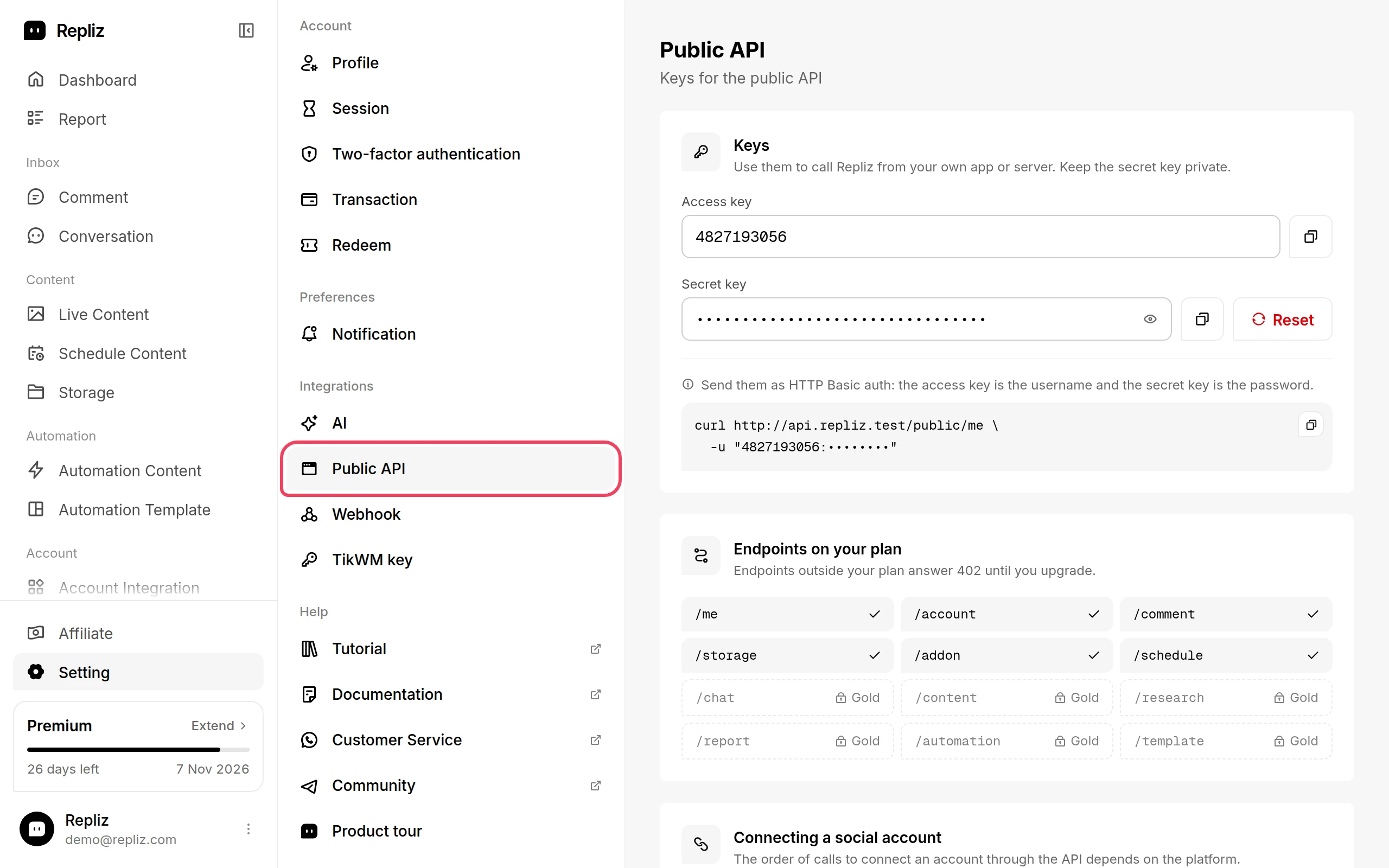
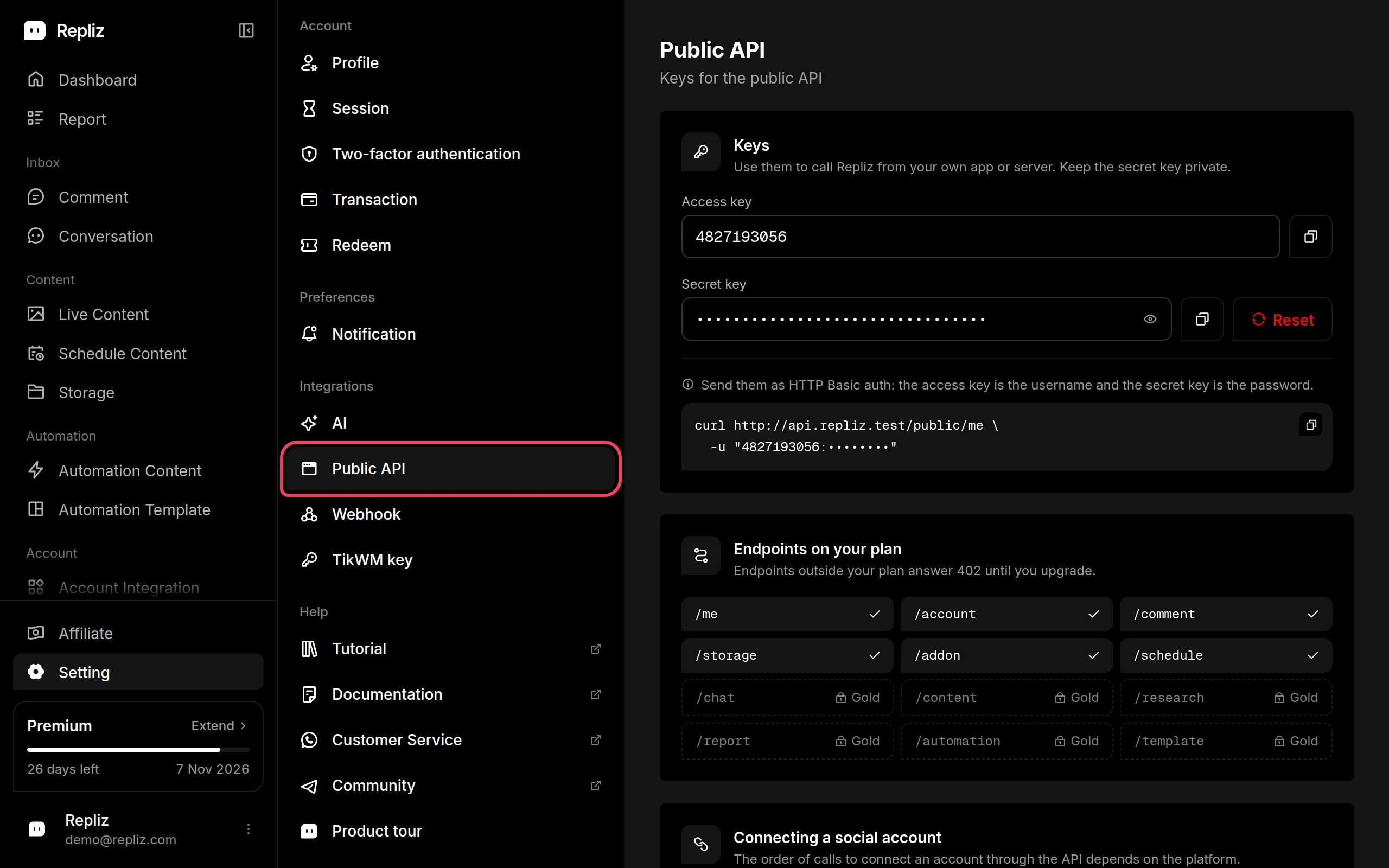
Open Settings → Public API in the Repliz dashboard. It's under Integrations in the settings menu.
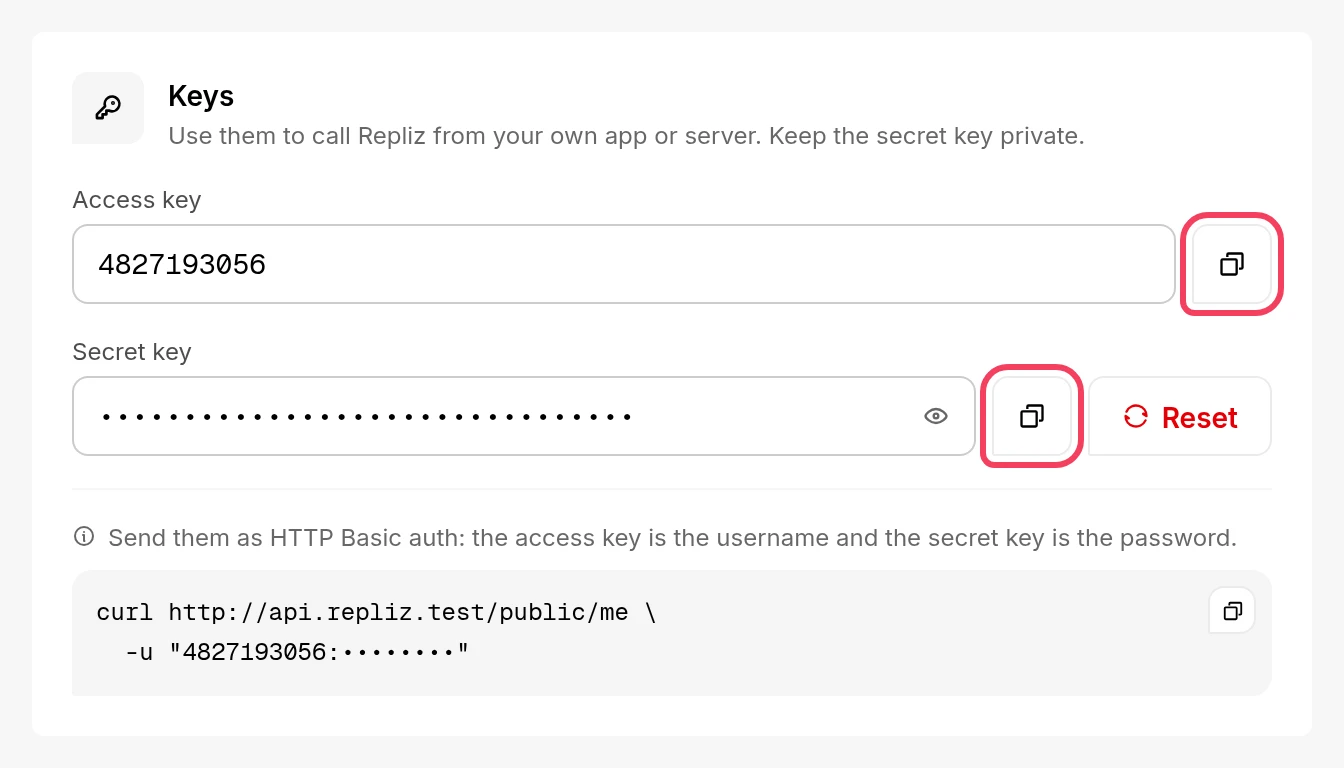
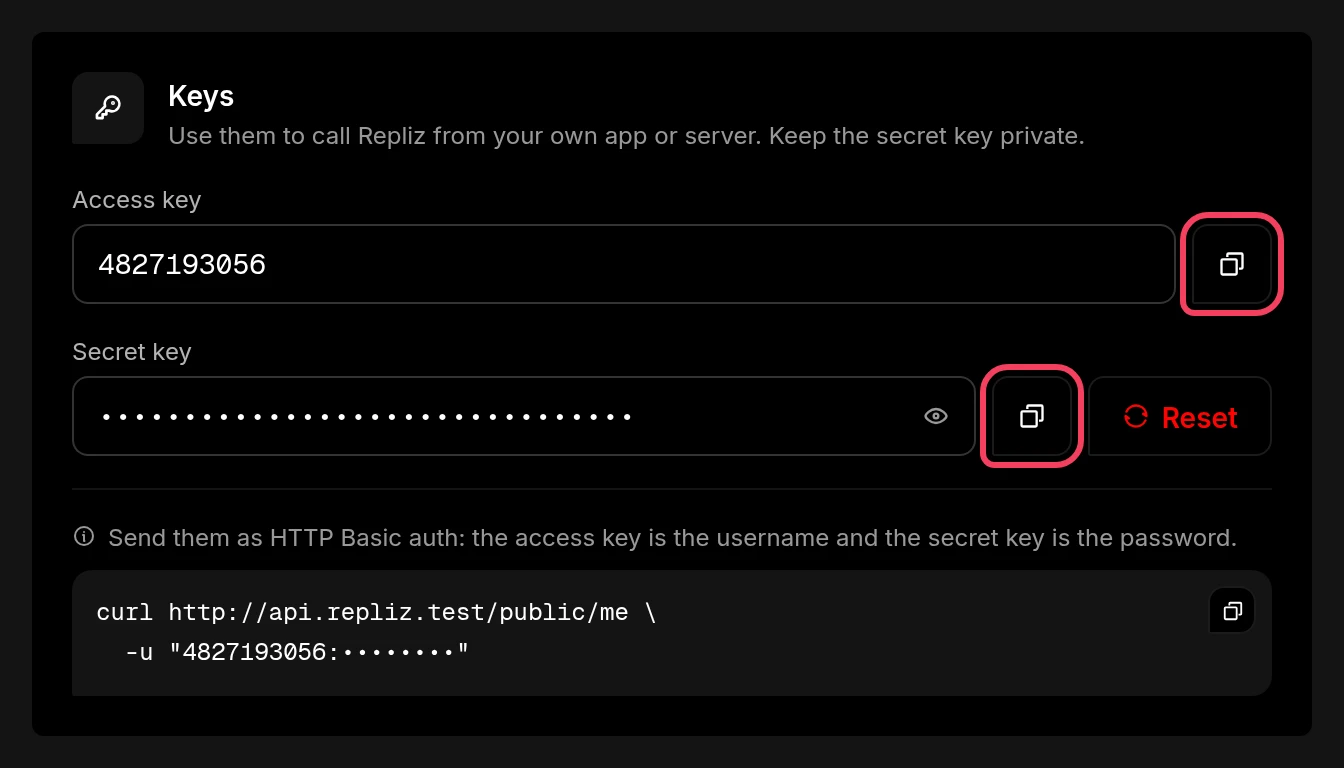
Copy the Access key and the Secret key with the copy button next to each. You'll paste them into the Repliz sign-in page in step 3.
Keep the keys private
Anyone with both keys can act on your Repliz workspace. Don't share them or paste them anywhere other than the Repliz sign-in page.
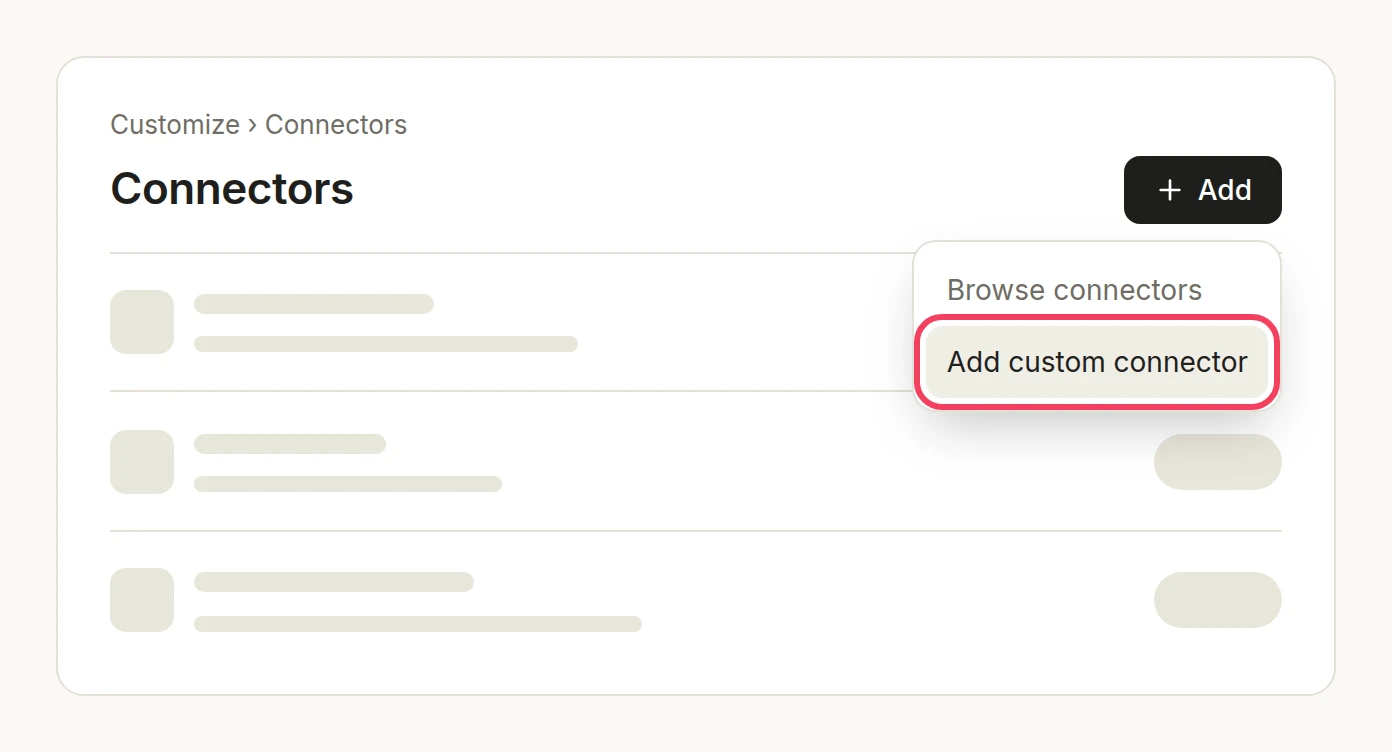
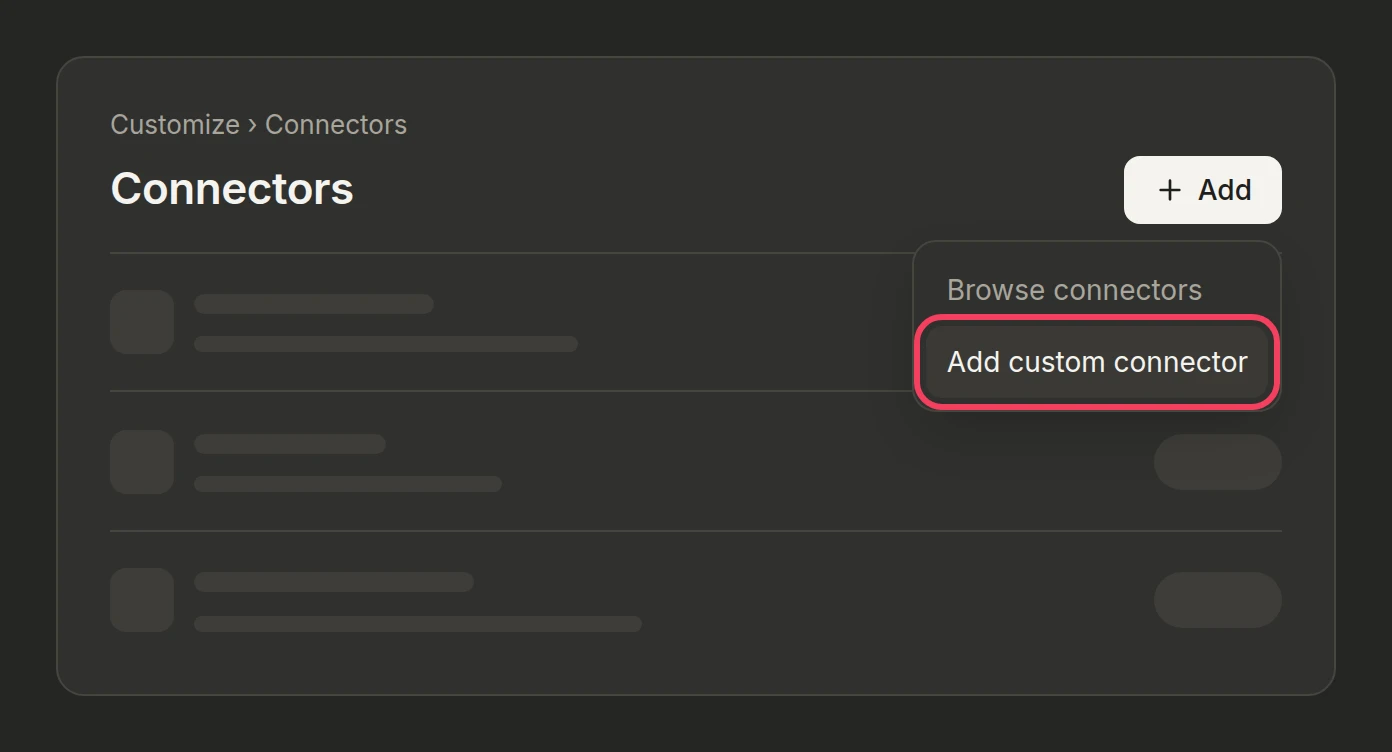
In Claude, open Customize → Connectors, click + Add, and choose Add custom connector.
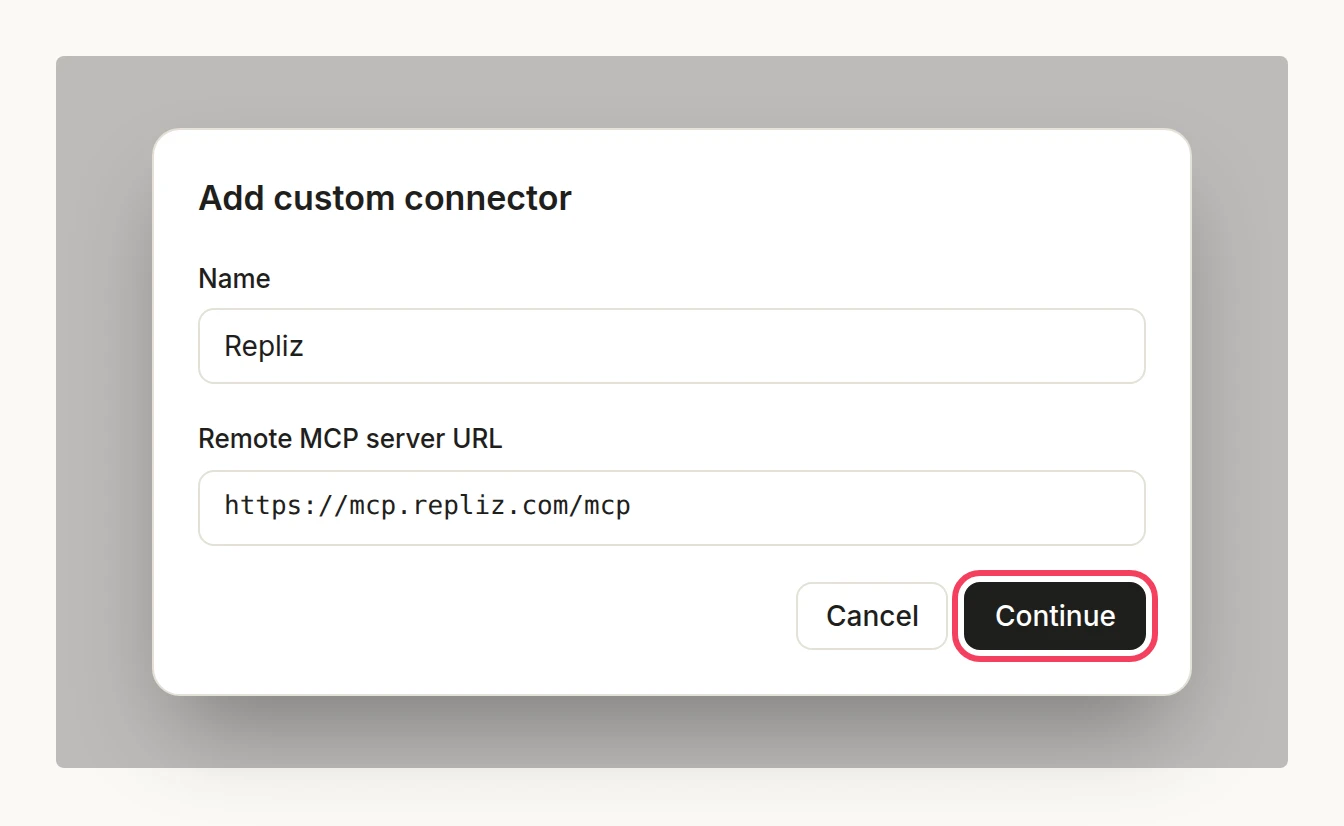
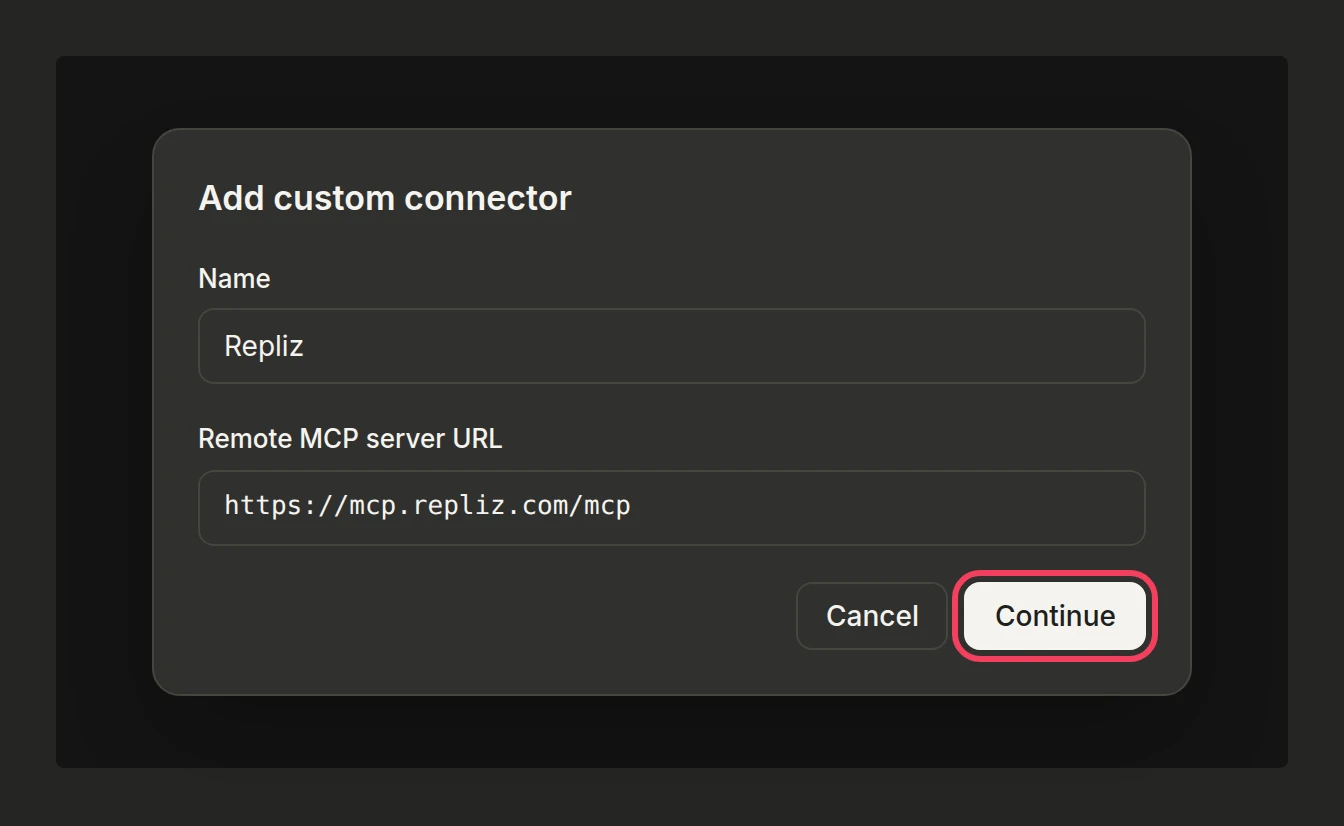
Enter Repliz as the Name and https://mcp.repliz.com/mcp as the Remote MCP server URL, then click Continue.
Under Authentication, choose Sign in now. Under OAuth client, keep Use Claude's published identity. Then click Add.
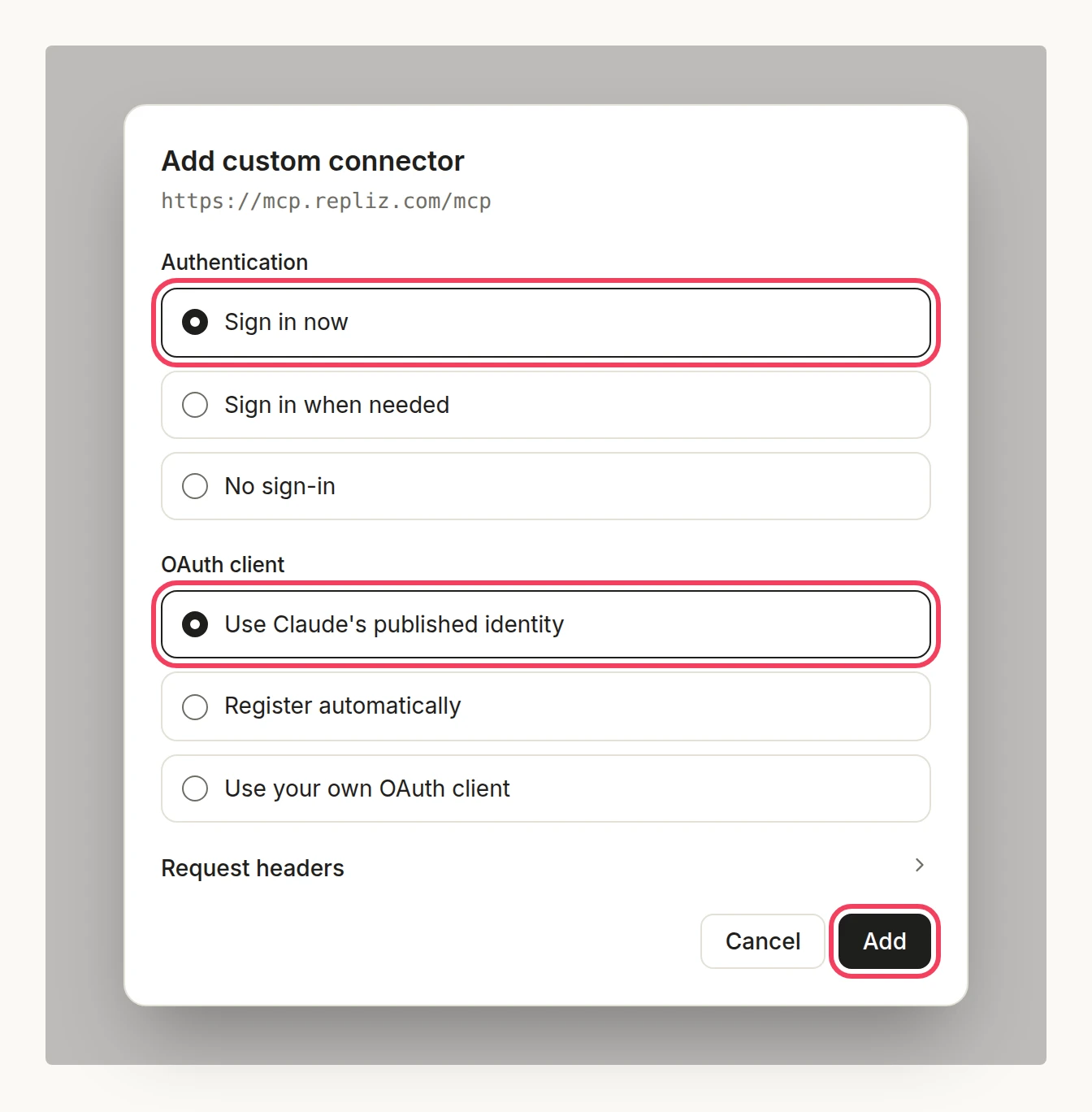
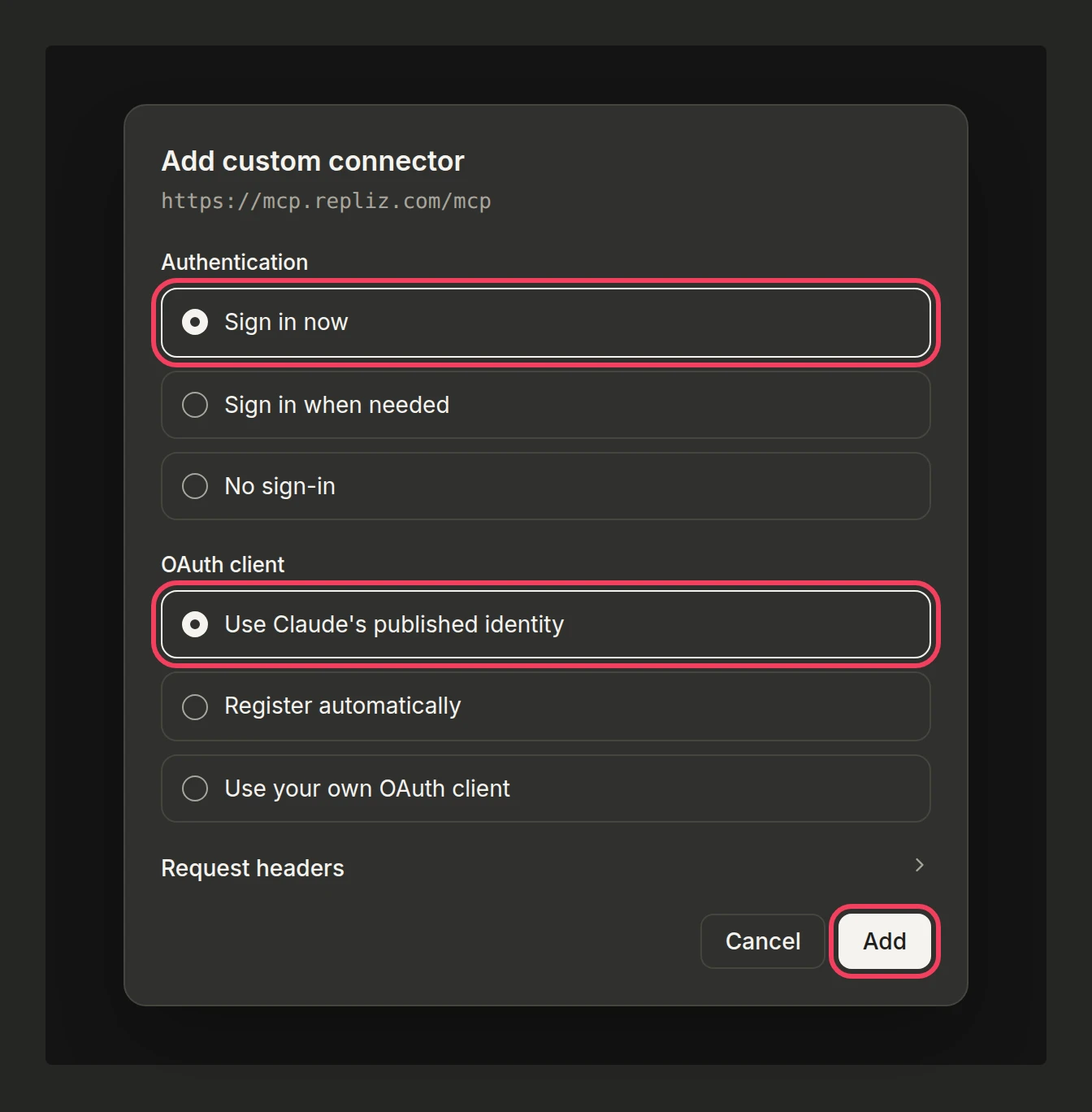
A different dialog?
Register automatically works too. If your dialog shows the name, the URL, and Advanced settings on one screen instead, fill in the name and the URL, leave Advanced settings empty, and click Add.
Claude opens the Repliz sign-in page in a new window. If it doesn't, click Connect next to Repliz in Customize → Connectors.
Paste your Access Key and Secret Key, and click Connect.
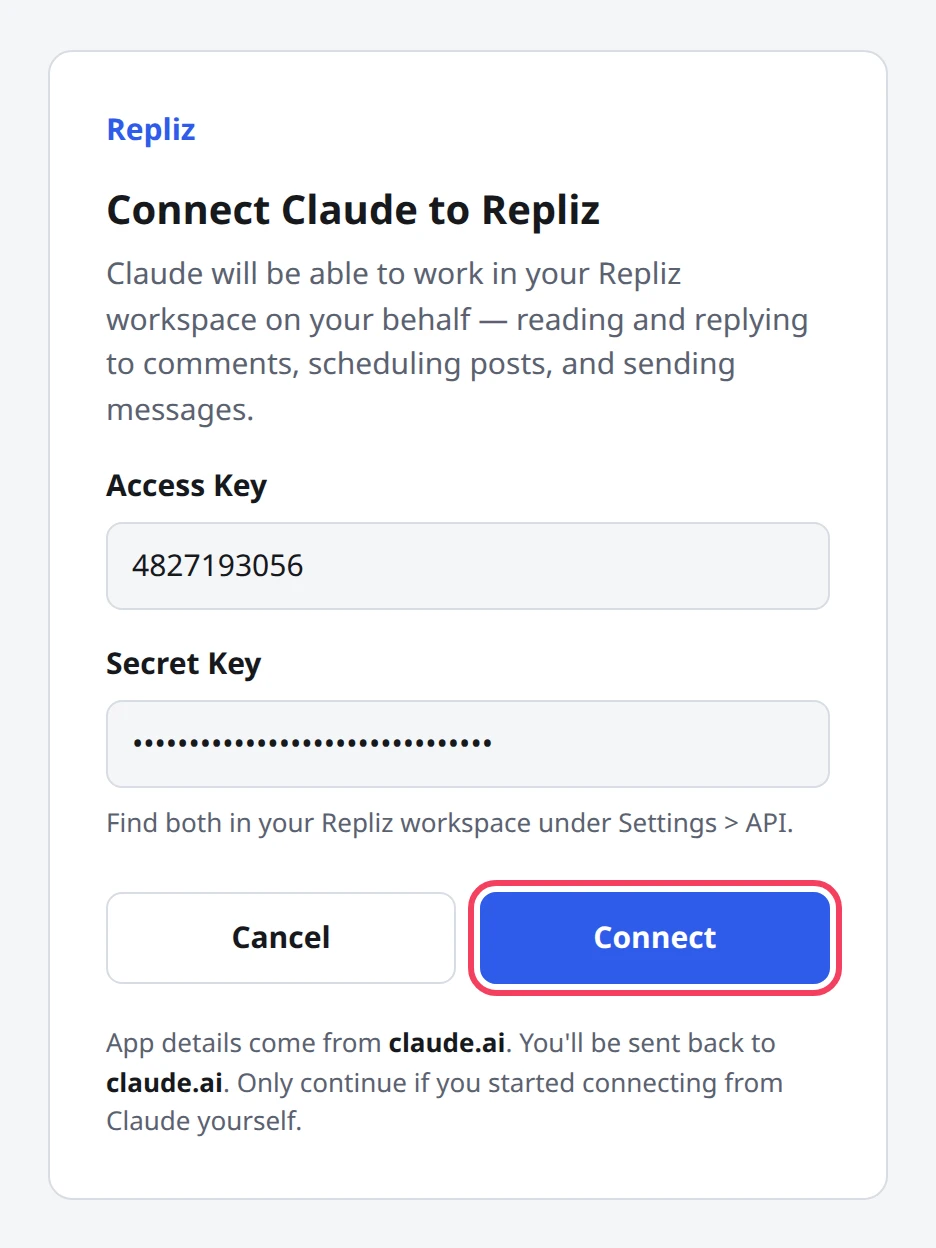
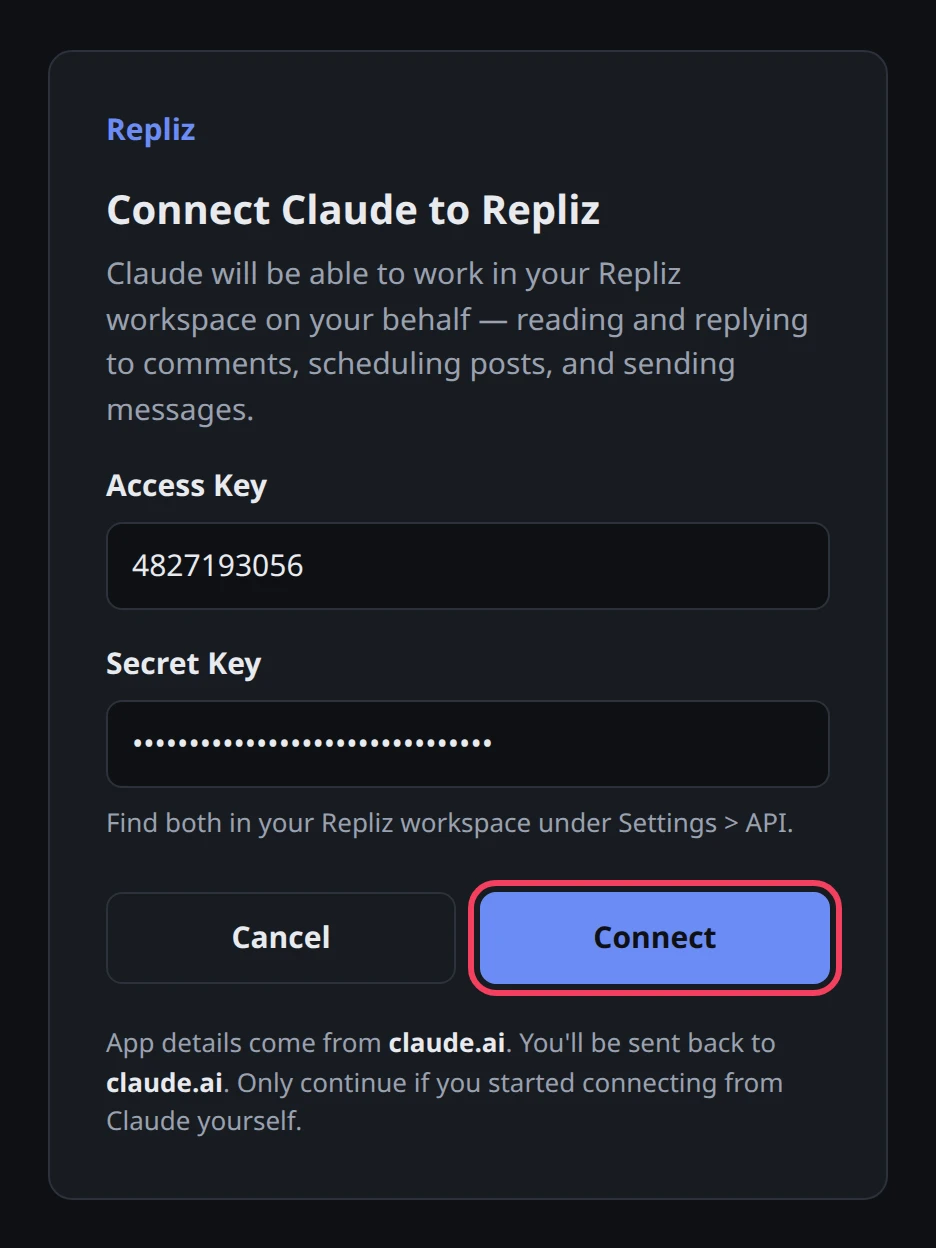
Repliz checks the keys and sends you back to Claude, where Repliz now shows as connected.
The sign-in page says where it will send you back. For Claude it is claude.ai; if it names any other address, click Cancel.
Start a new chat. Click + in the message box, choose Connectors, and turn Repliz on.
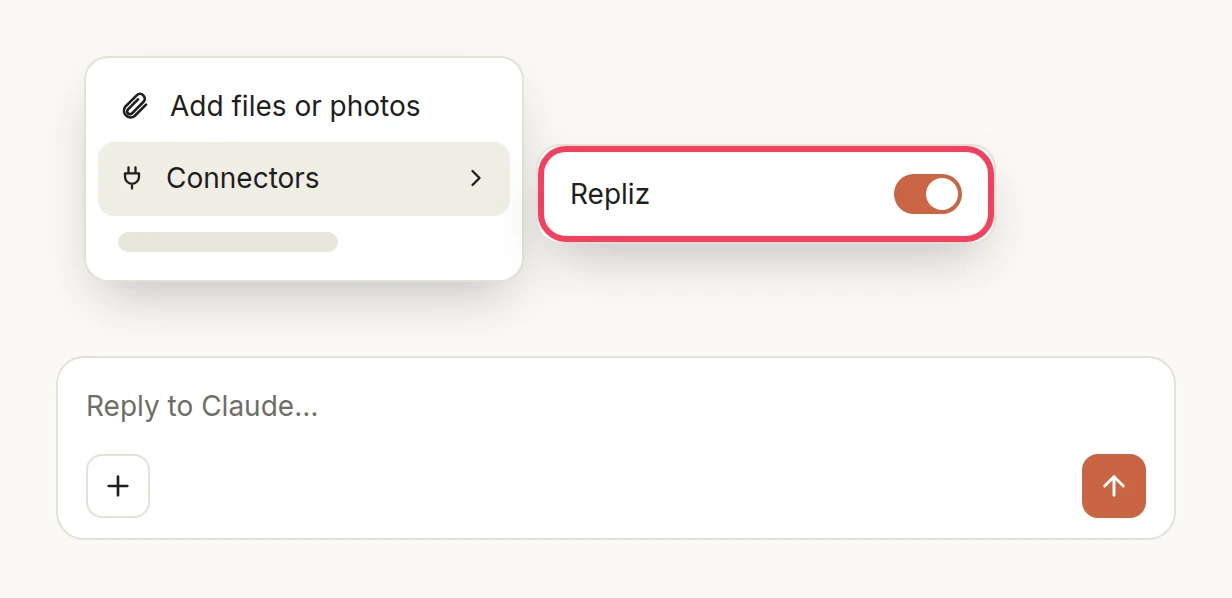
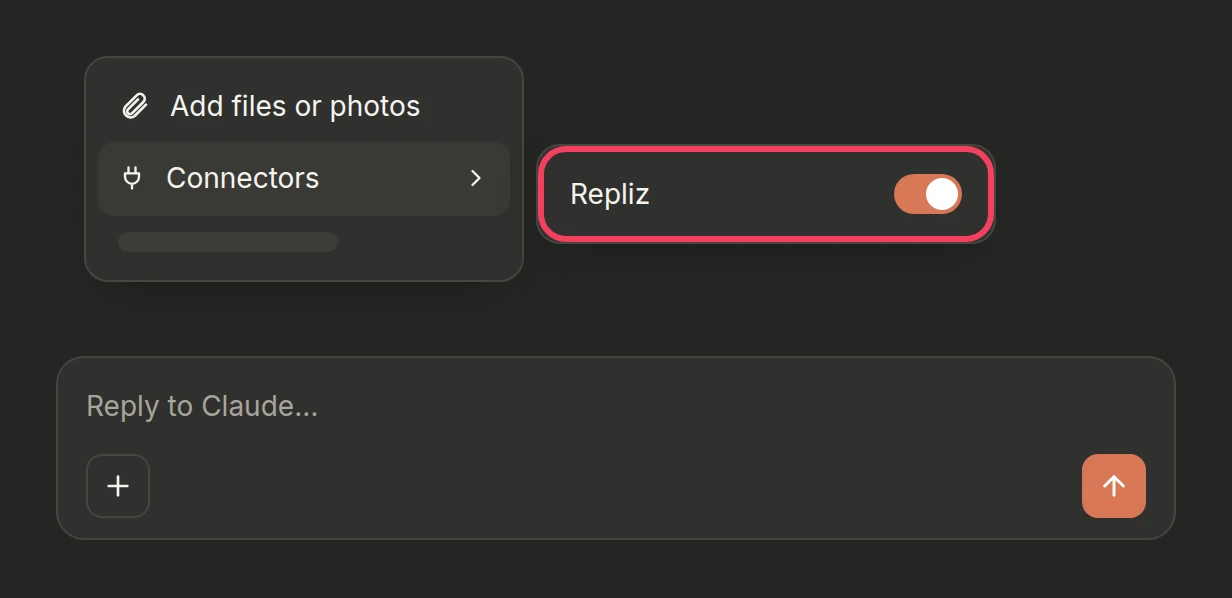
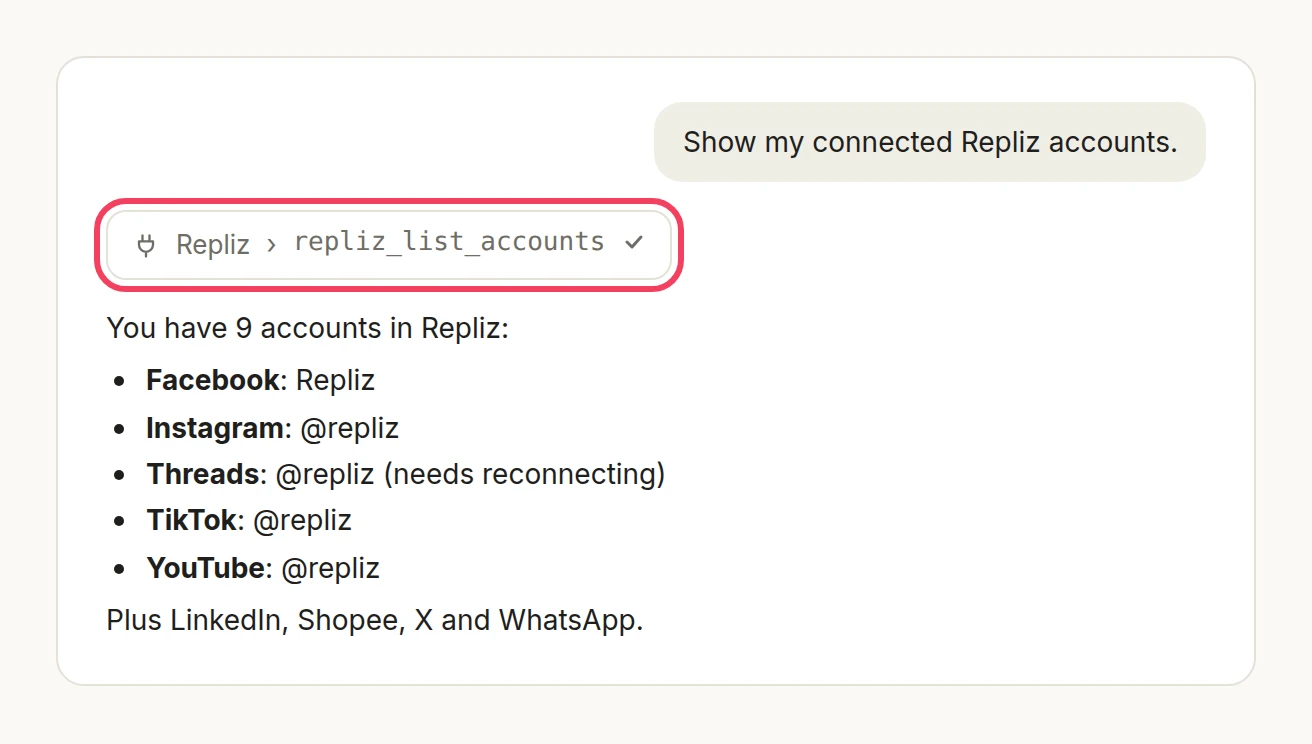
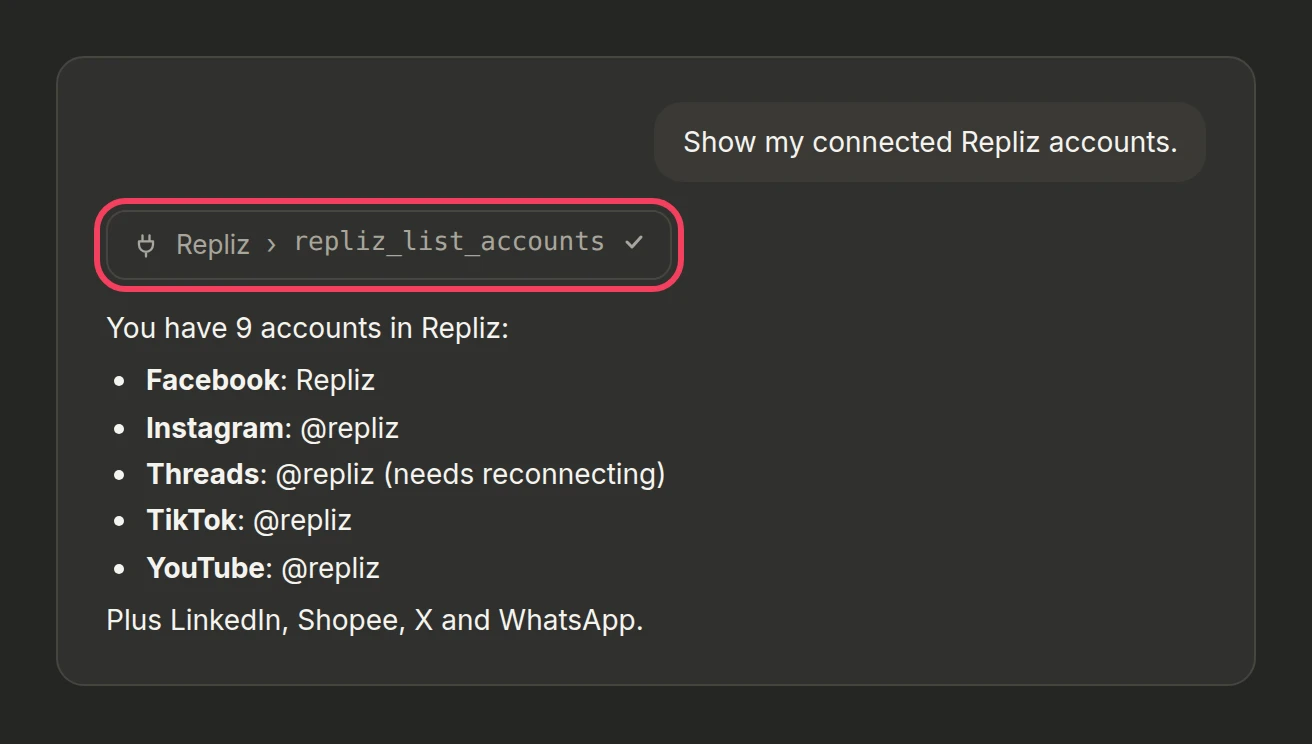
Ask something, for example "Show my connected Repliz accounts."
Claude asks before it runs a Repliz tool. Check which tool it wants to run, then allow it. Claude then answers with your data.
For more ideas, see the usage examples.
Some Repliz tools change things: they reply to comments, send DMs, schedule posts, and delete. In Customize → Connectors, select Repliz to set a permission for each tool. Set the ones you don't need, such as repliz_delete_account or repliz_delete_content, to Blocked.
Choose Always allow only for tools you trust to run without asking, such as the ones that only read. Comments and messages from strangers can carry instructions aimed at Claude, so read what it proposes before you approve a reply, a DM, or a deletion.
On Team and Enterprise, an Owner adds the connector for the whole organization, and each member signs in with their own Repliz keys:
Each member then works in the Repliz workspace of the keys they signed in with. For a team that shares one workspace, everyone signs in with that workspace's keys, or the Owner saves them once as a request header.
Instead of a sign-in, Claude can send your keys in an authorization request header on every request. This suits a Team or Enterprise Owner who wants every member to use one key pair. Request headers are in beta and only some Claude accounts have them so far.
Make the header value. It is Basic, a space, and then your AccessKey:SecretKey encoded in base64. Paste both keys below and copy the result.
Paste both keys to get the value.Worked out in your browser. Your keys are not sent anywhere.
In a terminal on macOS or Linux, put your own keys in place of ACCESS_KEY and SECRET_KEY:
echo -n 'ACCESS_KEY:SECRET_KEY' | base64Then put Basic (with the space) in front of the result.
Add the connector as in step 2, but under Authentication choose No sign-in.
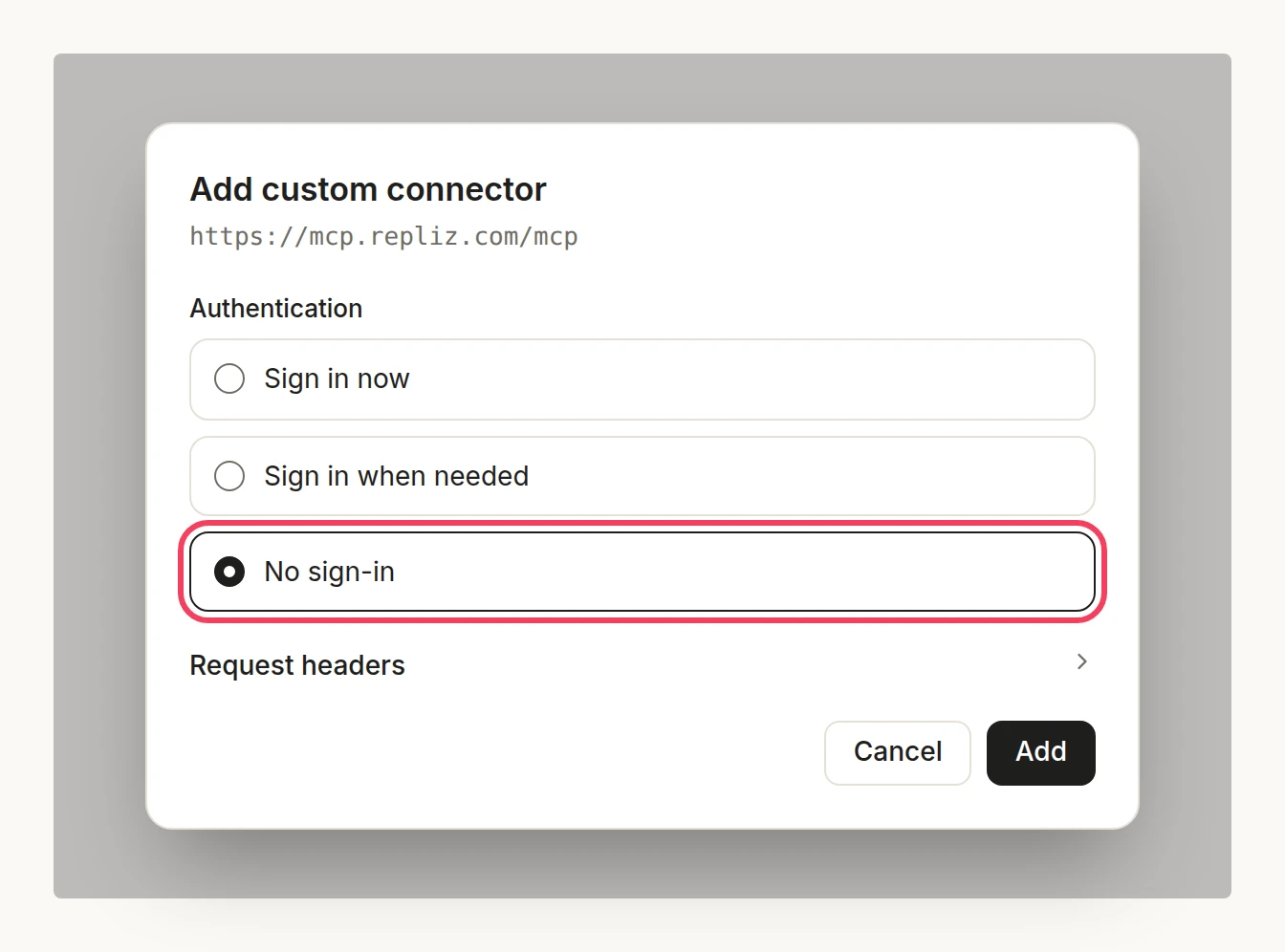
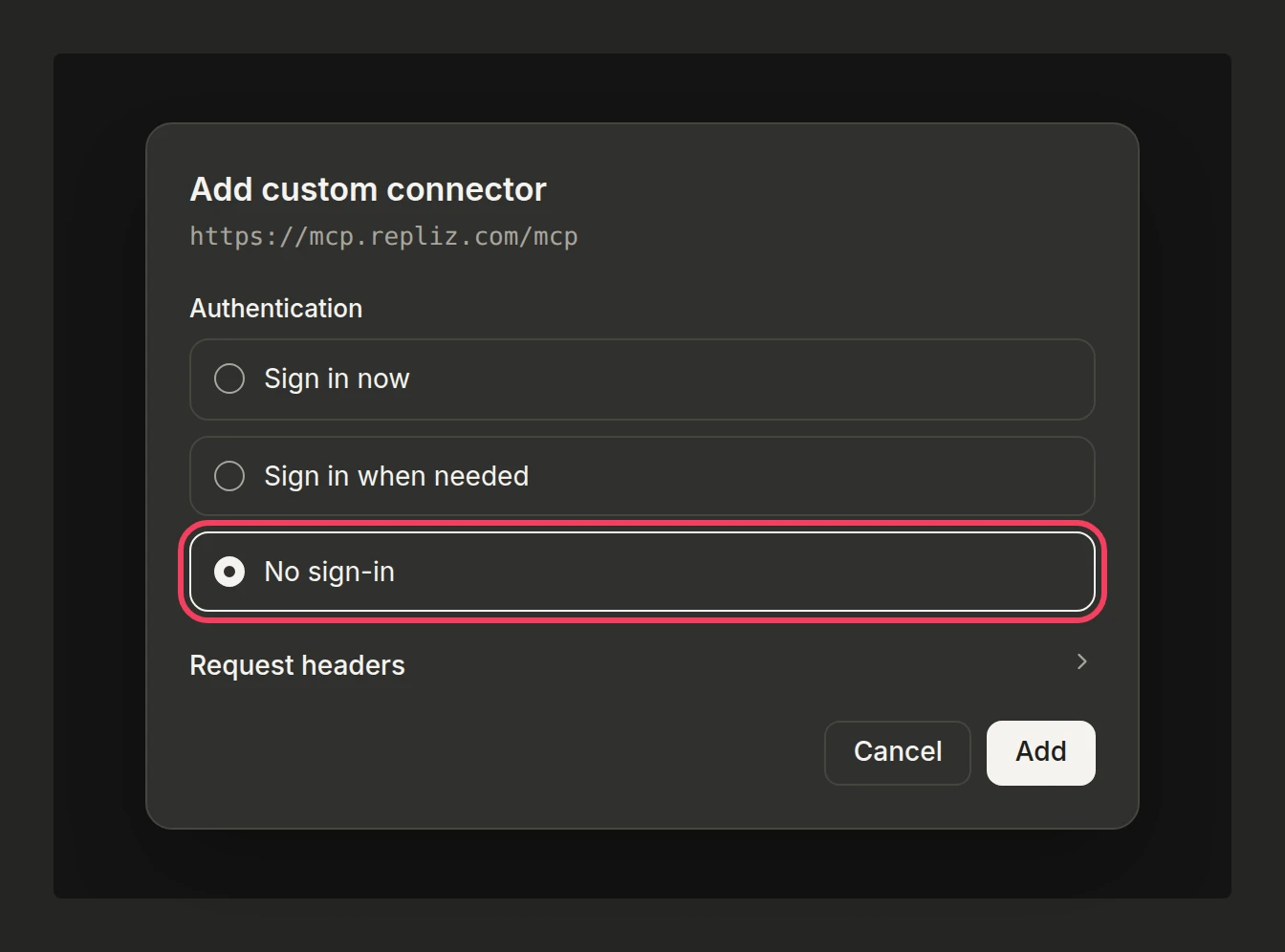
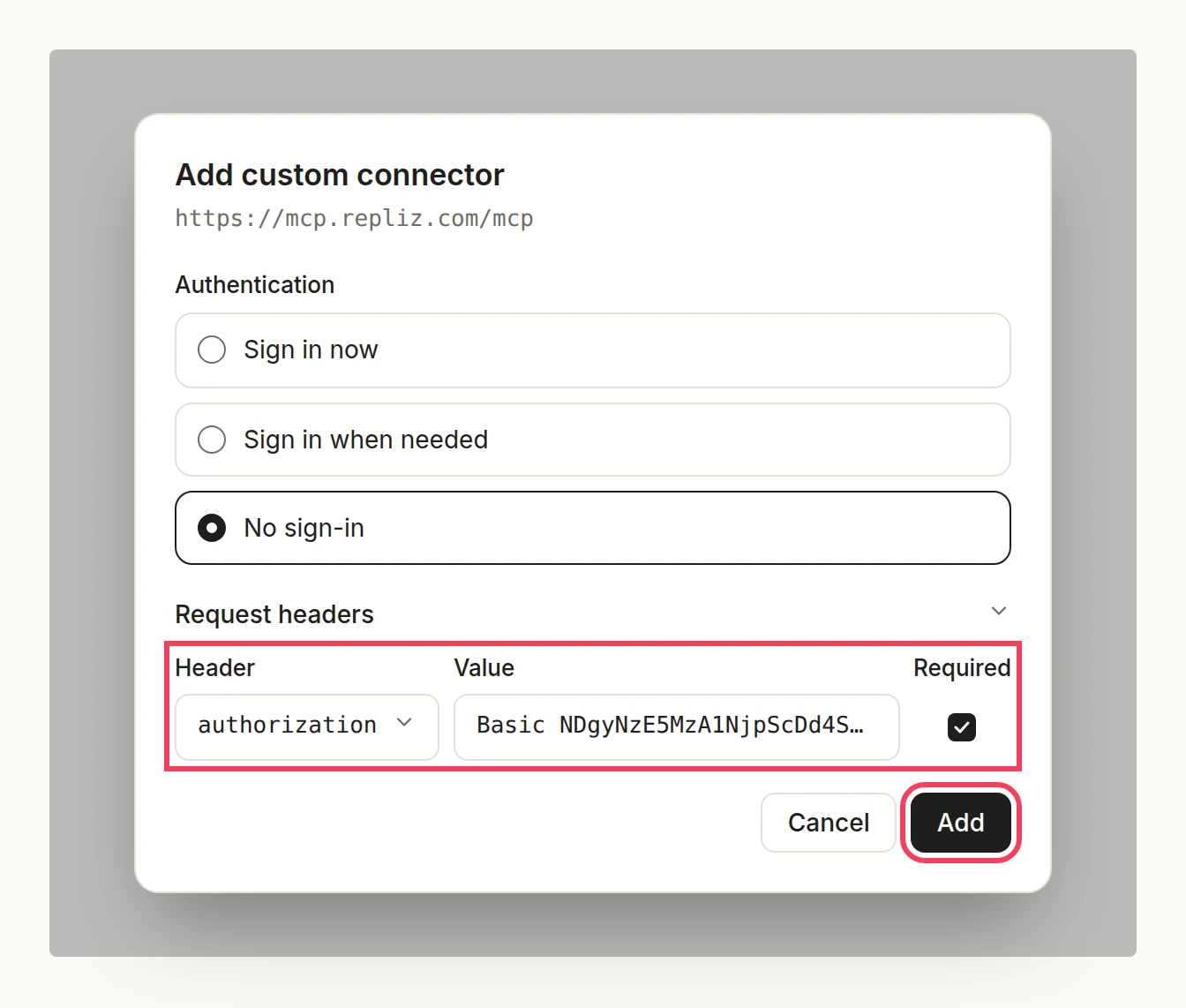
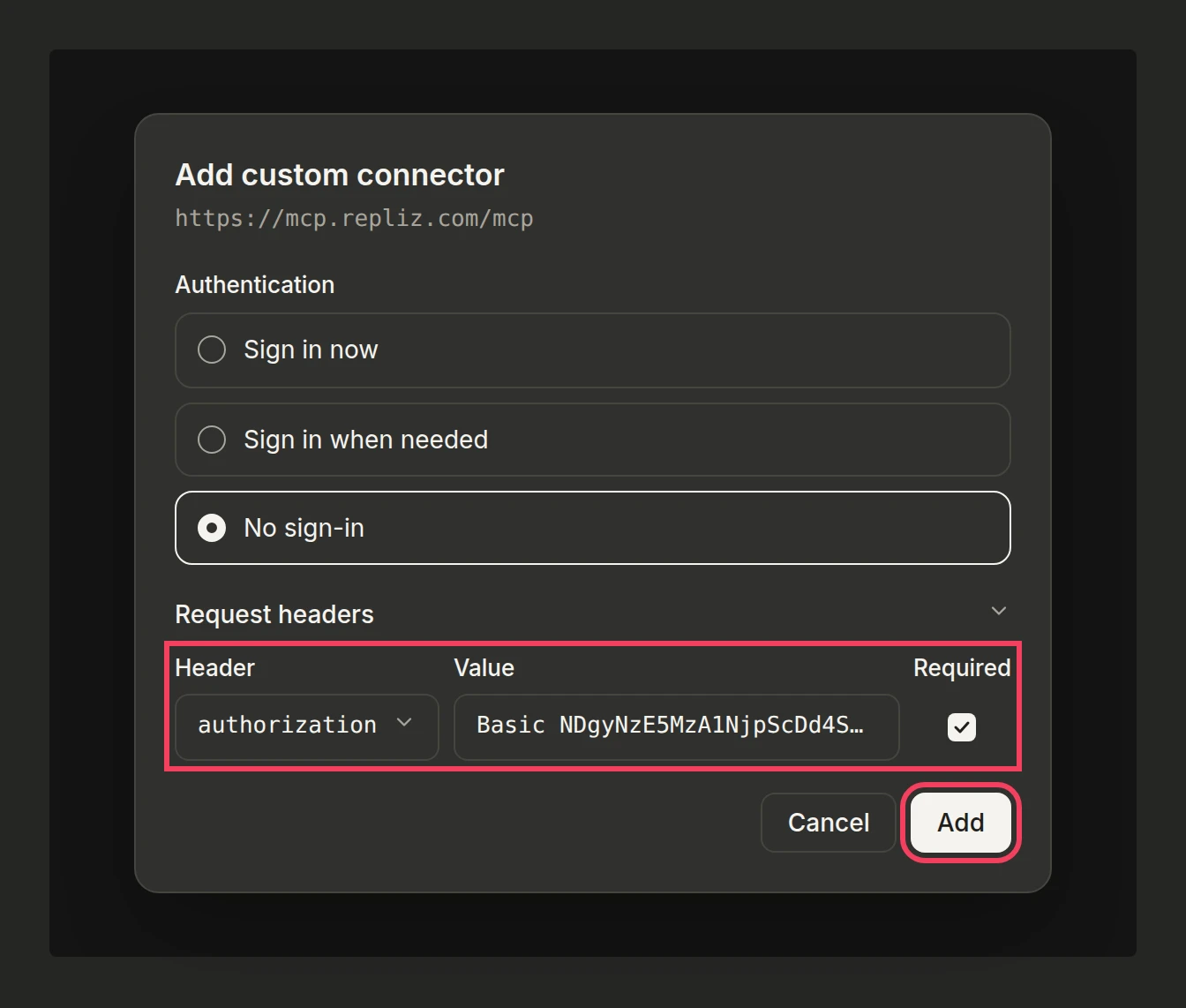
Open Request headers and add one header:
authorization from the list.Basic .Click Add.
One key pair for everyone
When an Owner saves the header, every member who uses the connector sends the same keys. Everyone therefore works in that one Repliz workspace, with the right to reply, schedule, and delete. Only use keys whose workspace every member may use.
The sign-in page says Repliz didn't accept the keys. Copy both keys again from Settings → Public API. If the Secret Key was reset, only the new one works.
The sign-in page says the link has expired. The page stays valid for 15 minutes. Go back to Claude and click Connect again.
Claude asks you to sign in to Repliz again. This happens after the Secret Key is reset, or when the connector hasn't been used for 30 days. Sign in again with your current keys.
Claude says a tool isn't on your plan. The tools follow your Repliz plan. See Available tools for which plan each group needs.
There is no Request headers section. Your Claude account doesn't have the beta yet. Sign in with Repliz instead, as in step 2.
Claude rejects the header name. Claude only sends header names that Anthropic has approved. Choose authorization from the list instead of typing X-Repliz-Access-Key or X-Repliz-Secret-Key.
The connector doesn't connect, or Claude says it is unauthorized. The header value is usually the cause:
Basic and one space. Claude sends the value exactly as you typed it.AccessKey:SecretKey, joined by a colon with no spaces.Claude can't change the header of a saved connector. Remove the connector in Customize → Connectors and add it again with the new value.